Every block A piece of a page, such as a paragraph, a picture or a button. In WordPress you build a page by putting blocks one after another. can be shown to some visitors and hidden from others. In Gillish Cairnstone this is called Conditional Content.
Add a rule to a block
Select the block in the editor.
In the block sidebar, open the Visibility panel.
Choose Only under certain conditions.
Pick a rule from the list, or type in Show this block when… to find one.
Fill in the details the rule asks for, such as a country or a time window.
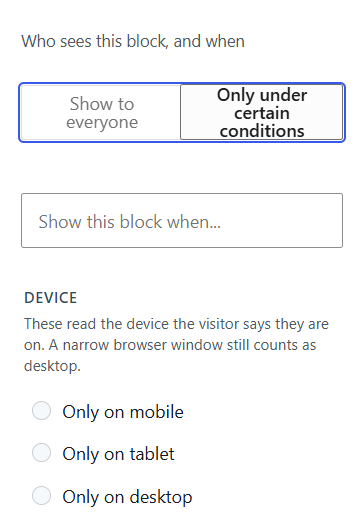
To show the block to everyone again, choose Show to everyone.
The rules you can pick
- Device: only on mobile, tablet or desktop, or on mobile and tablet, or tablet and desktop.
- Audience & auth: only for logged-in or logged-out users, hide from administrators, or show only to administrators.
- Location & time: only in a country, not in a country, only in a list of countries, or only between two times on the visitor’s clock.
- Traffic source: only from a referring site or a UTM source, hide from search engines, or show only to search engines.
- Behaviour: show to first-time, returning or frequent visitors.
A time rule is always decided in the visitor’s browser, the only place that knows their clock.
Need something the list does not cover? Build custom rule opens a rule builder where you combine conditions with AND and OR.
Two of the signals follow what the visitor does on your site. Has sent a form holds the forms the visitor has sent with the Form block: type the form’s name. Has a quiz result holds the quizzes they have finished: type the quiz’s name for any result, quiz-name:result-name for one result, or quiz-name:passed for a test they passed. A block with such a rule appears the moment the form is sent or the quiz is finished, without a reload, and stays on the visitor’s later visits. Because only the browser sees the form or the quiz finish, such a rule is always decided in the browser, unless it also tests whether the visitor is logged in, their role, or search engines.
A field reads a value from the post the block sits on. Choose it as the signal, pick the field under Which field, then is, is not, contains, is greater than or is less than, and type the value. The list holds your text fields from Advanced Custom Fields (ACF), Secure Custom Fields (SCF), Meta Box, Pods, JetEngine and Toolset. A stock count of 0 can hide a buy button. In a Conditional Content block with two variants, it can swap a card for its sold-out look. A field the site does not have reads as unknown, so only is not matches it. With a page cache Saved copies, such as copies of your pages, that make the site load faster. After a change, you may have to clear them before visitors see the new version., a logged-out visitor sees the value from when the page was cached. Saving the post refreshes that page in the common caches, so a value you edit on the post shows at once. A value changed from outside the post, such as a stock sync, waits for the cache to clear. See Fill a block from your page’s fields.
Country rules with Gillish Node
With Gillish Node, Cairnstone knows each visitor’s country. To use country rules, three things must be in place:
Install and activate Gillish Node.
In Gillish Node’s settings, keep its country detection on and choose one of the country sources it offers. See Choose a country source.
Go to Cairnstone → Settings → Integrations and turn on Detect visitor country. The status line there tells you if Node is ready, and links to the place to fix it if it is not.
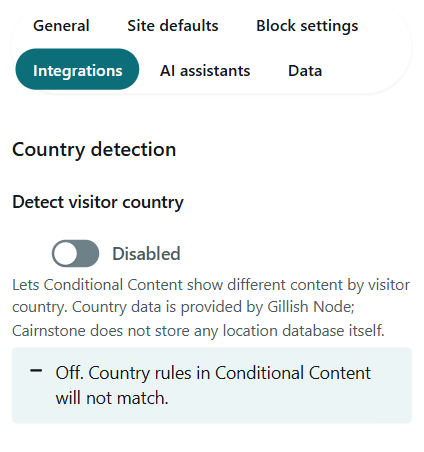
When one of the three is missing and you set a country rule, a short note under the rule says so and links to the right settings. Don’t show this again turns the note off for you, in every block.
Page caching
A rule can be decided in two places:
- In the visitor’s browser. The page carries every variant and the browser picks one after the page loads. This works behind every page cache (LiteSpeed, WP Rocket, W3 Total Cache and the rest), because every visitor gets the same cached page and the choice happens in their browser.
- On the server, before the page is sent. The page holds only the chosen variant, so nothing swaps after it loads. It is right only when there is no page cache, or when the cache keeps a copy per visitor signal: a page cache stores the first visitor’s variant and serves it to everyone.
Under When to apply this visibility rule the panel offers Use site default, After the page loads and Before the page is sent, plus Show this visitor the same result for 30 days. Out of the box the site default is After the page loads.
A block whose rule is decided in the browser shows once the page has loaded, or not at all. Until then it takes no room, so nothing that should not show ever flashes in. It keeps its place in the layout, wide and full alignments included.
Four things stay on the server whatever you choose, because the browser cannot know them: a rule on a field’s value (the post and its fields are on the server), a rule on whether the visitor is logged in, a rule on the visitor’s role (Hide from administrators, Show only to administrators) and a rule on search engines (Hide from search engines, Show only to search engines). So a text meant only for logged-in visitors is not in the page anyone else gets, not even hidden. Page caches normally serve signed-in visitors fresh pages, so a login or role rule stays right behind one.
A visitor without JavaScript, and a search engine that does not run it, never see a block decided in the browser. For content they must see, choose Before the page is sent.
Check what a visitor sees
When a page holds a Conditional Content block, the editor toolbar shows a Preview as menu. Pick a visitor profile, such as a phone user or a logged-in subscriber, and the editor shows the page as that visitor would see it.
Next, read Export and import blocks.