The Discount Banner block A piece of a page, such as a paragraph, a picture or a button. In WordPress you build a page by putting blocks one after another. shows an offer with a heading, a short text and a button, and if you want, a code visitors copy with one click and a last day. See it working on the Discount Banner page.
Add a discount banner
Add the Discount Banner block where you want it, and pick a layout: Bar (full width), Card (in the page) or Floating corner.
Type the heading, the text, the code, the copy hint and the button text on the banner itself.
In the Settings tab, give the button its Button link.
A new banner starts with sample words and no end date. Replace them with your own offer.
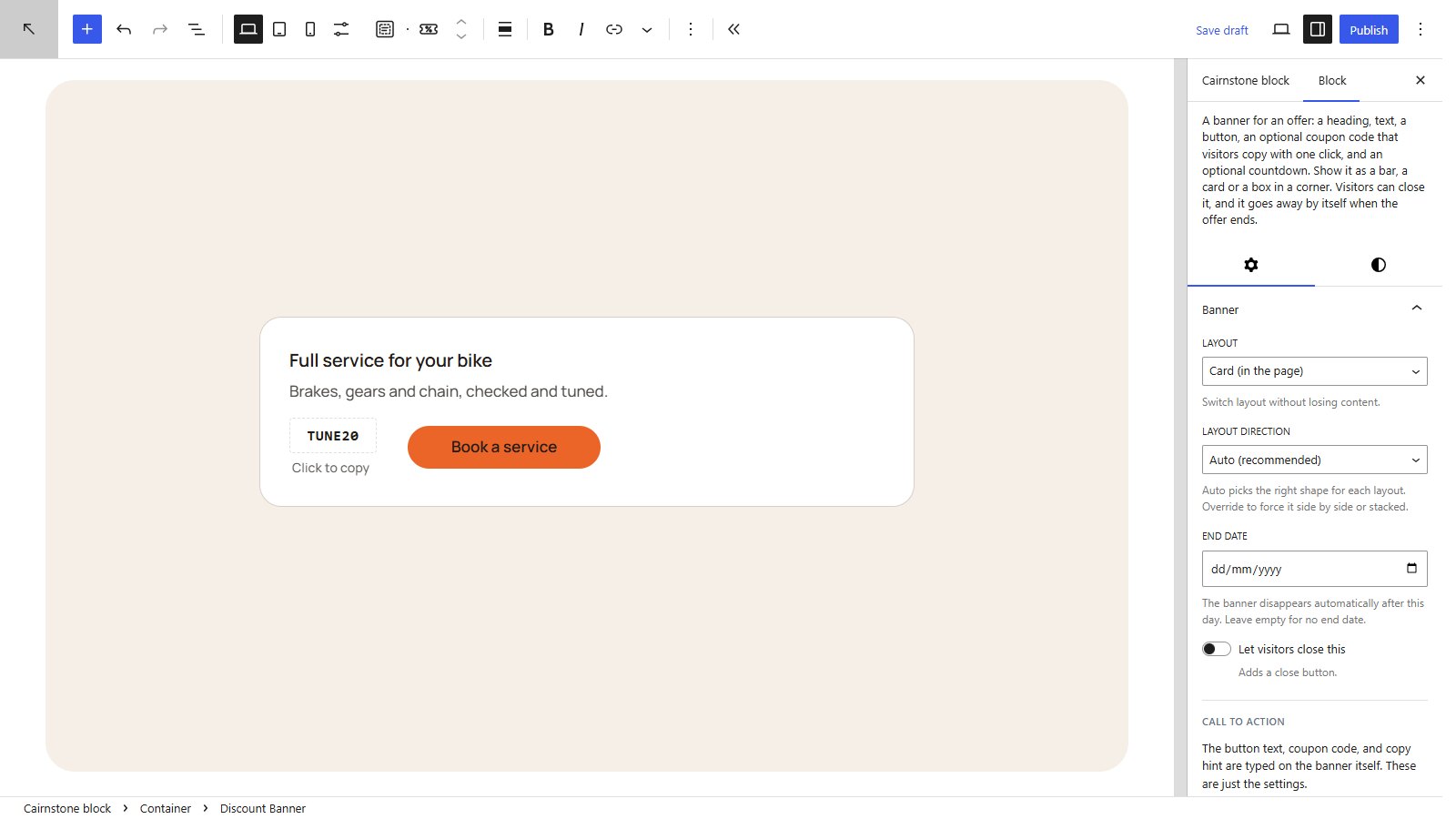
The Banner settings
- Layout: switch between Bar, Card and Floating corner without losing what you typed. Layout direction: Auto (recommended), Side by side or Stacked.
- Corner position, for the Floating corner: Anchor to picks the corner: Bottom right (default), Bottom left, Top right or Top left. In the editor a floating banner stays where you placed it in the content, and a line under it says which corner it floats to on the live page.
- End date: the banner goes away by itself after this day. Leave it empty for no end date.
- Let visitors close this adds a close button. It is on to start, except for the Card.
- Remember once closed (on to start): once a visitor closes the banner, it stays closed on their device until you change the wording, the code or the end date.
- Under Call to action: Button link, where the button goes, a link or a Gillish Node link, and Open in a new tab (off to start).
- Copy hint position: Below the code (default) or Beside the code.
Colours and shape
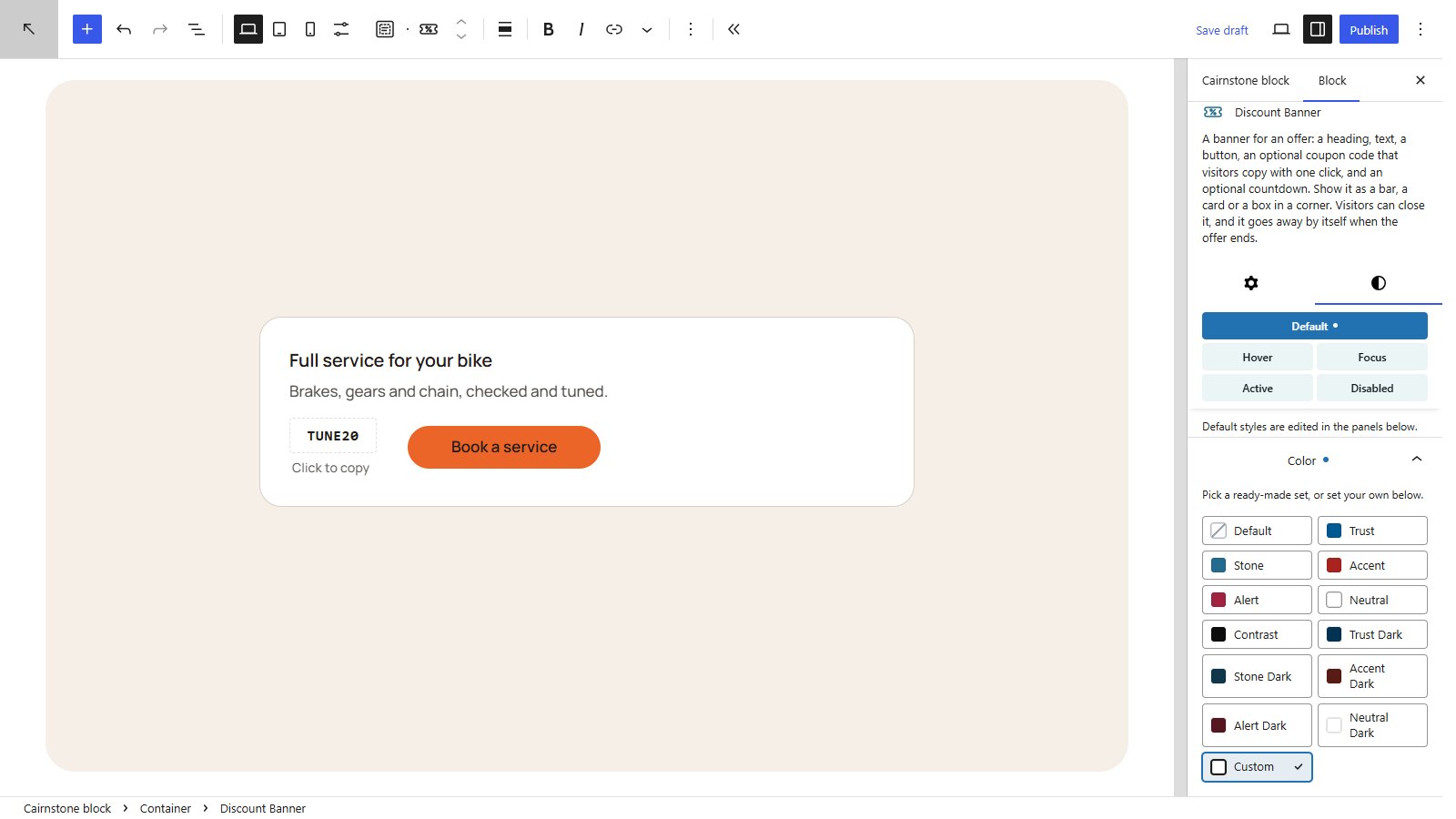
Where you set the look depends on where you edit the block. In a normal post or page, the Styles tab has WordPress’s own controls: colour, typography, padding and margin, and border. In a saved Cairnstone block, under Cairnstone → Blocks, the Styles tab has Cairnstone’s full set: colour (a ready-made set or your own), typography, border, shadow, filters, and size and spacing, each for the normal state and for hover, focus, pressed and switched off.
What visitors get
- Screen readers A program that reads the screen aloud, for people who cannot see it well. They move around the page with the keyboard and hear what is there. name the banner by its heading. The code is a button that copies it, and then shows Copied! in place of the hint.
- The close button is named Close this banner. After a close, the banner stays away when the page is opened again.
- A banner past its end date is not on the page at all.
- On a computer the Floating corner sits in the corner you pick under Corner position, bottom right to start with. On a phone it always sits along the bottom of the screen.
Next, read Answer common questions.