The Callout block A piece of a page, such as a paragraph, a picture or a button. In WordPress you build a page by putting blocks one after another. is a coloured box for a note, a tip, a warning, a success or background information, set apart from the text around it. See it working on the Callout page.
Add a callout
Add the Callout block where you want it. It starts as a Note.
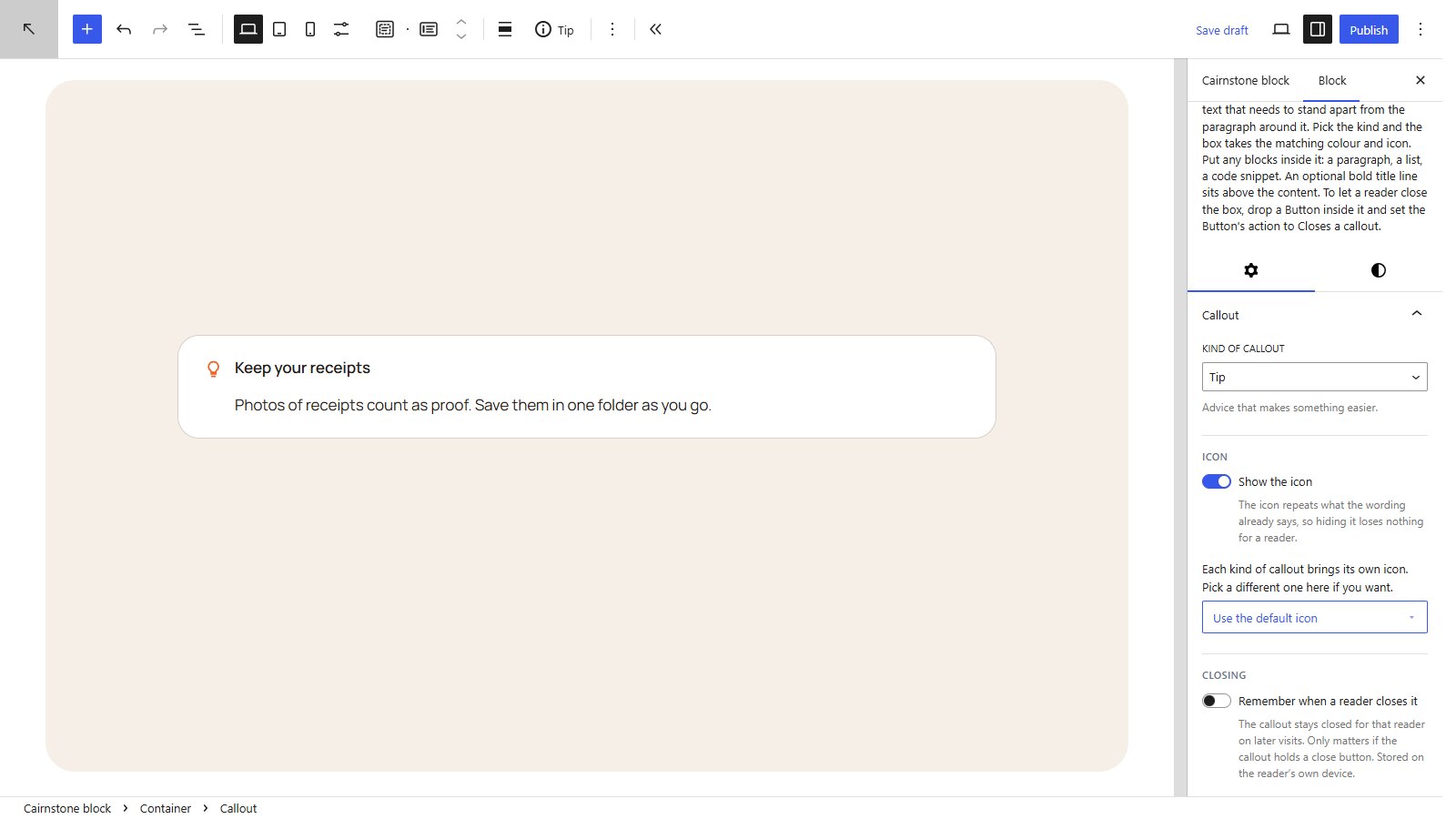
Pick the kind in the toolbar, or under Kind of callout in the Settings tab.
Type a title if you want one, and the text. The inside is ordinary blocks, so you can add a list, an image or a button too.
Kinds of callout
- Note: an aside worth setting apart from the text.
- Tip: advice that makes something easier.
- Warning: something that can go wrong.
- Success: a confirmation that something worked.
- Info: background a reader may want but does not need.
Each kind has its own light colour, border and icon.
Icon and closing
- Show the icon is on to start. The icon repeats what the words already say, so hiding it takes nothing from a reader.
- The icon picker starts at Use the default icon. Pick another one if you want.
- To let a reader close the box, put a Button inside it and set its action to Closes a callout. When it is pressed, the box goes away and the keyboard moves on to what comes next.
- Remember when a reader closes it (off to start) keeps the box closed for that reader on later visits. It is stored as a cookie on the reader’s own device, and only matters when the callout holds a close button.
Colours and shape
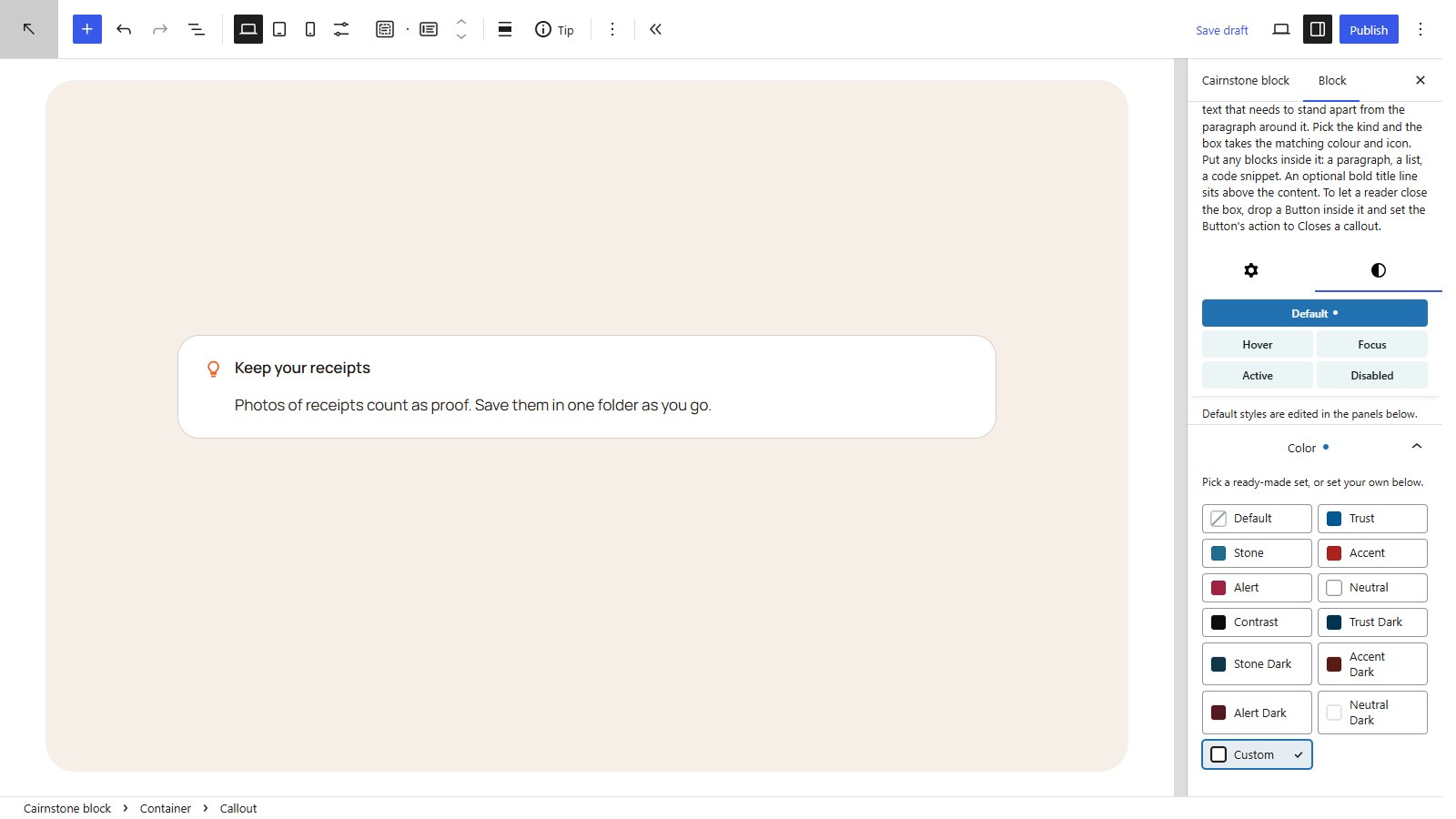
Where you set the look depends on where you edit the block. In a normal post or page, the Styles tab has WordPress’s own controls: colour (text, background and links), typography, padding and margin, and border. In a saved Cairnstone block, under Cairnstone → Blocks, the Styles tab has Cairnstone’s full set: colour (a ready-made set or your own), typography, border, shadow, filters, and size and spacing, each for the normal state and for hover, focus, pressed and switched off.
What visitors get
Screen readers A program that reads the screen aloud, for people who cannot see it well. They move around the page with the keyboard and hear what is there. read the box as a note, and the icon is hidden from them.
Try it: a Tip callout made with the Callout block itself.
Next, read Show cards, quotes or layouts in a carousel.