The Badge block A piece of a page, such as a paragraph, a picture or a button. In WordPress you build a page by putting blocks one after another. is a small label, such as New, Approved, Best Seller or Limited, on its own or as a link. See it working on the Badge page.
Add a badge
Add the Badge block where you want it.
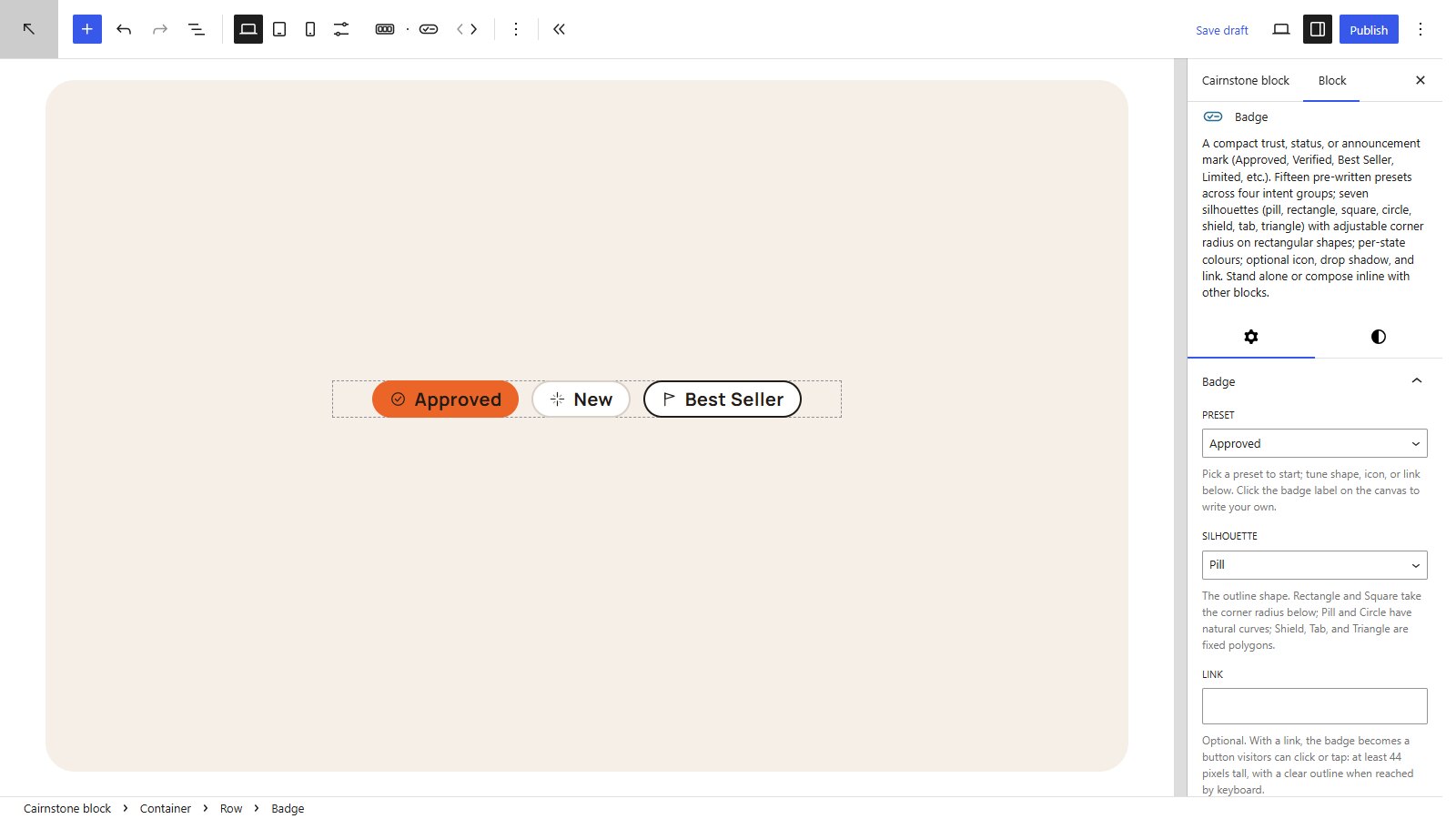
In the Settings tab, pick a Preset.
Click the label in the badge to write your own words.
Until you write your own words, the badge shows the preset’s word, faded in the editor and in full on the page.
Preset, shape and link
- Preset: Approved (the default), Verified, Certified, Secured, New, Featured, Recommended, Editor’s Choice, Best Seller, Most Popular, Top Pick, Limited, Exclusive, Pre-order, Sold Out, or Custom (write your own). Each preset brings its own shape, colour and icon.
- Silhouette: Pill, Rectangle, Square, Circle, Shield, Tab or Triangle. Approved starts on a shield.
- Corner radius: for Rectangle and Square only, from 0 (sharp) to 32 (very round), 4 to start.
- Link: optional. With a link, the badge becomes a link visitors can click or tap, at least 44 pixels tall.
The icon
- Show an icon: on to start. Turn it off for a badge of words alone, such as a distance, a weight or a short tag (9 km, 250 g, Vegan). The badge then shows no icon at all, not even the one that comes with the preset.
- Icon: pick one from the Cairnstone set, type a Dashicon name, or paste your own SVG. Clear it to get back the icon that comes with the preset.
- Or paste an SVG: your SVG is cleaned for safety and used in place of the icon above.
Colours
In a normal post or page, the badge takes its colour from the preset, and the Styles tab has typography only. In a saved Cairnstone block, under Cairnstone → Blocks, the Styles tab adds colour (a ready-made set, or your own background, text and link colour, for each state), border, shadow, filters, and size and spacing.
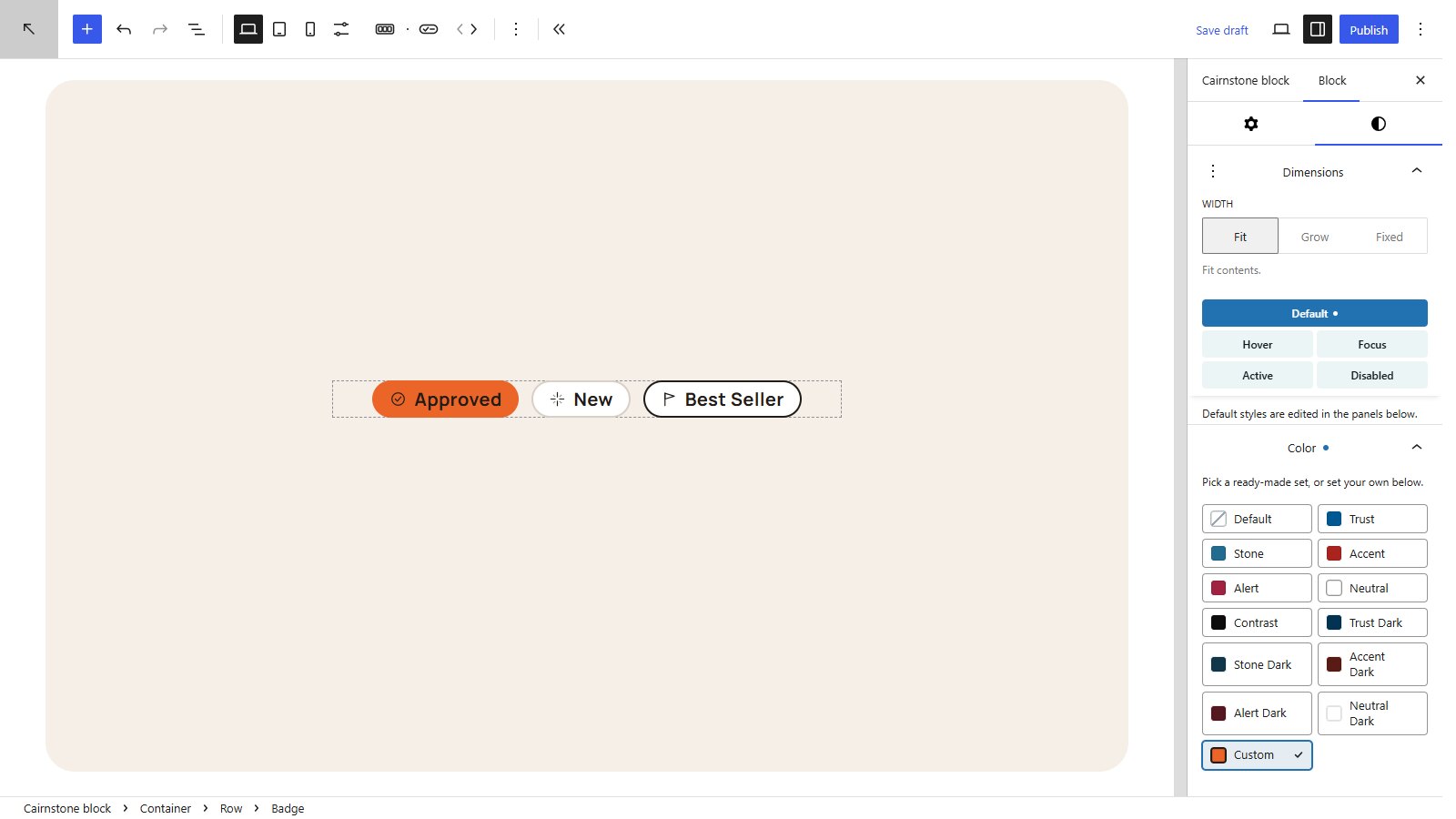
Try them: three presets of the Badge block itself, Approved, New and Best Seller.
Next, read Add a button that links or acts.