The Table block A piece of a page, such as a paragraph, a picture or a button. In WordPress you build a page by putting blocks one after another. is a real data table you fill in cell by cell. See it working on the Table page.
Add a table
Add the Table block where you want it. It starts with three rows and three columns.
Click each cell and type in it.
Type a caption above the table if it helps.
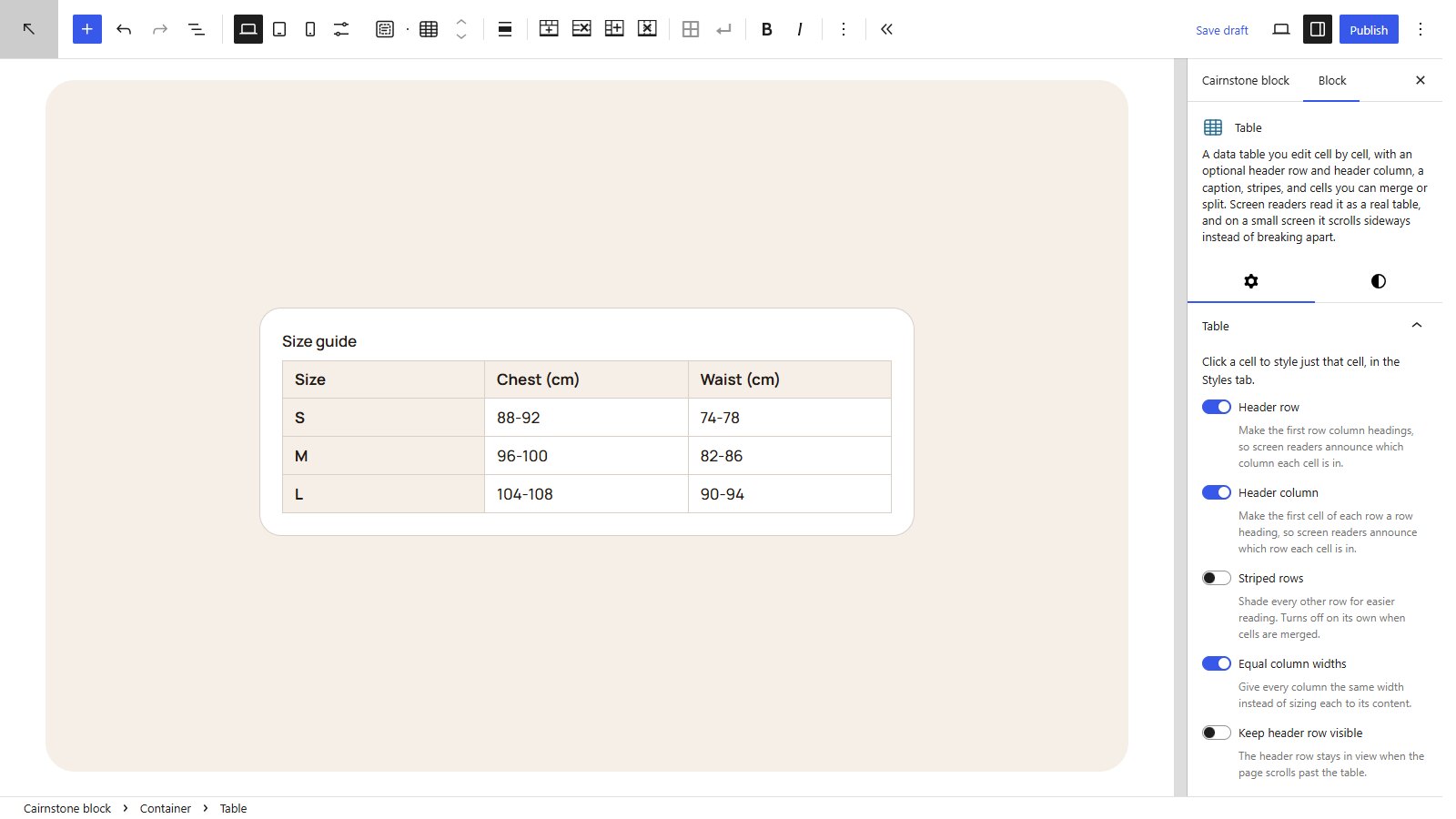
To style just one cell, click it and use the Styles tab.
The Table settings
- Header row (on to start) makes the first row column headings, so screen readers A program that reads the screen aloud, for people who cannot see it well. They move around the page with the keyboard and hear what is there. say which column each cell is in.
- Header column (off to start) makes the first cell of each row a row heading.
- Striped rows (off to start) shades every other row. It turns off by itself when cells are merged.
- Equal column widths is off to start.
- Keep header row visible (off to start) keeps the header row in view when the page scrolls past the table. Keep first column visible needs the header column on first.
Colours and shape
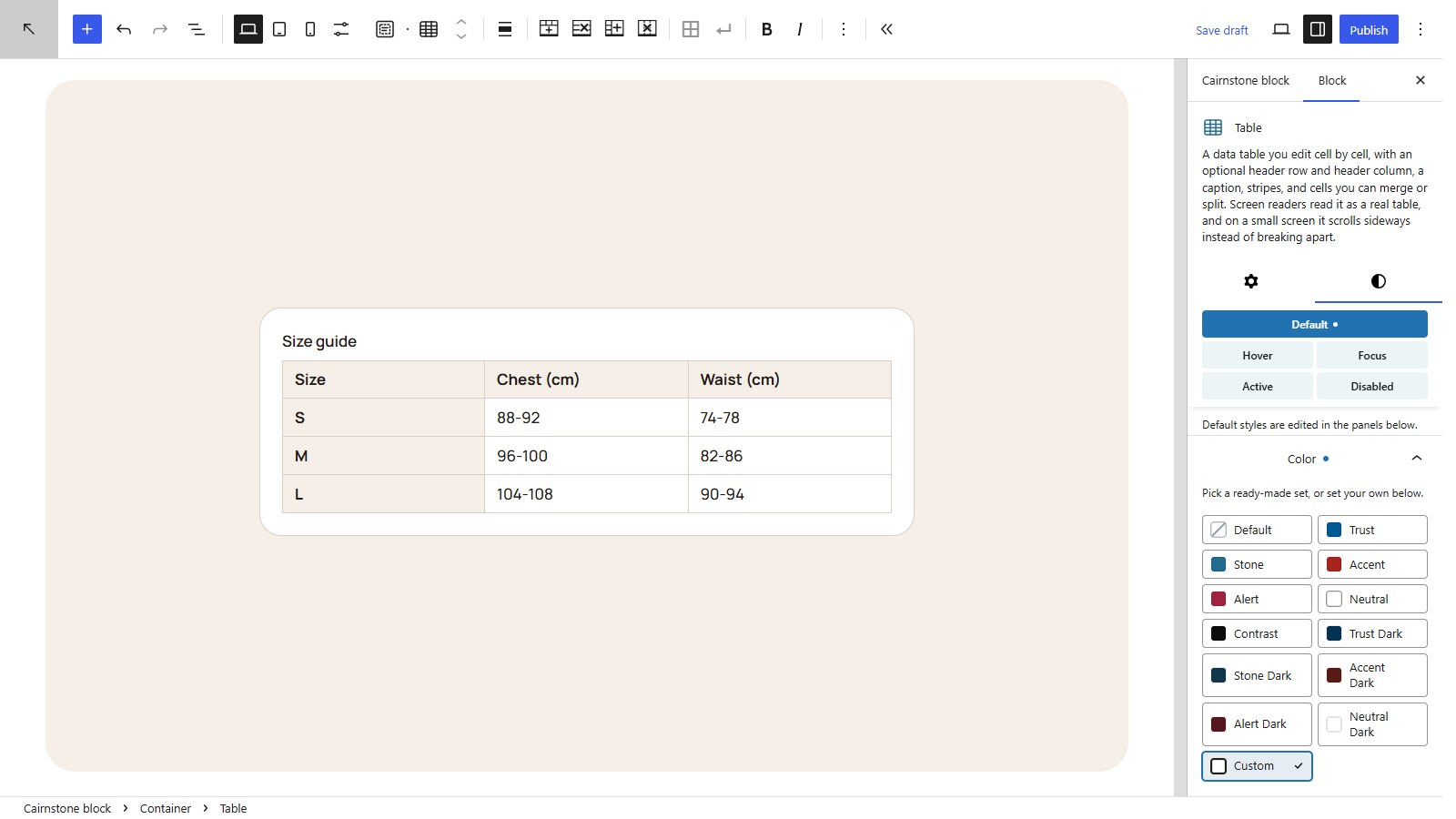
Where you set the look depends on where you edit the block. In a normal post or page, the Styles tab has WordPress’s own controls: colour, typography, padding and margin, and border. In a saved Cairnstone block, under Cairnstone → Blocks, the Styles tab has Cairnstone’s full set: colour (a ready-made set or your own), typography, border, shadow, filters, and size and spacing, each for the normal state and for hover, focus, pressed and switched off.
What visitors get
A real table with its caption and column headings.
Next, read Add a table of contents.