The Schema panel adds structured data to a block A piece of a page, such as a paragraph, a picture or a button. In WordPress you build a page by putting blocks one after another., so search engines can read what it holds. For some types, Google can show a rich result in search, such as a recipe card with cooking time and ratings, or a product with its price.
Add structured data to a block
Select the block and open Schema in the sidebar.
Switch it on.
Pick a type: Article, Product, FAQ, HowTo, Event or Recipe. Library blocks come with the right type picked.
Fill the fields that appear below the type.
Save, and check the status line at the bottom of the panel.
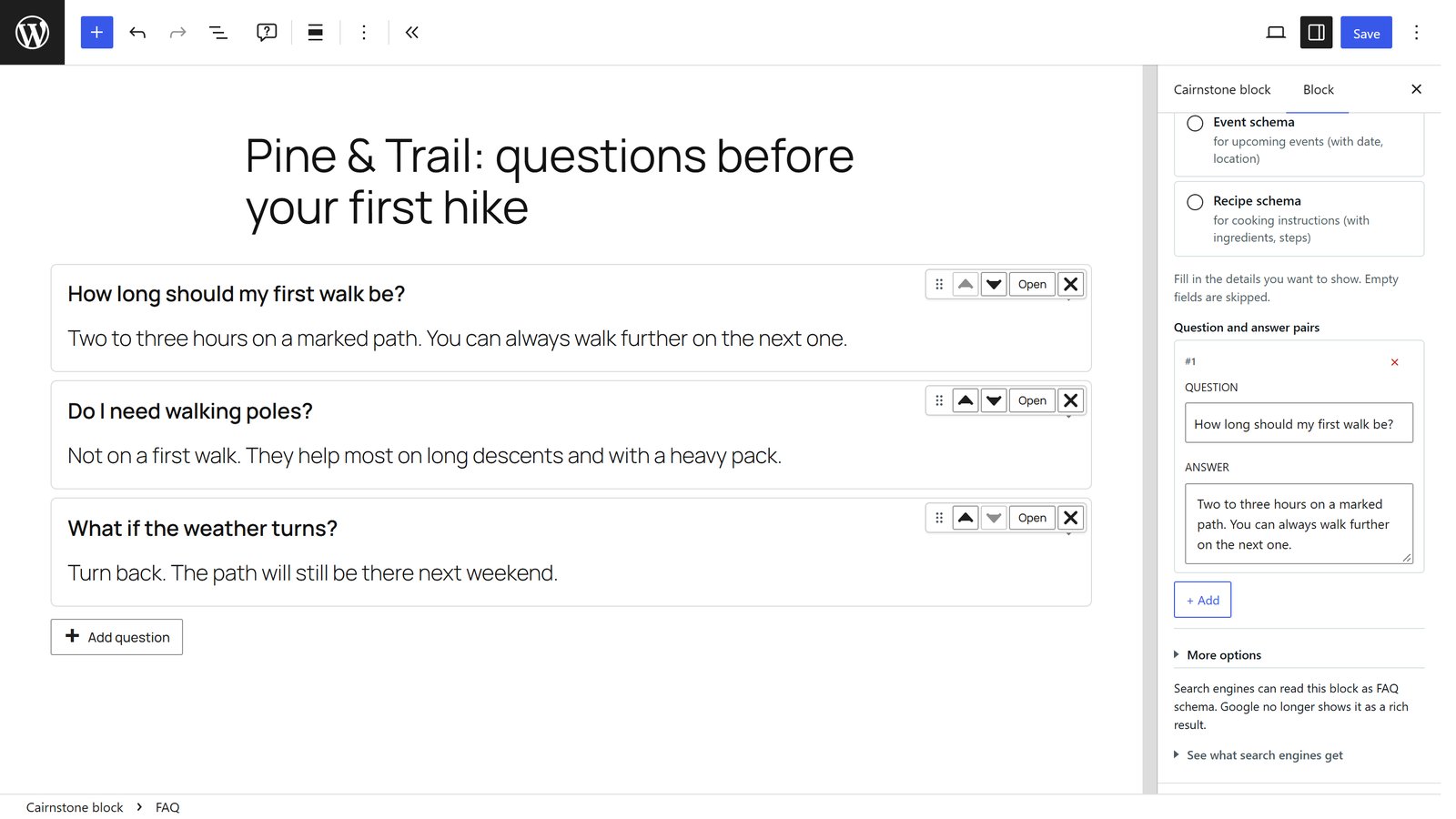
A block with nothing to describe, such as a Button, a Code Snippet, a Counter or an Image, has no Schema section, and neither do Pricing Cards and the Comparison Table. Google shows no rich result for FAQ and HowTo, so for those two the data describes the page to search engines without a special display.
The fields
Each required field is in one of three states:
- Filled: you typed a value.
- Filled from the block, such as Auto-filled from Heading: the field reads from the block’s own content (its heading, price or date) and follows it when you change the block.
- Required: there is no value yet.
FAQ takes question and answer pairs, HowTo takes steps, and Recipe takes ingredients and steps, each as a list of cards with + Add and Remove row. A removed card is gone; add it again with + Add. Optional fields, and a For developers: custom code field, sit under More options.
The status line
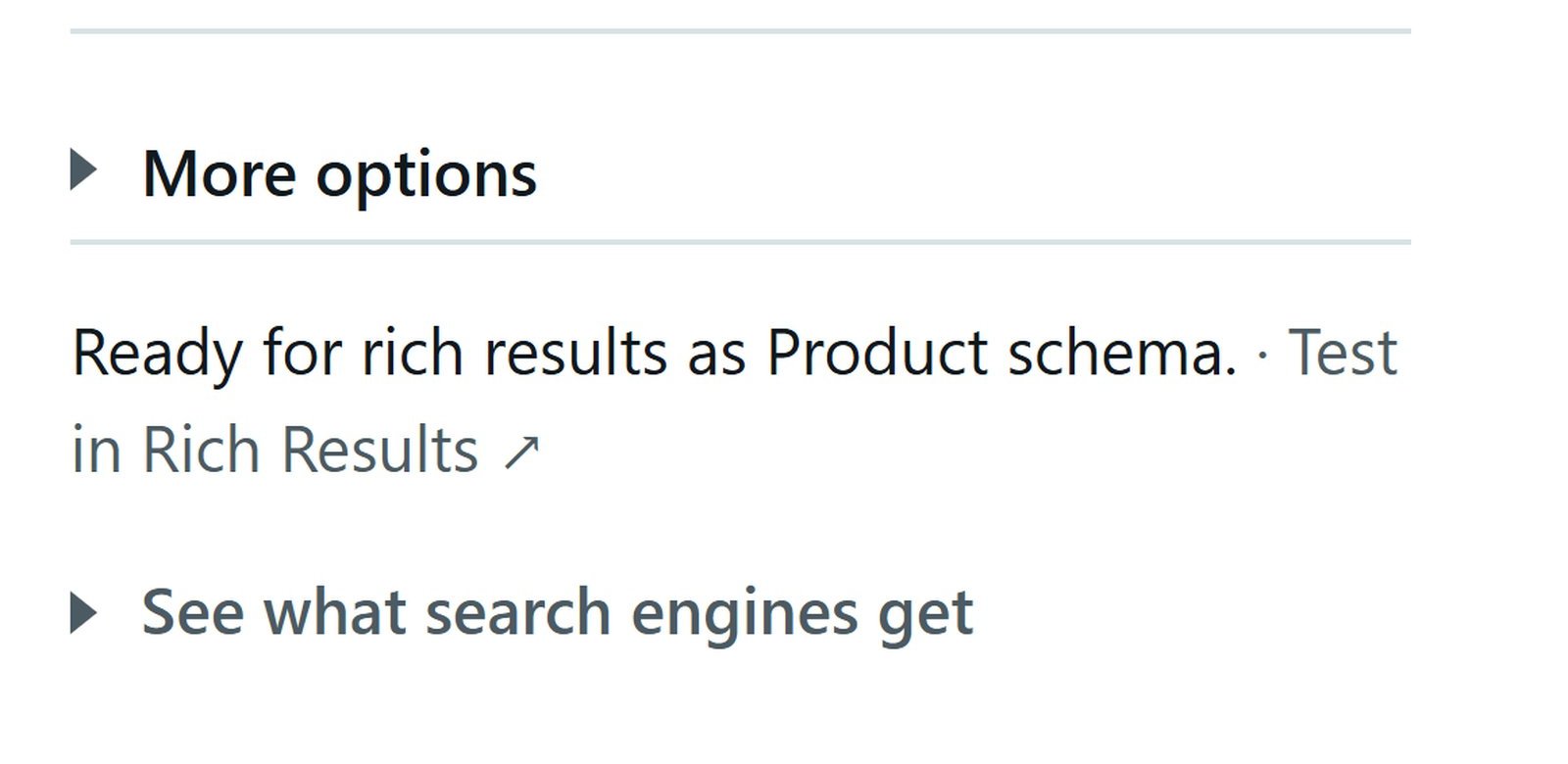
- Ready for rich results as Product schema. (with the type you picked): the data is sent. A Test in Rich Results link opens Google’s test for the page in a new tab.
- Search engines can read this block as FAQ schema. Google no longer shows it as a rich result. for FAQ and HowTo.
- Not shown in search results.: the panel is off.
- Pick a type to start.: on, with no type yet.
- 2 required fields missing. See Details., with the number (one reads 1 required field missing): fill the fields marked Required. If nothing is filled in, nothing is sent.
See what search engines get shows in plain words what search engines will read, such as “Search engines will see this as a product.”, with each field and a Still needed line for what is missing.
FAQ, How-to and pricing blocks
- The FAQ and How-to blocks send their own structured data from your questions or steps, with nothing to fill in. Turn the Schema panel on and it takes over, and the block’s own data goes quiet, so nothing is sent twice. When your SEO plugin An add-on you install in WordPress to give your site new features. Gillish Cairnstone and Gillish Core are plugins. already adds FAQ or how-to data to the page, the blocks leave their own out too, so search engines get one answer. Empty fields send nothing.
- A Comparison Table with a rating row sends one entry per column that has a name and a rating, with its price. The switch is Publish the ratings as review data in the block’s settings, on to start with. Neither block has a Schema panel. Pricing Cards sends no structured data.
On a post that uses your block
When a post holds a block you built with schema set up in the Block workspace, the panel shows Using Article schema (set in Cairnstone blocks editor) (with its type). To give one page its own price, headline or date, click Override for this instance. Back to inheriting from Cairnstone blocks undoes that.
Next, read Fill a block from your page’s fields.