The Post Grid block A piece of a page, such as a paragraph, a picture or a button. In WordPress you build a page by putting blocks one after another. lists your posts in one of eleven looks, with buttons to filter them, a search field, a sort menu and pages for your visitors. See it working on the Post Grid page.
Add a list of posts
Add the Post Grid block where you want it. It shows your real posts as they will look.
In the Settings tab, under Post Grid, choose which posts to show and how many on a page.
Under How it looks, pick one of the eleven looks. Then choose what each card shows and what your visitors can use.
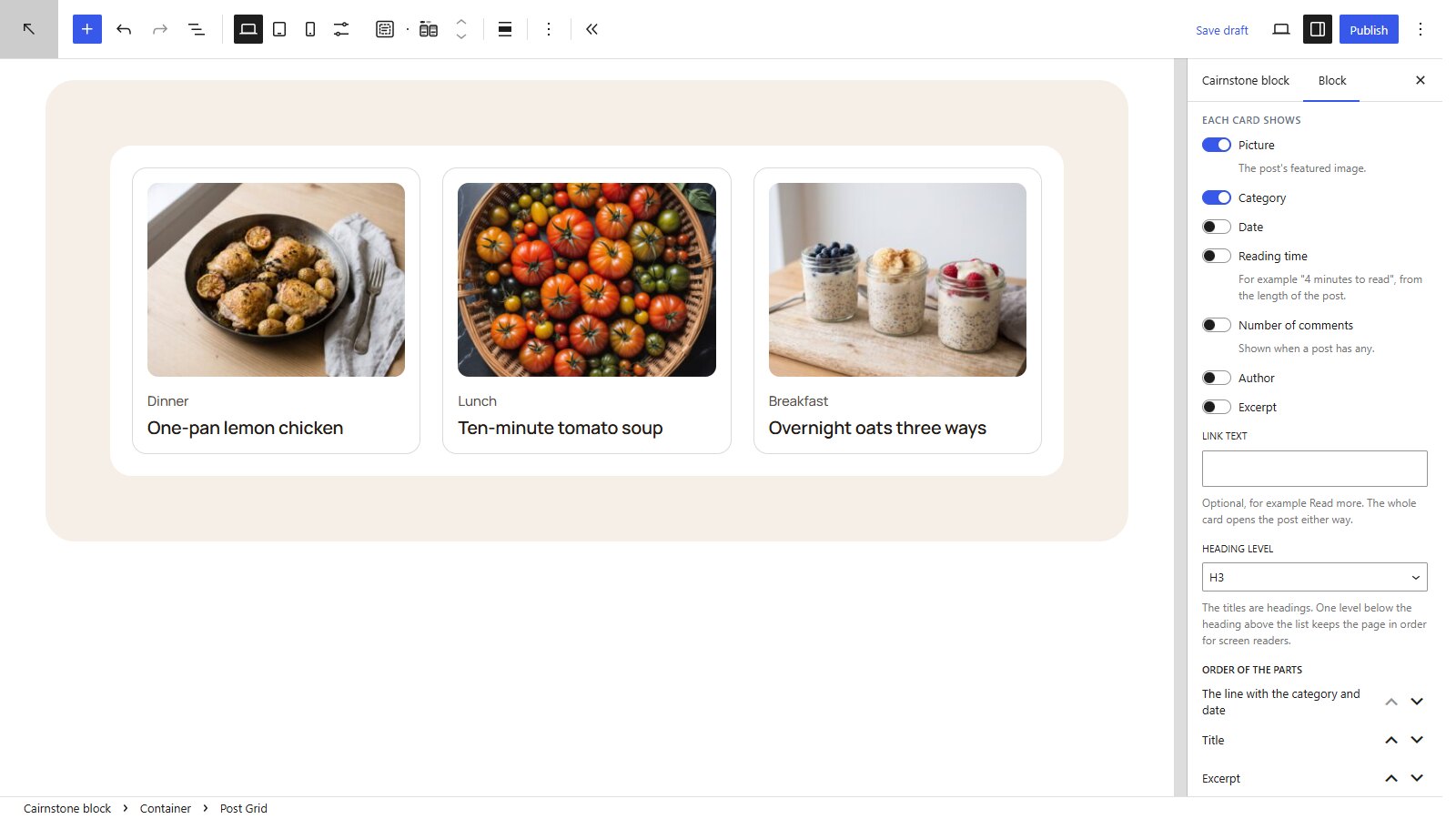
The block’s own settings sit in one panel, Post Grid, in seven parts: What to show, Leave out, Order, Each card shows, How it looks, Visitor tools and Pages. Some settings show only when another one needs them.
What to show
- Post type: Posts (the default) or Pages. With Pages, the settings for categories, tags and pinned posts go away.
- Which posts: The latest posts (the default), Posts I choose, or Posts related to this page.
- Posts I choose adds Posts to show: type to search your published posts, and pick them. They show in the order you pick them.
- Posts related to this page shows posts that share a category or tag with the post the list is on. That post itself is left out. Where there is no such post, the list shows the latest posts.
- Posts on a page: 1 to 24, 6 to start.
- Only these categories and Only these tags: for Posts, and not with Posts I choose. Only by these authors works with every choice.
- Published: Any time (the default), In the last week, In the last month, In the last year, or Since a date. Since a date adds a date field, Since.
- Stop after this many posts: 0 to 100. 0 shows every post that matches. The pages stop there too.
- When nothing is found: your own words. Leave it empty for No posts found.
Leave out
- Leave out the post the list is on is on to start.
- Leave out posts hidden from search engines is on to start. A post you have hidden from search results in your SEO plugin An add-on you install in WordPress to give your site new features. Gillish Cairnstone and Gillish Core are plugins. then stays out of the list too. This works with Yoast SEO, Rank Math, All in One SEO, SEOPress and Slim SEO. Switch it off to list those posts as well. Without one of those plugins, nothing is left out.
- Leave out these posts and Leave out these authors: pick them by name.
- Leave out these categories and Leave out these tags: for Posts only.
- Skip the first posts: 0 to 20. Use it for a list below another that already shows the newest. The pages go on from there.
Order
- Sort by: Date published (the default), Date updated, Title, Number of comments, The Order number on each page, or Mixed, a new mix each day.
- The Order number on each page is set under Order in each page’s own settings.
- Mixed, a new mix each day: every visitor sees the same mix for a day, on every page of the list.
- Direction: its words follow the sort. Newest first or Oldest first for the dates, A to Z or Z to A for Title, Most first or Fewest first for comments, and Lowest number first or Highest number first for the Order number. Mixed has no direction. When you pick a new Sort by, the direction goes back to its first choice.
- Pinned posts: for posts marked Stick to the top of the blog in their settings. In order, like any other post (the default), First, Leave them out, or Only pinned posts.
With Posts I choose, these three settings give way to one line: your chosen posts keep the order you picked them in.
Each card shows
- Picture: the post’s featured image, on to start.
- Category and Date are on to start. A post in more than one category shows one: the primary category your SEO plugin has picked for it, or else its most specific category. How the date is written: As the site writes dates (the default), or one of four other forms, each shown with today’s date.
- Reading time: off to start. For example 4 minutes to read, worked out from the length of the post.
- Number of comments: off to start. It shows when a post has any.
- Author: off to start. The author’s picture adds the picture from their profile, beside the name.
- Excerpt: on to start. Excerpt length, in words: 5 to 60, 20 to start.
- Link text: optional, such as Read more. The whole card opens the post either way. A screen reader A program that reads the screen aloud, for people who cannot see it well. They move around the page with the keyboard and hear what is there. also hears the post’s title after the link text.
- Heading level: H2 to H6, H3 to start. The titles are headings. One level below the heading above the list keeps the page in order for screen readers.
- Order of the parts: move each part up or down. The parts are the line with the category and date, Title, Excerpt, Author and Link text.
A clean card with only a title and an excerpt is fine too: turn off Picture, Category and Date.
How it looks
Layout is a row of eleven pictures. Each one is a look, and a sentence under the row tells what the chosen look does. Some looks add settings of their own.
- Grid (the default): cards in rows, the picture on top of each.
- List: one post under another, the picture beside the words. Adds Picture side, on the left or the right.
- Titles only: a short list of titles, the date above each, no pictures. Adds Lines between the posts.
- Headlines: a news list, the date in a column and each title beside it on one line. Adds Lines between the posts.
- Big post beside: the first post is big, and the others sit beside it as a list. Adds The big post (on the left or the right), Excerpt of the first post (as long as the others, or twice as long) and Label on the first post, such as Featured, above its date.
- Big post above: the first post takes the whole row, and the others sit under it as cards. Adds The first post (picture beside the words, picture above the words, or title over the picture), Excerpt of the first post and Label on the first post.
- Title on picture: the title sits on the picture, on a dark fade under the words. Adds Where the words sit, Line up the words and Darken the picture (only under the words, a little, or more).
- Own height: each post keeps its own height, and they fill the columns like a wall.
- Changing sides: one post to a row, the picture on one side, then on the other. Adds The first picture, on the left or the right. Best for a short list.
- Dates on a line: a line down the side, a dot at each date, the post beside it. Adds Posts along the line: all on one side, or on both sides, taking turns. Both sides need room, so on a narrow screen every post goes on one side.
- Sideways row: one row of cards that visitors scroll sideways, with arrows.
Sideways row
- Show a little of the next post: on to start. A sliver of the next card shows visitors that the row goes on.
- Arrows: Above the posts, at the end (the default), Below the posts, in the middle, or None. With None, a thin scrollbar stays under the row, so a mouse can still move it.
- Arrows move: all the posts in view, or one post.
- Show how far along the row is: on to start.
- Move on its own: off to start. Visitors get a pause button before the posts. Seconds before it moves: 3 to 15, 5 to start. While the row moves on its own, the arrows stay above the posts, next to the pause button.
For every look
- Each post: Plain, on the page (the default), A card with a thin line, or A card with a soft fill. Title on picture has no such choice.
- Posts in a row: 1 to 4, 3 to start, with its own choice for a tablet and for a phone. It shows for Grid, Big post above, Title on picture, Own height and Sideways row.
- Space between posts: as the block sets it, or Small to Extra large.
- Size of the titles: as the layout sets it, Smaller, Larger or Largest.
- Under the pointer: what a post does when a visitor points at it. The title is underlined (the default), The picture zooms in a little, The picture gets darker, The card lifts, or Nothing changes. Titles only and Headlines offer the first, the card lift and nothing.
- Picture shape: Wide (16:9) to start, or Photo (3:2), Classic (4:3), Square, A wide strip (2:1), A very wide strip (3:1), Upright (3:4) or Tall (2:3). Picture shape on a phone can give phones their own shape.
- Picture for posts without one: a picture for posts that have no featured image. Leave it empty, and a soft tint fills the place, so the cards stay even. To hide pictures, turn Picture off.
Posts in a row is the most the block shows. The block counts the room it has, and fewer fit in a narrow space. In a normal post column, 3 set shows as 2. A block set to a wide width shows all 3.
Visitor tools
- Buttons to filter by: None (the default), Category or Tag. Visitors get an All button and one button for each category or tag that has posts. With categories or tags chosen above, only those. Pages offer only None.
- Search field: off to start. A box and a Search button. The list changes without the page loading again.
- Sort menu: off to start. Newest first, Oldest first and Title A to Z.
Pages
- Move between pages: Page numbers (the default), Previous and Next, A Show more posts button, or None, only the first page.
- A line above the list counts the posts, such as 9 posts, page 1 of 3.
- The Show more posts button adds the next posts under the list. Without a script it opens the next page.
- None shows only the first page, with no count and no page links.
- A Sideways row offers only the Show more posts button and None.
Colours and shape
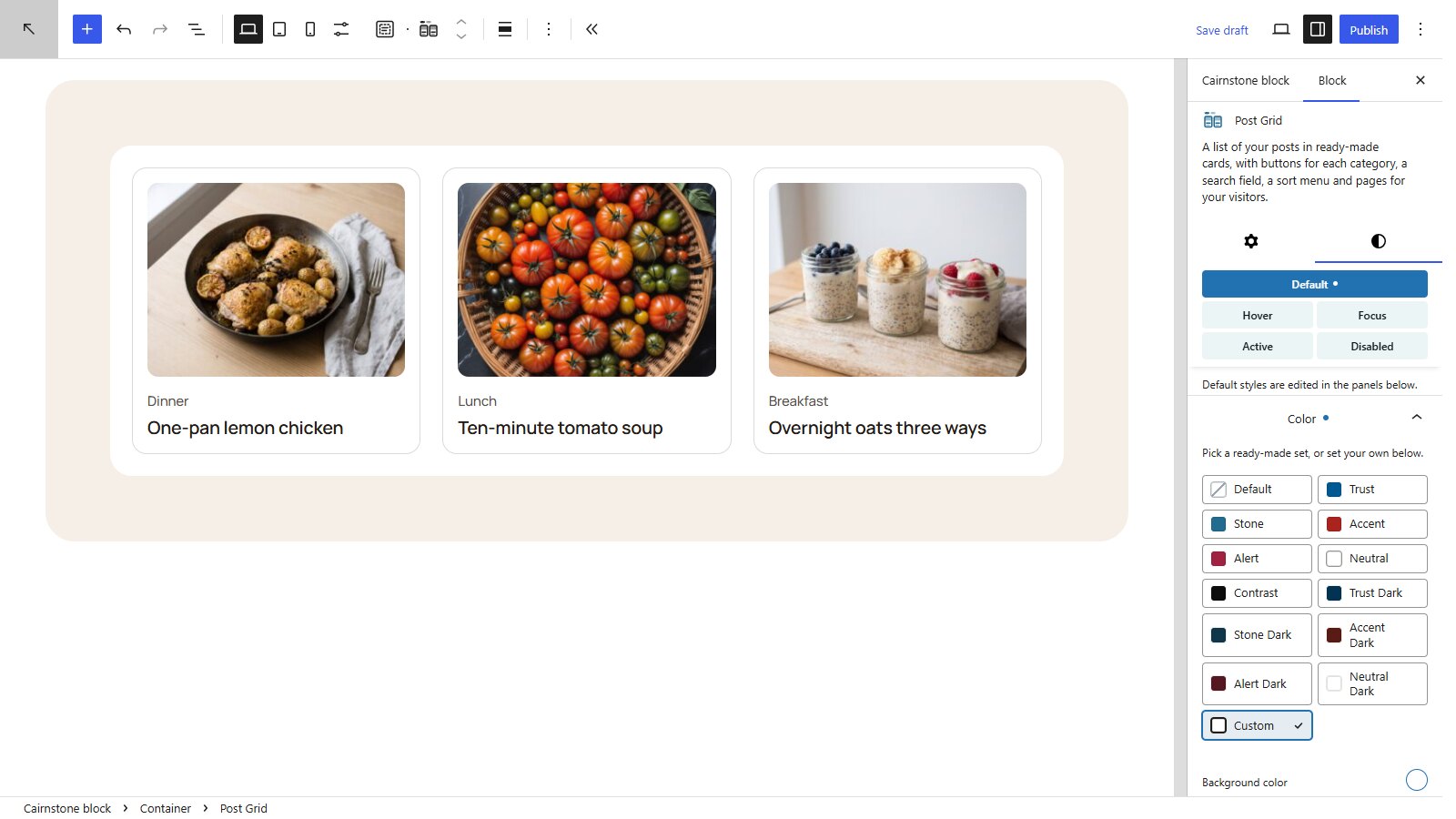
Where you set the look depends on where you edit the block. In a normal post or page, the Styles tab has WordPress’s own controls: colour, typography, padding and margin, and border. In a saved Cairnstone block, under Cairnstone → Blocks, the Styles tab has Cairnstone’s full set: colour, typography, border, shadow, filters, size and spacing, and more, each for the normal state and for hover, focus, pressed and switched off.
In Cairnstone → Blocks a row above the preview reads Style: Cards and Pictures. Press one, and the Styles tab styles that part of every post at once. Edit whole block takes you back to the whole grid.
What visitors get
Cards with the post titles as headings, and the tools you turned on. A filter, a search, a sort or a page number goes into the page’s address. The address parts end in -pg, -cat, -sort and -q, for example ?cs-…-pg=2 for page 2. The server reads them too, so an address a visitor shares opens the same list.
Next, read Show your plans and prices.