The Share Buttons block A piece of a page, such as a paragraph, a picture or a button. In WordPress you build a page by putting blocks one after another. gives readers buttons that share the page they are on. Each one opens the network’s own share page, so nothing is sent until a visitor picks one. See it working on the Share Buttons page.
Add share buttons
Add the Share Buttons block where you want it.
Type over the heading, or leave it empty for none.
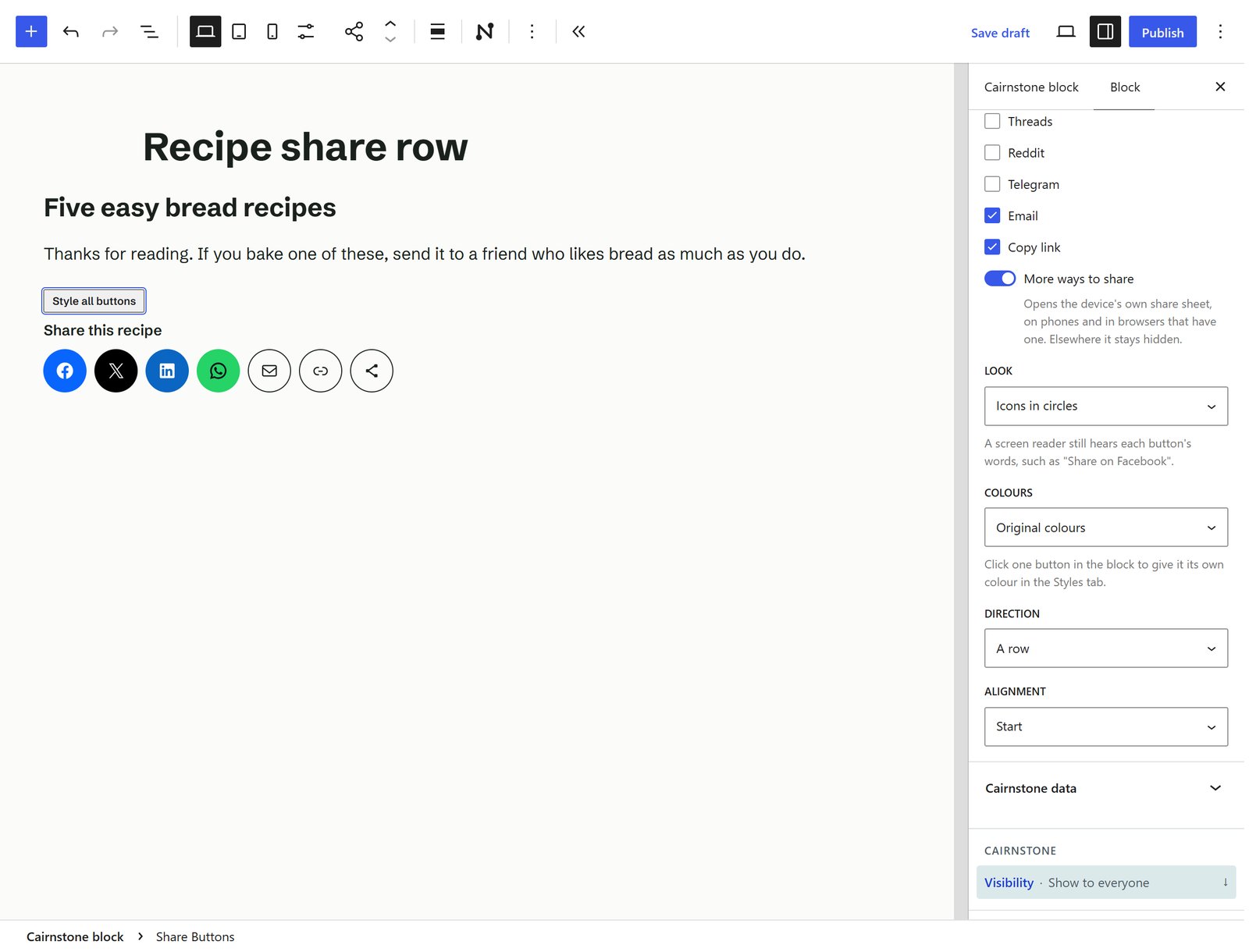
In the Settings tab, switch on the networks you want.
The Share Buttons settings
- On to start: Facebook, X, LinkedIn, WhatsApp, Email and Copy link. Off to start: Bluesky, Threads, Reddit and Telegram. Each has its own switch.
- More ways to share (on to start) opens the device’s own share sheet, on phones and in browsers that have one. Elsewhere it stays hidden.
- Look: Icons (the default), Icons in circles, or Buttons with words. A screen reader A program that reads the screen aloud, for people who cannot see it well. They move around the page with the keyboard and hear what is there. still hears each button’s words, such as Share on Facebook.
- Colours: Your text colour (the default) or Original colours. With Original colours, each button shows its network’s colour: the mark itself in Icons, a filled button in Icons in circles and Buttons with words. Email, Copy link and More ways to share stay neutral.
- Direction: A row (the default) or A column. Alignment: Start (the default), Centre or End.
Original colours in the three looks, with the same networks:
Colours and shape
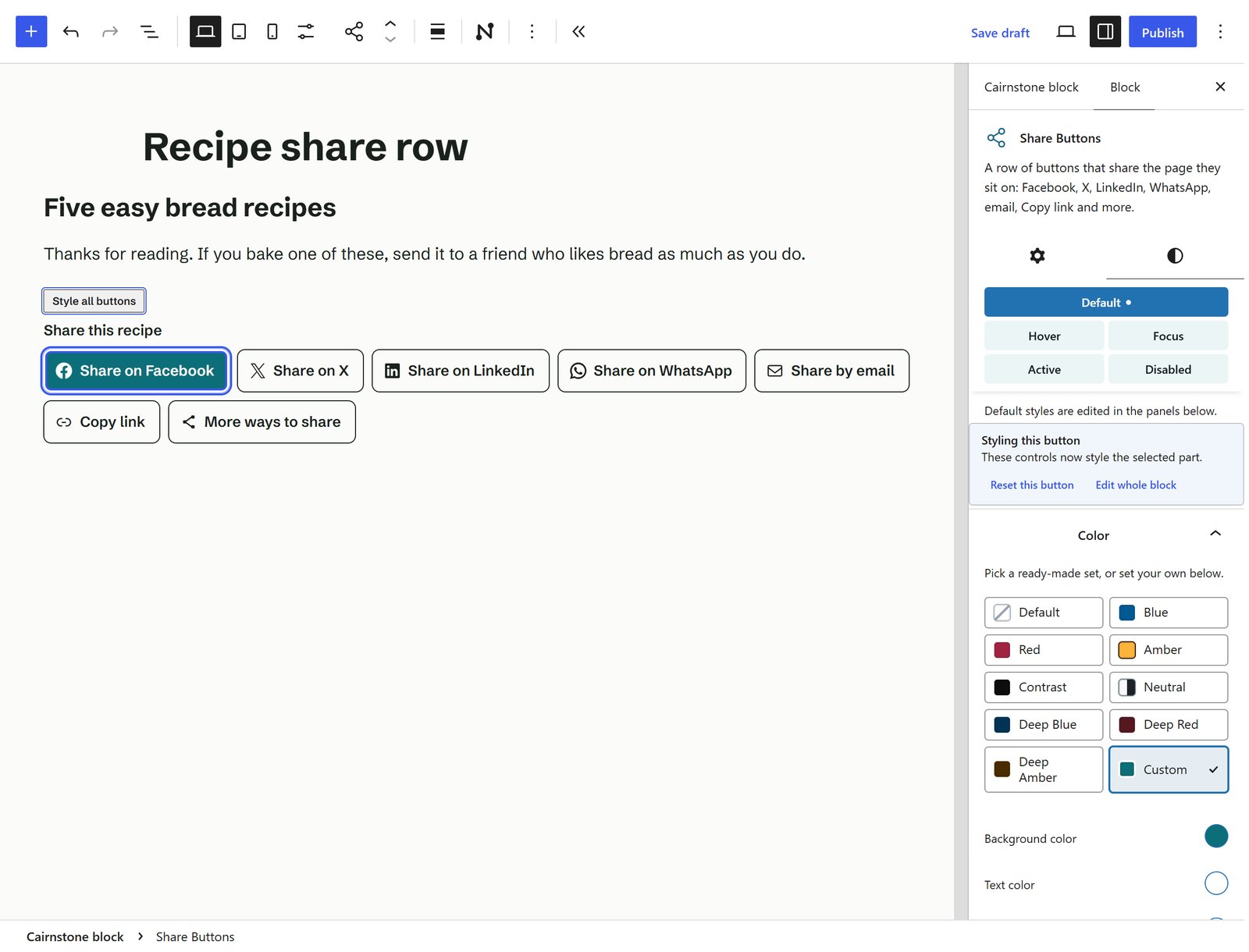
Where you set the look depends on where you edit the block. In a normal post or page, the Styles tab has WordPress’s own controls: colour, typography, padding and margin, and border. In a saved Cairnstone block, under Cairnstone → Blocks, the Styles tab has Cairnstone’s full set: colour (a ready-made set or your own), typography, border, shadow, filters, and size and spacing, each for the normal state and for hover, focus, pressed and switched off.
In a saved block, click one button to give it its own colour in the Styles tab. Style all buttons, above the row, changes them all, in every state.
What visitors get
- Links named such as Share on Facebook (opens in a new tab), each to that network’s share page with this page’s address. Share by email opens the mail program.
- Nothing is loaded from any of the networks with the page.
Next, read Keep a call to action in view.