When you save a change to a published block A piece of a page, such as a paragraph, a picture or a button. In WordPress you build a page by putting blocks one after another., Cairnstone compares the block before and after. Every copy you place in a post from the inserter holds its own copy of the block, whether you edited it there or not. So a change reaches the copies already in posts only through the choices below, never by itself. What a post changed in its copy, such as its own image, caption, text or link, stays. One kind of copy follows the block: a block written into a page with nothing inside it, as an AI assistant or an import writes it, shows the block as it is saved now and changes with it.
When only the look changes
A change to the look alone is anything you set in the Styles tab: colours, spacing, borders, type, the style of a part. The look is set only in the block, never in a post, so a copy with its own content has nothing to lose. When you save such a change and posts hold copies with their own content, a notice at the top of the editor says how many and names up to three. It offers two choices, and it stays until you pick one, even if you save again.
- Bring the new look to them: after you confirm, every block inside your block gets its new look on each copy. Their images, text and links stay as they are. Blocks are matched from the top, so when your block is a frame, such as a Container that holds each post’s own content (an Accordion in one post, a Button Group in another), the frame takes the new look and what the post put inside it stays exactly as it is. A copy whose outer blocks no longer match yours is left as it was, and the message afterwards names it.
- Leave them as they are: after you confirm, the notice closes and the copies keep the look they have. You can change the look again later.
When the structure changes
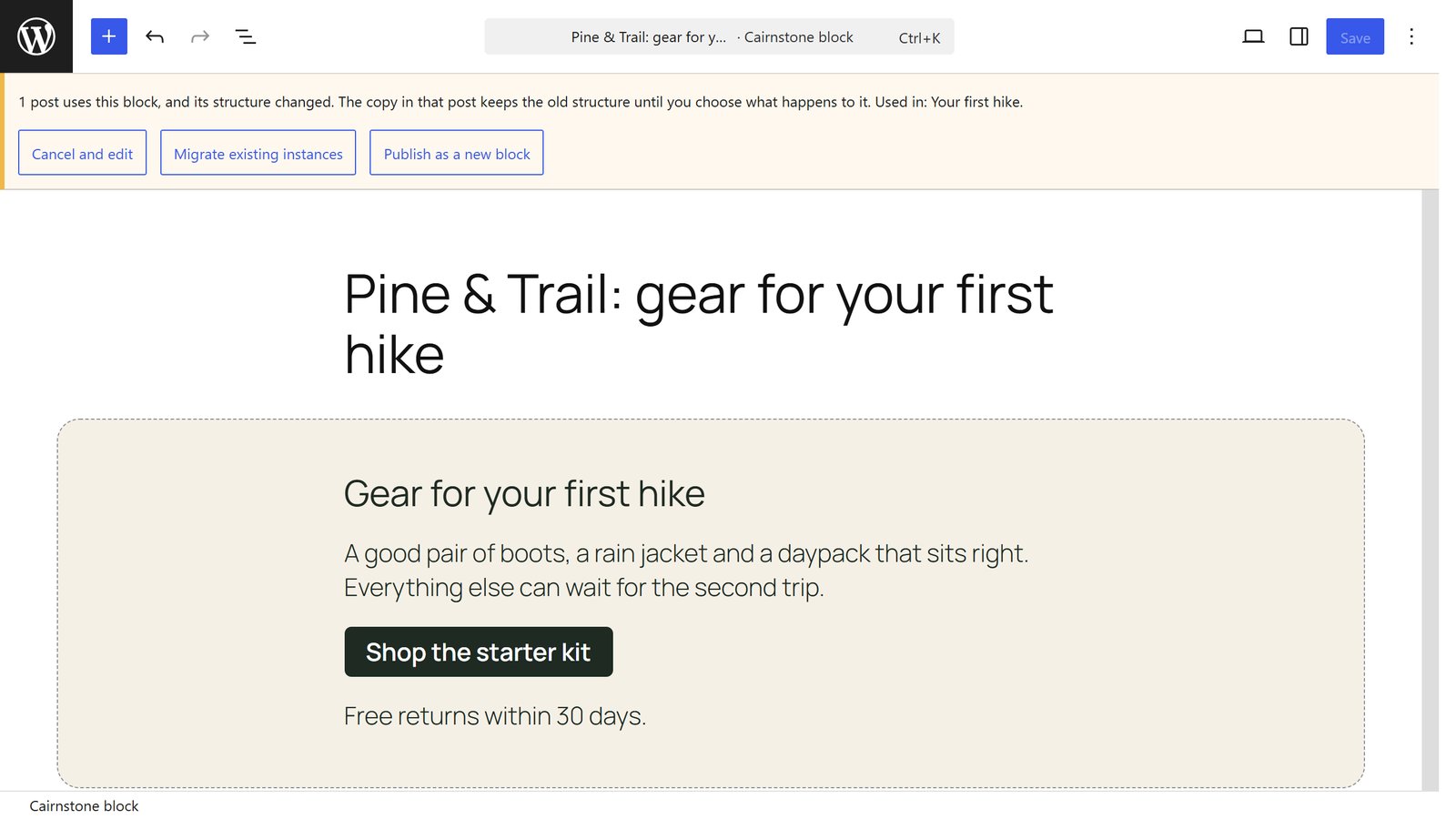
Some changes alter the block’s structure: adding, removing or moving a block inside it, or changing which settings a block inside it stores. The look does not count. When you save such a change and posts use the block, a warning appears at the top of the editor. It says how many posts use the block, names up to three, and offers three choices. Each asks you to confirm first.
The three choices
- Cancel and edit: puts the block back to its last saved version. No post changes. Adjust your change and save again.
- Migrate existing instances: updates every post that uses the block, published, draft, pending, private or scheduled, in every post type. If you only added parts, each post keeps its own content and gets the new parts, and the new look comes along. If you removed or moved something, each copy gets the new layout, and the content written inside it is reset; the confirmation says so. A post whose copy has no clear place for the new parts does not get them. If its outer blocks still match yours, such as a frame holding the post’s own content, it takes the new look and keeps everything inside; otherwise it is left as it was. The message after names both kinds. One run updates up to 200 posts; if more remain, run it again.
- Publish as a new block: asks for a new slug The last part of a page’s web address, made from its title. For a page called About us, the slug is often about-us. (small letters, numbers and hyphens), saves your change as a second block under that slug, and puts the original back. Both blocks are in the inserter. A slug that exists already, or breaks the rules, is turned away.
If you are unsure, Publish as a new block is the safe choice: nothing changes on your pages, and you get a second block to work on.
Next, read Choose the right layout block.