The Countdown block A piece of a page, such as a paragraph, a picture or a button. In WordPress you build a page by putting blocks one after another. is a clock. It counts down to a date, gives each visitor their own time window, or runs as a timer the visitor starts. See it working on the Countdown page.
Add a countdown
Add the Countdown block where you want it.
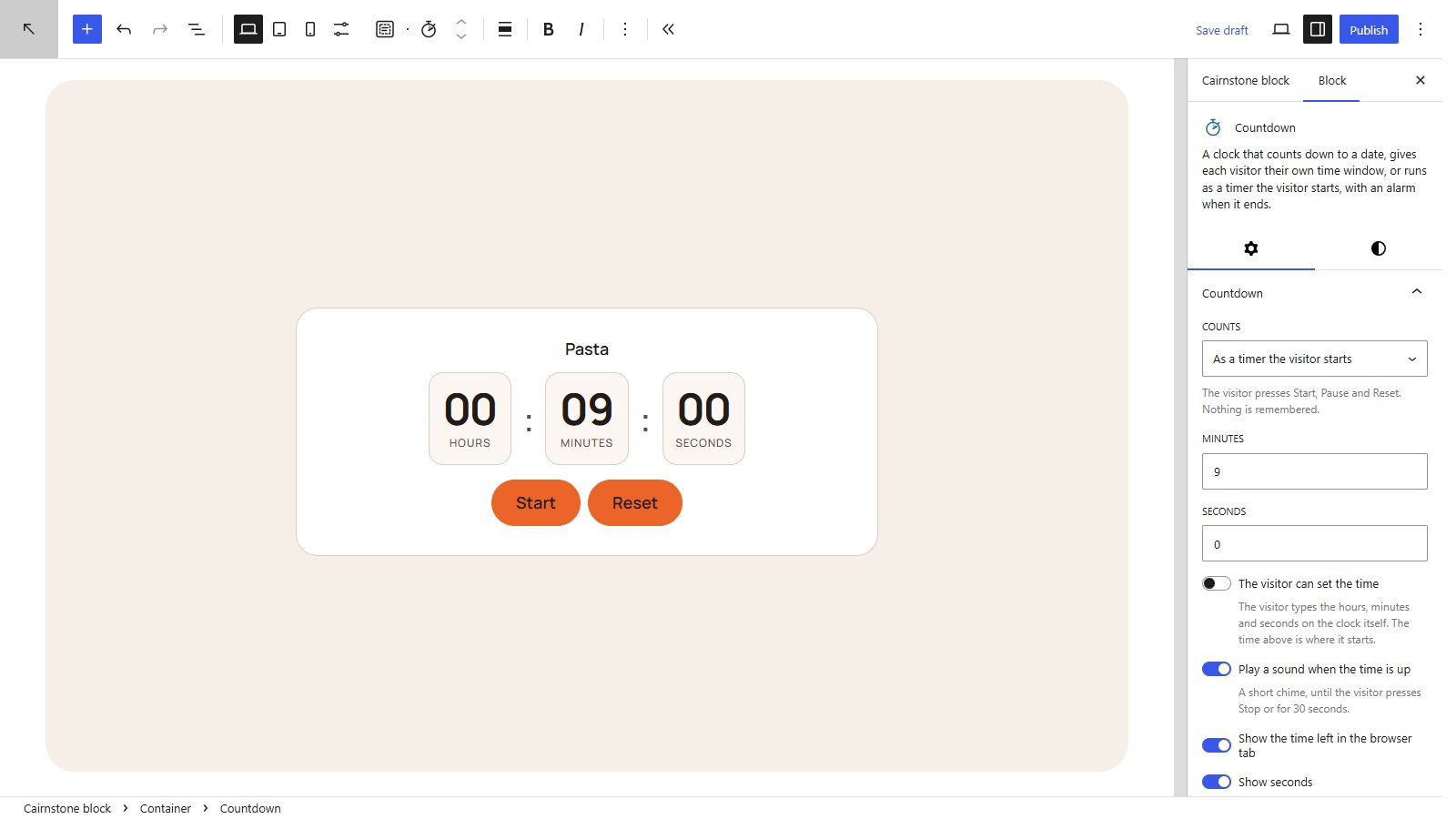
In the Settings tab, pick what it Counts, and set Ends, the date and time it counts to.
Type a label over the clock if you want one.
Until a date is set, the editor shows a sample clock and the page shows nothing at all.
What it counts
- Until a date (the default): every visitor sees the same clock. Ends is in your site’s time zone (Settings, General).
- For each visitor, from their first visit: each visitor gets a window of the same length, set in days, hours and minutes, 1 day to start. It starts on their first visit and is kept in their browser. If your site asks visitors for cookie consent with a banner that uses the WP Consent API, the clock shows only to visitors who allow it to be remembered.
- As a timer the visitor starts: the visitor presses Start, Pause and Reset.
How it looks
- Show days and Show seconds are on to start. Without days, the hours count them.
- Count down live is on to start. Turn it off, and the clock shows the time left when the page opens, then stands still. Visitors cannot pause a moving clock, so turn it off for a page that must meet WCAG 2.2.2 (Pause, Stop, Hide). The switch is there when the countdown runs until a date or for each visitor, not for a timer the visitor starts and stops.
- Look: Large numbers (the default), Numbers in boxes or A slim bar.
- Between the numbers: A colon (the default), A thin line or Nothing.
- Alignment: Centre (the default), Start or End.
When the time is up
Show a message (the default) shows your Message, or This offer has ended. if you leave it empty. You can also pick Hide the countdown or Keep the clock at zero. With Count down live off, this happens the next time the page is opened after the time is up, not while the page stays open.
Colours and shape
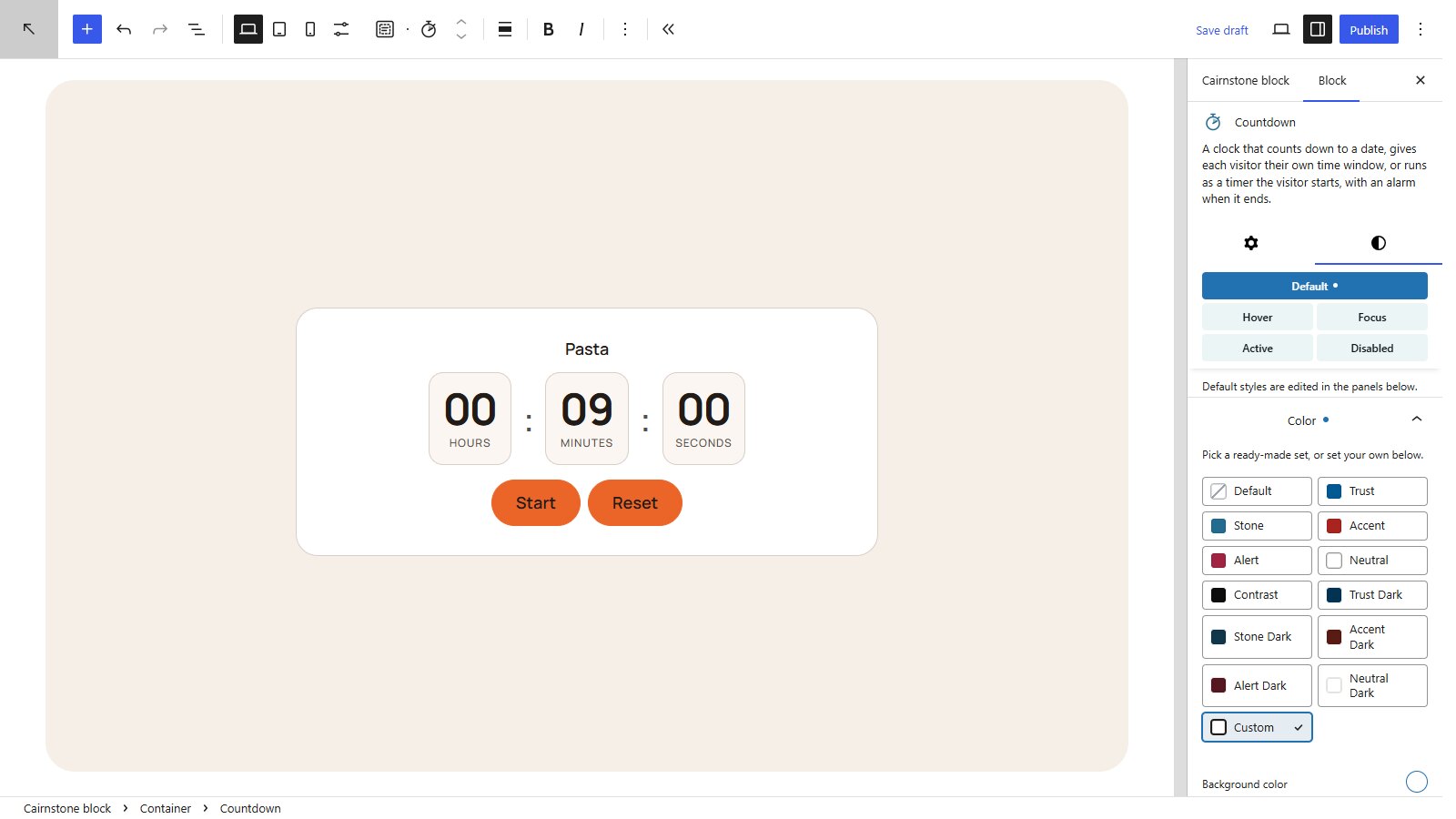
Where you set the look depends on where you edit the block. In a normal post or page, the Styles tab has WordPress’s own controls: colour, typography, padding and margin, and border. In a saved Cairnstone block, under Cairnstone → Blocks, the Styles tab has Cairnstone’s full set: colour (a ready-made set or your own), typography, border, shadow, filters, and size and spacing, each for the normal state and for hover, focus, pressed and switched off.
What visitors get
- The clock ticks each second. Screen readers A program that reads the screen aloud, for people who cannot see it well. They move around the page with the keyboard and hear what is there. get the time left in words, such as 3 days, 4 hours, 58 minutes and 59 seconds left, in a quiet status area that does not speak every second.
- A date that has passed shows only the message.
- With the timer, Start turns into Pause, and screen readers hear Timer started and Timer reset.
- On a phone, the units shorten to DAYS, HRS, MIN and SEC.
Rest
Timer: 0 hours, 5 minutes, and 0 seconds
Try it: a five-minute timer made with the Countdown block itself. Press Start, Pause and Reset.
Next, read Show a number that counts up.