The Testimonial block A piece of a page, such as a paragraph, a picture or a button. In WordPress you build a page by putting blocks one after another. shows a customer’s words with their name and role, and if you want, a photo and a star rating. See it working on the Testimonial page.
Add a testimonial
Add the Testimonial block where you want it.
Type over the quote, the name and the role with your customer’s own words.
In the Settings tab, press Choose photo if you have one, and pick a Layout.
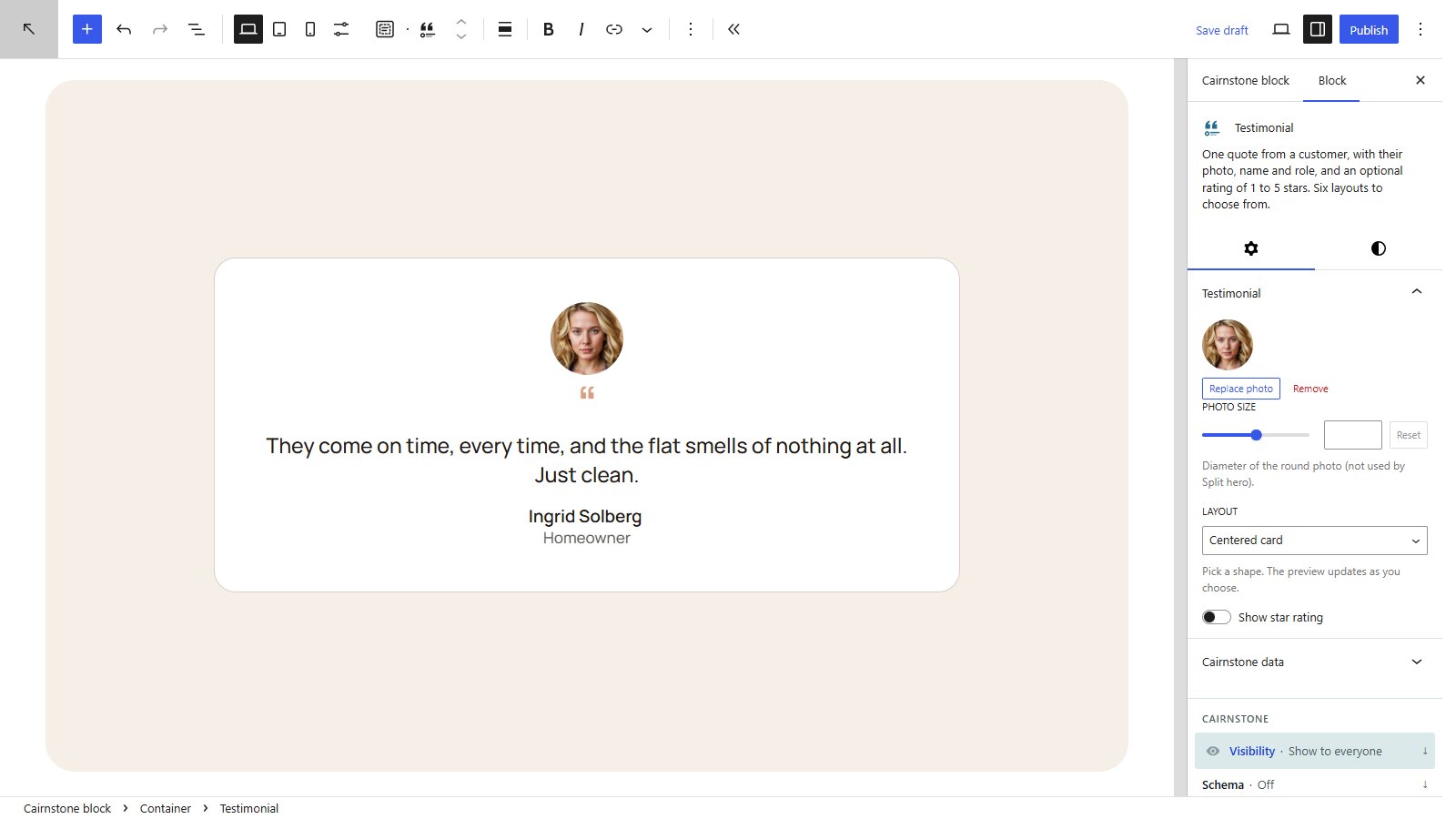
A new Testimonial starts with a sample quote. If you do not type over it, the sample is published as it is.
The Testimonial settings
- Photo size: the width of the round photo, from 40 to 200. Empty uses the layout’s own size.
- Layout: Stacked (the default), Side-by-side, Split hero, Editorial, Centered card or Spotlight. The preview changes as you choose.
- Show star rating is off to start.
Colours and shape
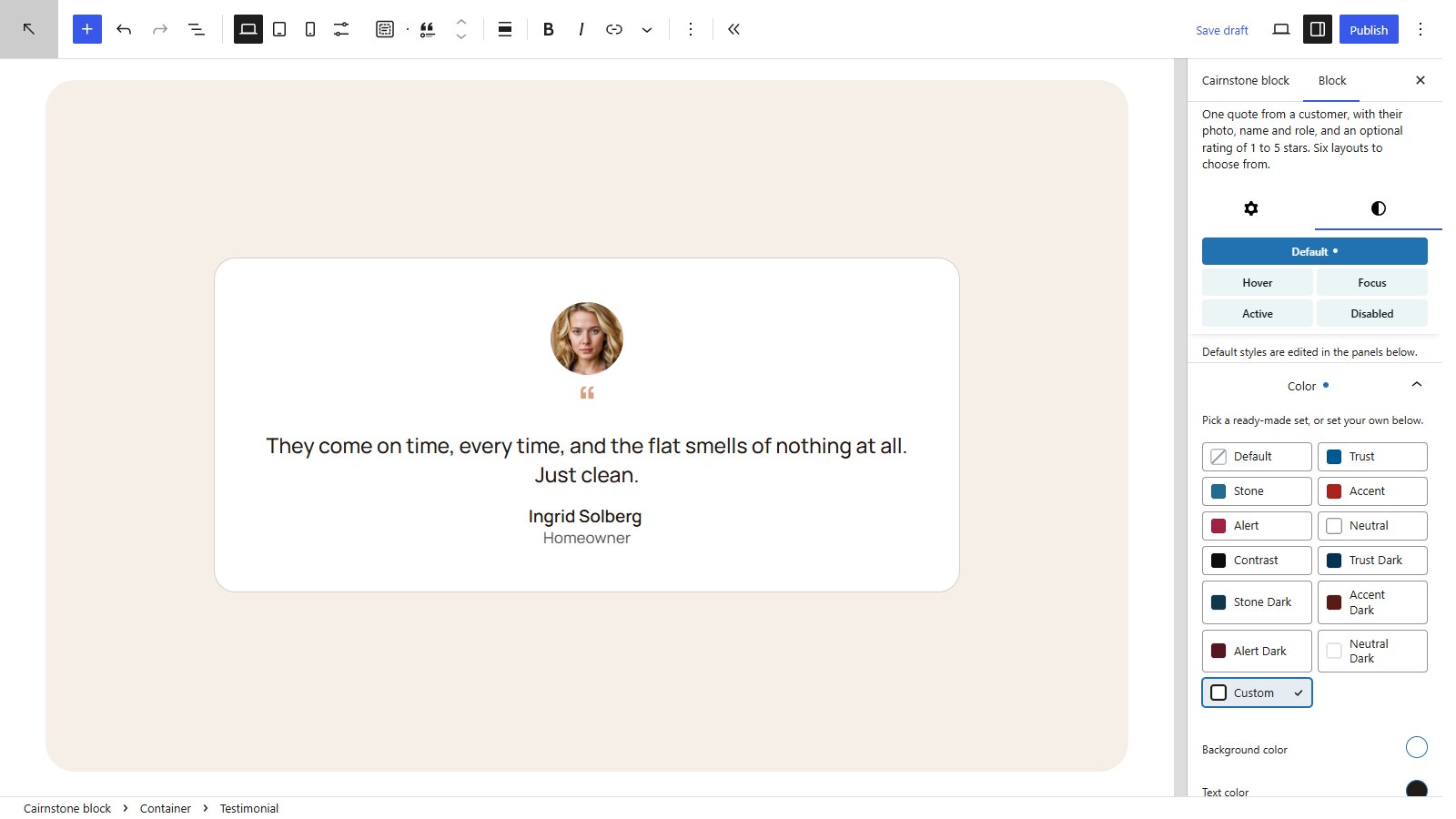
Where you set the look depends on where you edit the block. In a normal post or page, the Styles tab has WordPress’s own controls: typography, padding and margin, and border. In a saved Cairnstone block, under Cairnstone → Blocks, the Styles tab has Cairnstone’s full set: colour (a ready-made set or your own), typography, border, shadow, filters, and size and spacing, each for the normal state and for hover, focus, pressed and switched off.
What visitors get
A real quotation with the name and role as its source. The photo is described by the person’s name, and a rating shows as text, such as 5 / 5.
Next, read Add a video to a page.