The Review Box block A piece of a page, such as a paragraph, a picture or a button. In WordPress you build a page by putting blocks one after another. sums up your review of one product: a picture, a score, what is good and what is not, a bottom line and a button. It also tells search engines your score for that product. See it working on the Review Box page.
Add a review box
Add the Review Box block where you want it. It holds an Image, a Score Box, Pros and Cons, a paragraph and a Button.
Pick the picture, set the score, and type the points, the bottom line and the button.
In the Settings tab, type the product’s name under Which product is this about?.
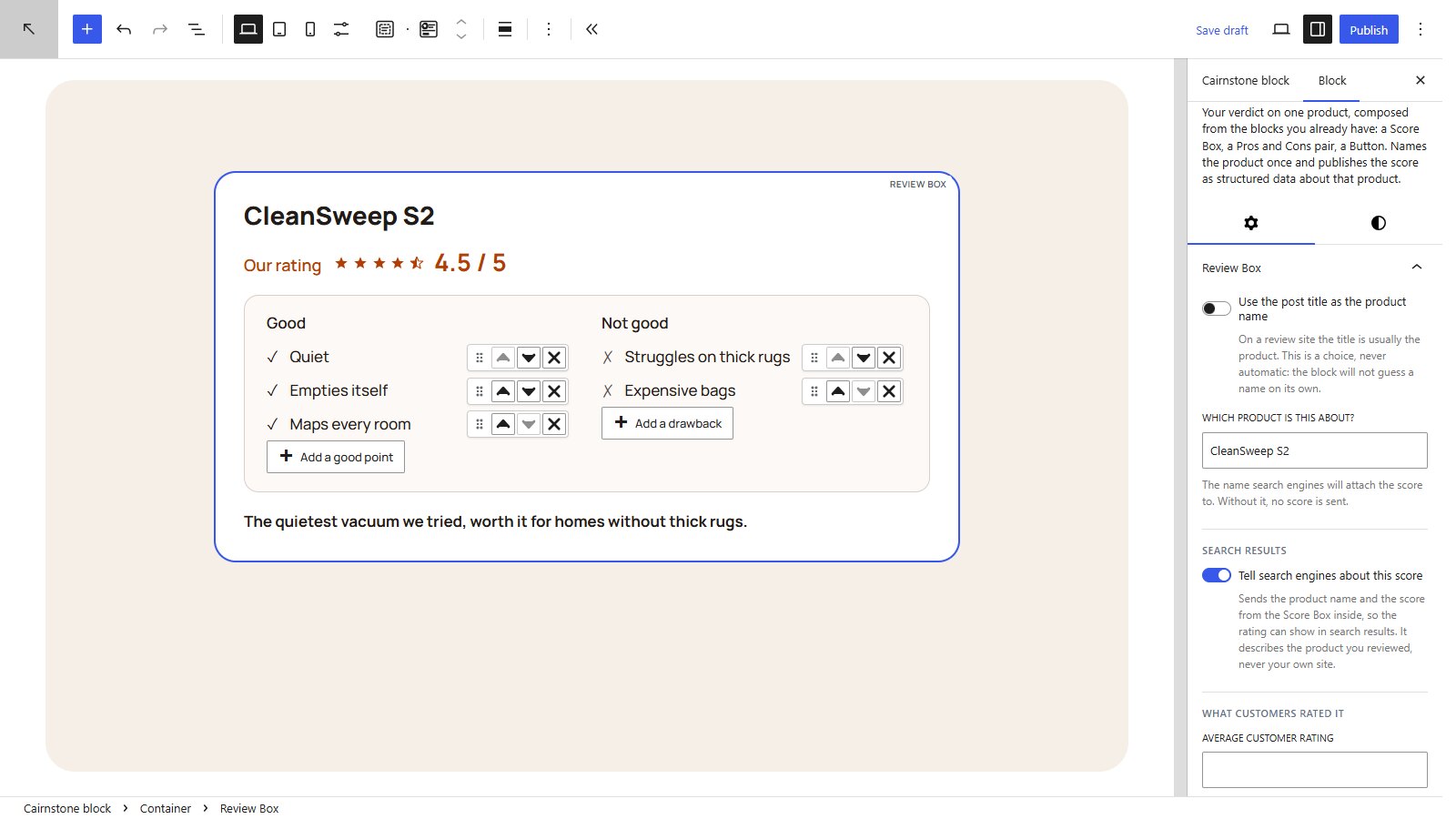
Each part is an ordinary block, so you can restyle, move or remove it, or add more. See Give a score with symbols and Weigh up what is good and what is not.
The Review Box settings
- Which product is this about?: the name search engines attach the score to. Without it, no score is sent, and a notice says so.
- Use the post title as the product name (off to start): on a review site the title is usually the product. It is your choice: the block never guesses a name.
- Tell search engines about this score (on to start) sends the product name and the score from the Score Box inside. It describes the product you reviewed, never your own site.
Colours and shape
Where you set the look depends on where you edit the block. In a normal post or page, the Styles tab has WordPress’s own controls: colour, typography, padding and margin, and border. In a saved Cairnstone block, under Cairnstone → Blocks, the Styles tab has Cairnstone’s full set: colour (a ready-made set or your own), typography, border, shadow, filters, and size and spacing, each for the normal state and for hover, focus, pressed and switched off.
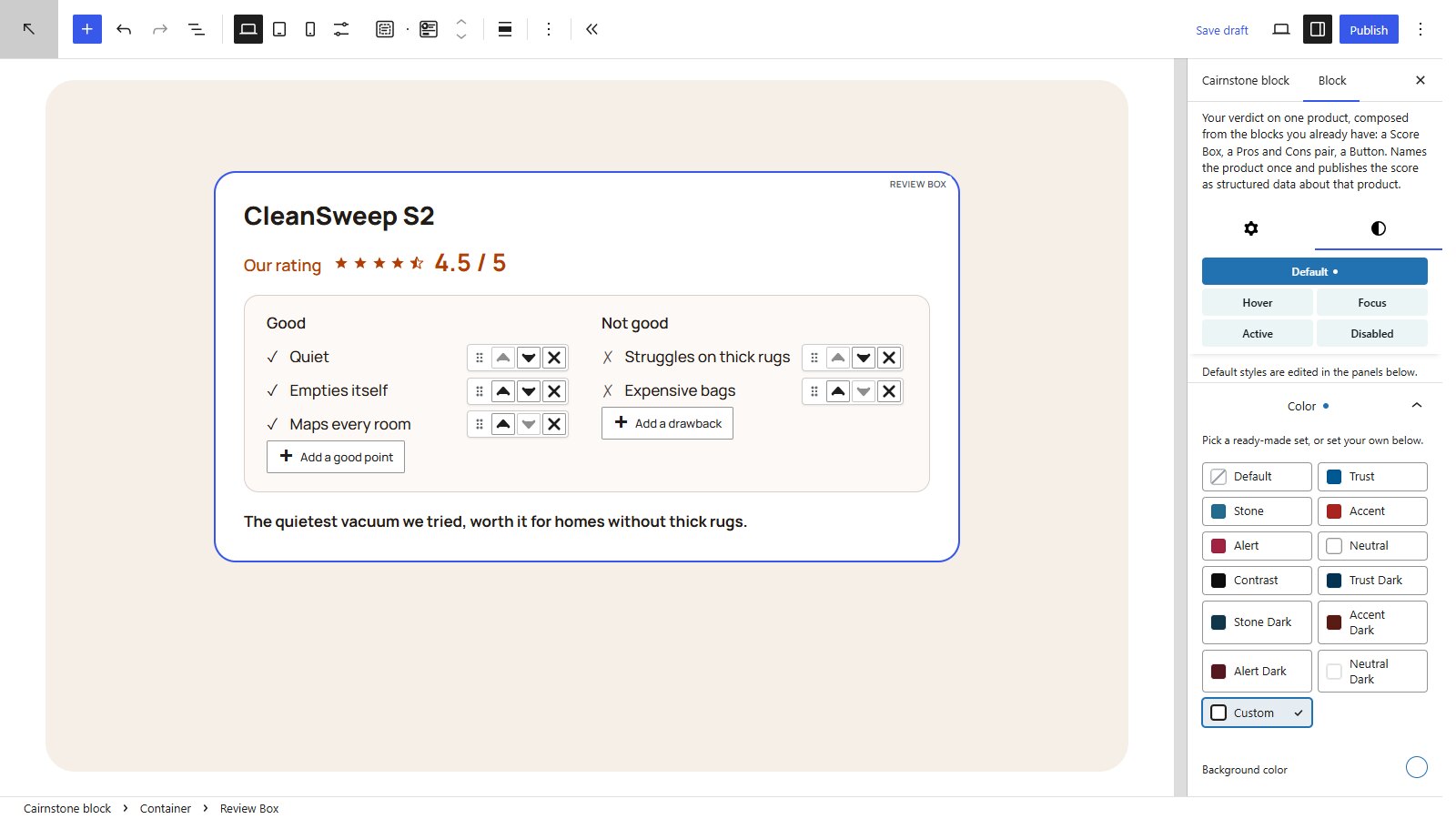
What visitors get
The score as text, such as 4.5 / 5, the good and bad points, which screen readers A program that reads the screen aloud, for people who cannot see it well. They move around the page with the keyboard and hear what is there. hear as Good and Not good, the bottom line and the button. The page also carries review data for search engines, with the product’s name and your score.
Next, read Give a score with symbols.