The Map block A piece of a page, such as a paragraph, a picture or a button. In WordPress you build a page by putting blocks one after another. lists your places as text, with the name, address, phone and a link for directions, and shows a map that loads only when a visitor asks for it. See it working on the Map page.
Add a map
Add the Map block where you want it.
In the Settings tab, press Add a place.
Type its Name, Address (one line per row, as on an envelope), Phone and Position on the map.
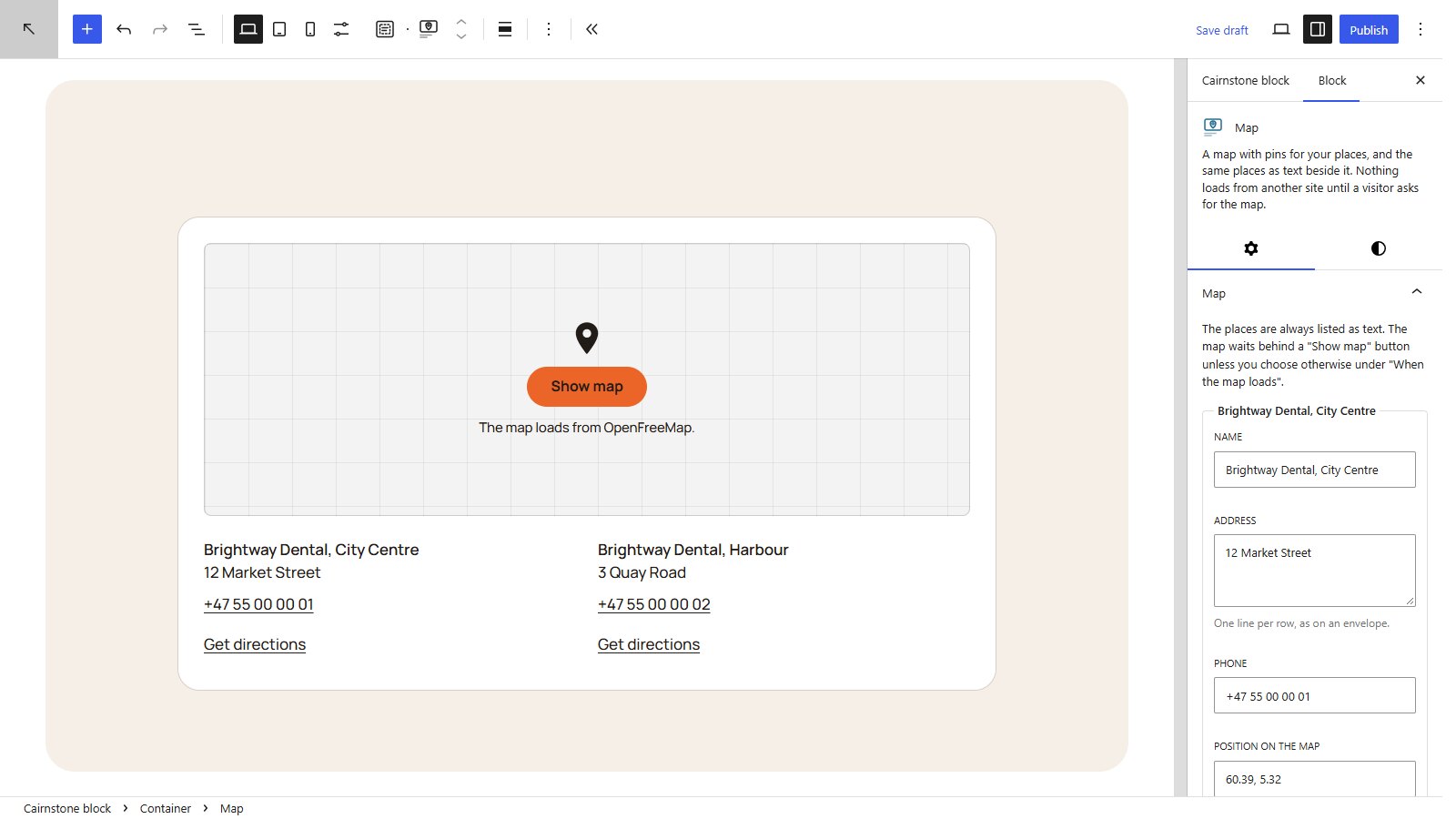
The Map settings
- Map from: OpenFreeMap (OpenStreetMap, no account needed) (the default), or Google Maps.
- Map style: Liberty (colourful) (the default), Positron (light grey), Bright, Dark or Fiord (dark blue).
- Layout: Map above the places (the default) or Map beside the places.
- Map height (px): 200 to 800, 400 to start.
- Zoom: 0 to 20. 0 shows every place, higher numbers show a closer view of the first place.
- Link under each place: Get directions (Google Maps) (the default), Open in OpenStreetMap or No link.
- When the map loads: When a visitor presses “Show map” (the default), when a visitor has accepted marketing cookies, or as soon as the page opens.
Colours and shape
Where you set the look depends on where you edit the block. In a normal post or page, the Styles tab has WordPress’s own controls: colour, typography, padding and margin, and border. In a saved Cairnstone block, under Cairnstone → Blocks, the Styles tab has Cairnstone’s full set: colour (a ready-made set or your own), typography, border, shadow, filters, and size and spacing, each for the normal state and for hover, focus, pressed and switched off.
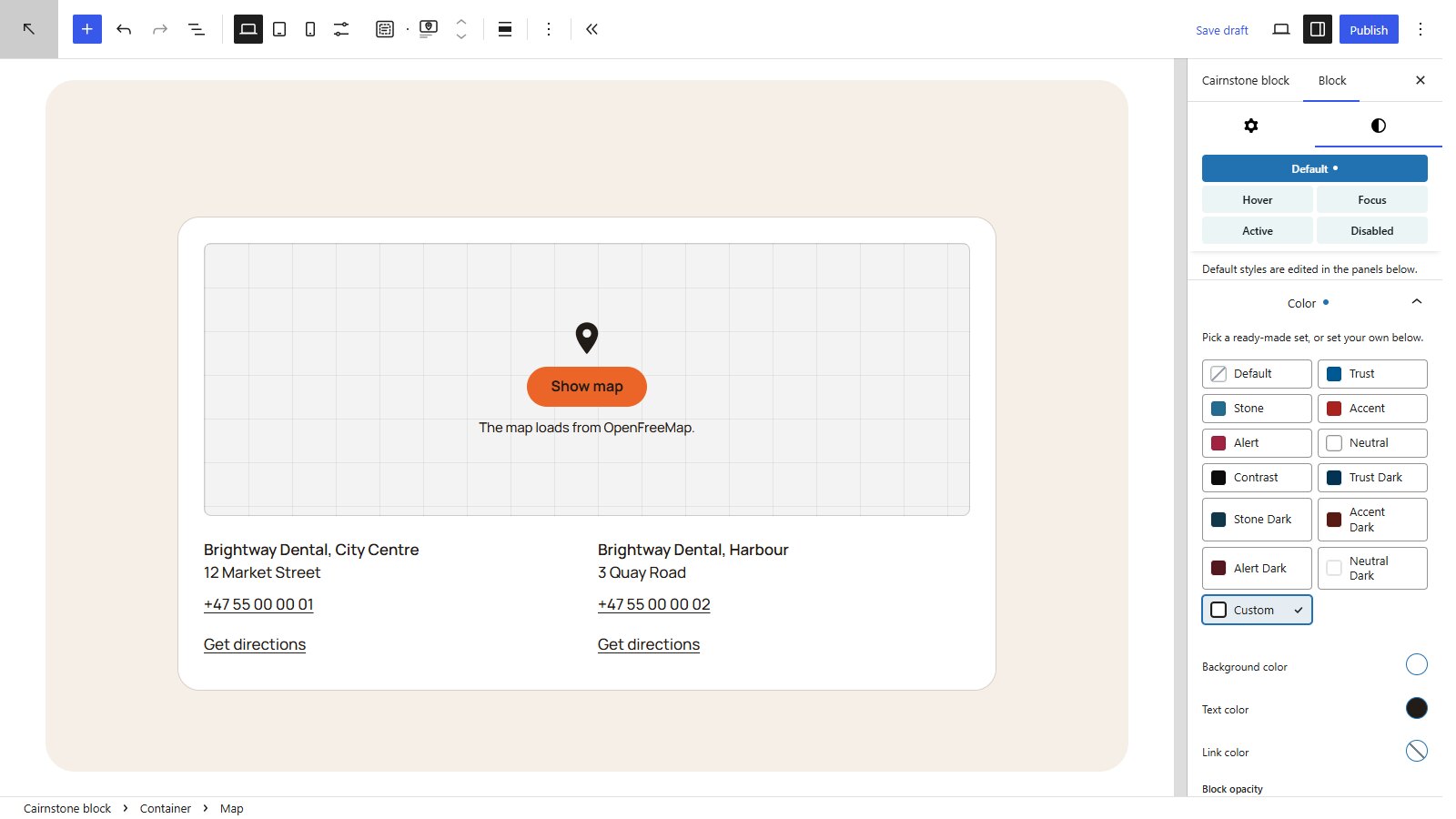
What visitors get
- Each place as text. The phone number is a link that calls it on a phone, and the directions link opens in a new tab.
- Nothing loads from the map service until the visitor presses Show map. Then the map is drawn.
Next, read Open a window over the page.