The Image block A piece of a page, such as a paragraph, a picture or a button. In WordPress you build a page by putting blocks one after another. shows one image, with a size, a shape, a caption and a choice of what a click does. See it working on the Image page.
Add an image
Add the Image block where you want it, and press Choose image.
Drag the edges of the image to size it.
Press Add caption for a line under it. A counter shows how long the caption is, up to 200 characters.
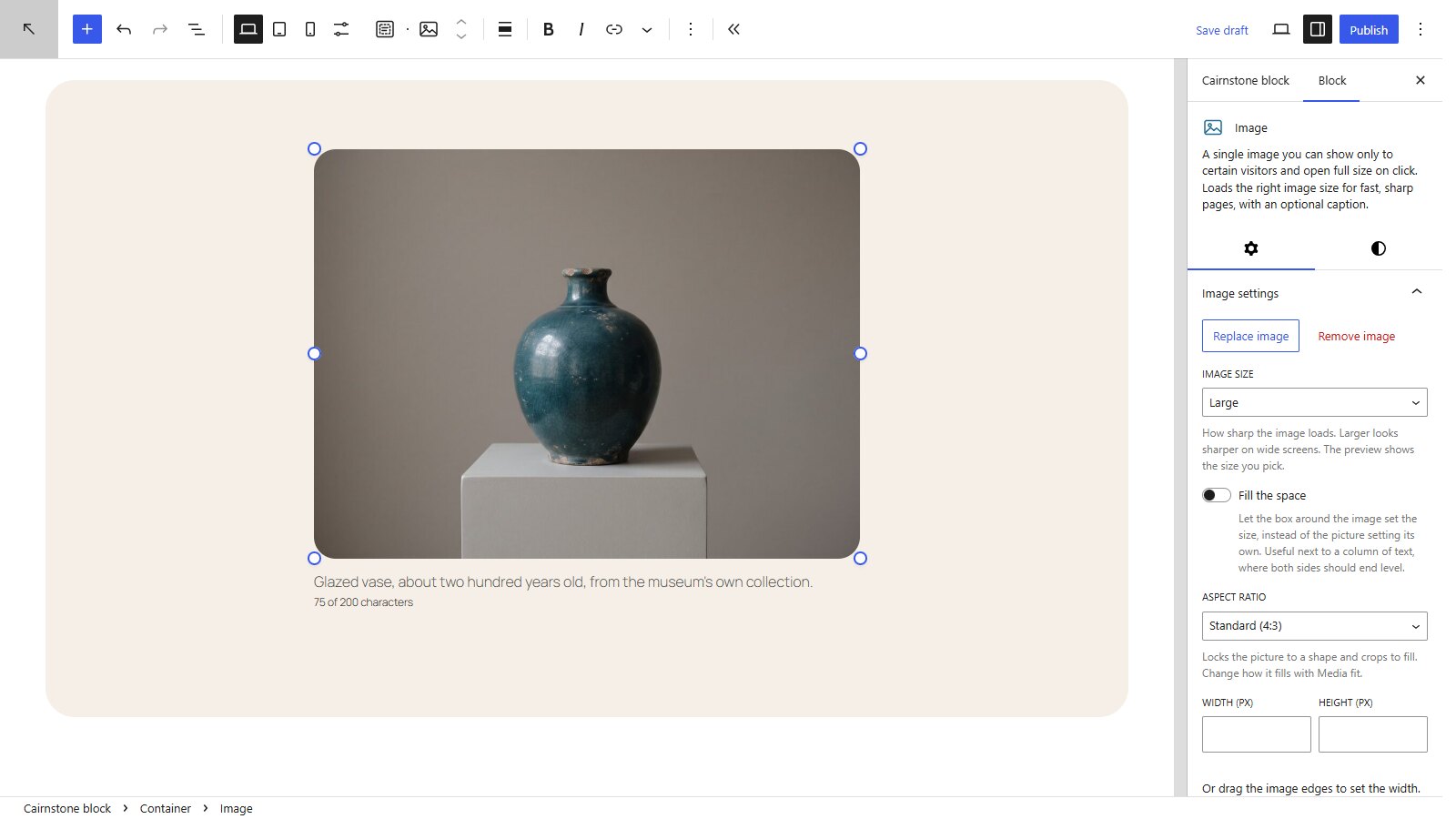
The Image settings
- Replace image and Remove image.
- Image size: Thumbnail, Small, Medium (the default), Large or Full size. Larger looks sharper on wide screens.
- Fill the space (off to start) lets the box around the image set its size, useful next to a column of text where both sides should end level.
- Aspect ratio: Original (the default), Square (1:1), Standard (4:3), Classic (3:2), Wide (16:9), Cinematic (21:9), Portrait (3:4), Portrait (2:3) or Tall (9:16). It crops the picture to fill that shape.
- Width (px) and Height (px), or drag the image edges. The height follows the width unless you set one.
- On click: Open full size to start. The other choices are Do nothing, Open image gallery, Go to a link, Download this image and Download a file.
- Show a zoom mark (off to start) puts a small magnifier in the corner, so visitors on a touch screen can see that the picture opens.
- Text in the full-size view, shown when On click opens the picture full size: the caption (or the description, if there is no caption) to start, the description, your own text, or no text.
- Slow zoom (off to start): the picture grows a little, once, the first time a visitor scrolls to it. Zoom time (seconds) sets how long it takes, 3 to 20, 9 to start. Zoom depth (%) sets how far it grows, 2 to 30, 8 to start. Visitors who ask their device for less motion never see it. Inside a slideshow slide these settings are hidden, as the slideshow has its own zoom.
Colours and shape
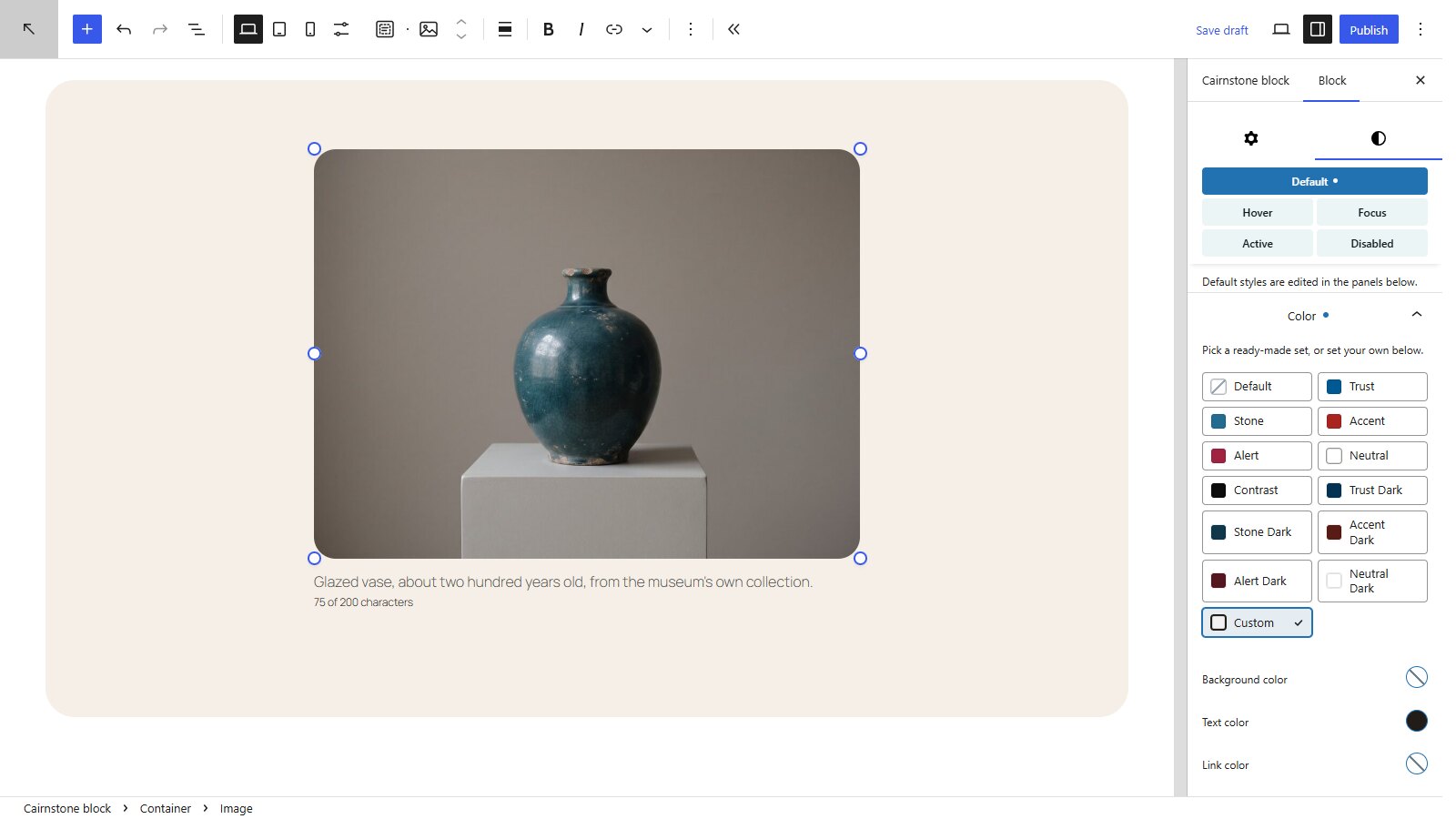
Where you set the look depends on where you edit the block. In a normal post or page, the Styles tab has WordPress’s own controls: colour, typography, padding and margin, and border. In a saved Cairnstone block, under Cairnstone → Blocks, the Styles tab has Cairnstone’s full set: colour (a ready-made set or your own), typography, border, shadow, filters, and size and spacing, each for the normal state and for hover, focus, pressed and switched off.
What visitors get
- The image with its description from the media library, and the caption under it.
- With Open full size, a click opens an image viewer with the full-size picture, and the keyboard lands on its Close button.
Next, read Show the logos of your partners.