The Sign-up form block A piece of a page, such as a paragraph, a picture or a button. In WordPress you build a page by putting blocks one after another. holds Field blocks and a Button, and sends what a visitor types to Gillish Core. It needs Gillish Core, which is free. Without Core, nothing is drawn on the page, and the block is not in the block list. A form already in a post still opens in the editor, with a notice that it needs Gillish Core. See it working on the Sign-up form page.
Add a form
Add the Sign-up form block where you want it. It starts with an Email field and a Send button.
Add the fields you need inside it, as Field blocks. Select a field or the button, and press the + right under it. The new field goes in there. With In one row, the + sits between the field and the button.
Edit the words under After sending: what the visitor sees once the form is sent.
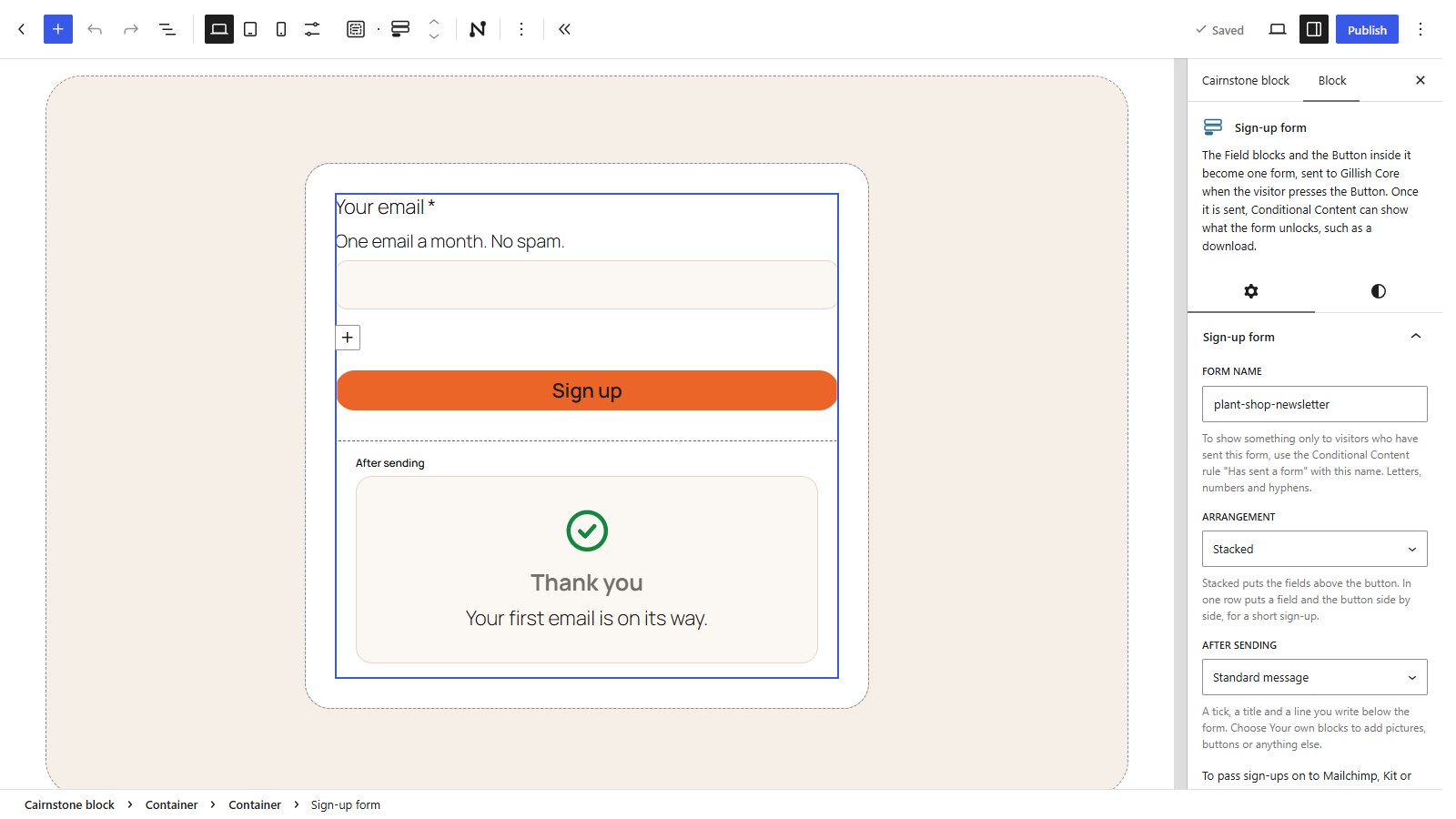
The Sign-up form settings
- Form name: made up for you to start, letters, numbers and hyphens. To show something only to visitors who have sent this form, use the Conditional Content rule Has sent a form with this name.
- Arrangement: Stacked (the default) puts the fields above the button. In one row puts a field and the button side by side, for a short sign-up.
- After sending: what the visitor sees once the form is sent. Standard message (the default) shows a green tick, a title and a line. The title is Thank you unless you write another. Leave the line empty, and it fits what happens next: We have received it. when the form sends to no email service, and Check your inbox. We have sent you an email. when it sends to a service you have marked on Gillish → Email services as one that emails people. A line you write yourself always wins.
- Your own blocks (the other choice under After sending) lets you build that view from any blocks, such as a picture and a button. An After sending area appears under the form, with the tick, Thank you and We have received it. already in it, so nothing changes until you edit it. On the page it stays hidden until the visitor has sent the form. Switching back to Standard message removes the area and every block in it at once, without asking. Undo (Ctrl+Z) brings them back. Deleting the area itself does the same: the standard message comes back. For a fresh area, choose Your own blocks again, or pick After sending from the form’s +. It starts again with the tick, Thank you and the line.
- To pass sign-ups on to Mailchimp, Kit or another email service, connect it under Gillish → Email services (see Send sign-ups to your email service).
Core keeps what visitors send under Gillish → Submissions (see Collect form submissions with Gillish Core).
Colours and shape
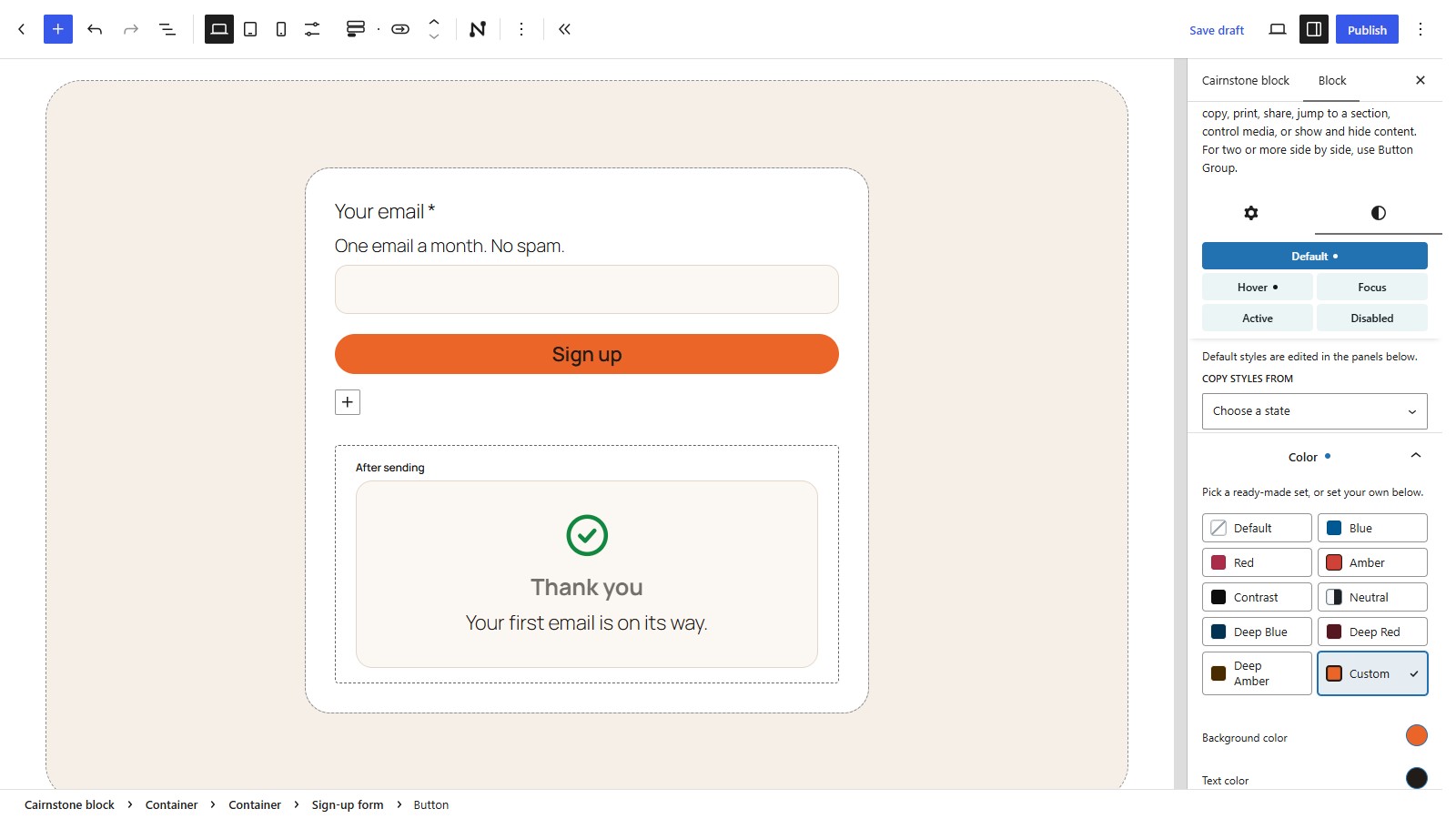
Where you set the look depends on where you edit the block. In a normal post or page, the Styles tab has WordPress’s own controls: colour, typography, padding and margin, and border. In a saved Cairnstone block, under Cairnstone → Blocks, the Styles tab has Cairnstone’s full set: colour (a ready-made set or your own), typography, border, shadow, filters, and size and spacing, each for the normal state and for hover, focus, pressed and switched off.
What visitors get
A real form with its fields and button. It also holds a hidden field that only spam robots fill in.
Next, read Open a page with a big heading.