The Field block A piece of a page, such as a paragraph, a picture or a button. In WordPress you build a page by putting blocks one after another. is one real text field with a label. On its own it sends nothing: put it inside a Sign-up form block, and it is sent with the form. See it working on the Field page.
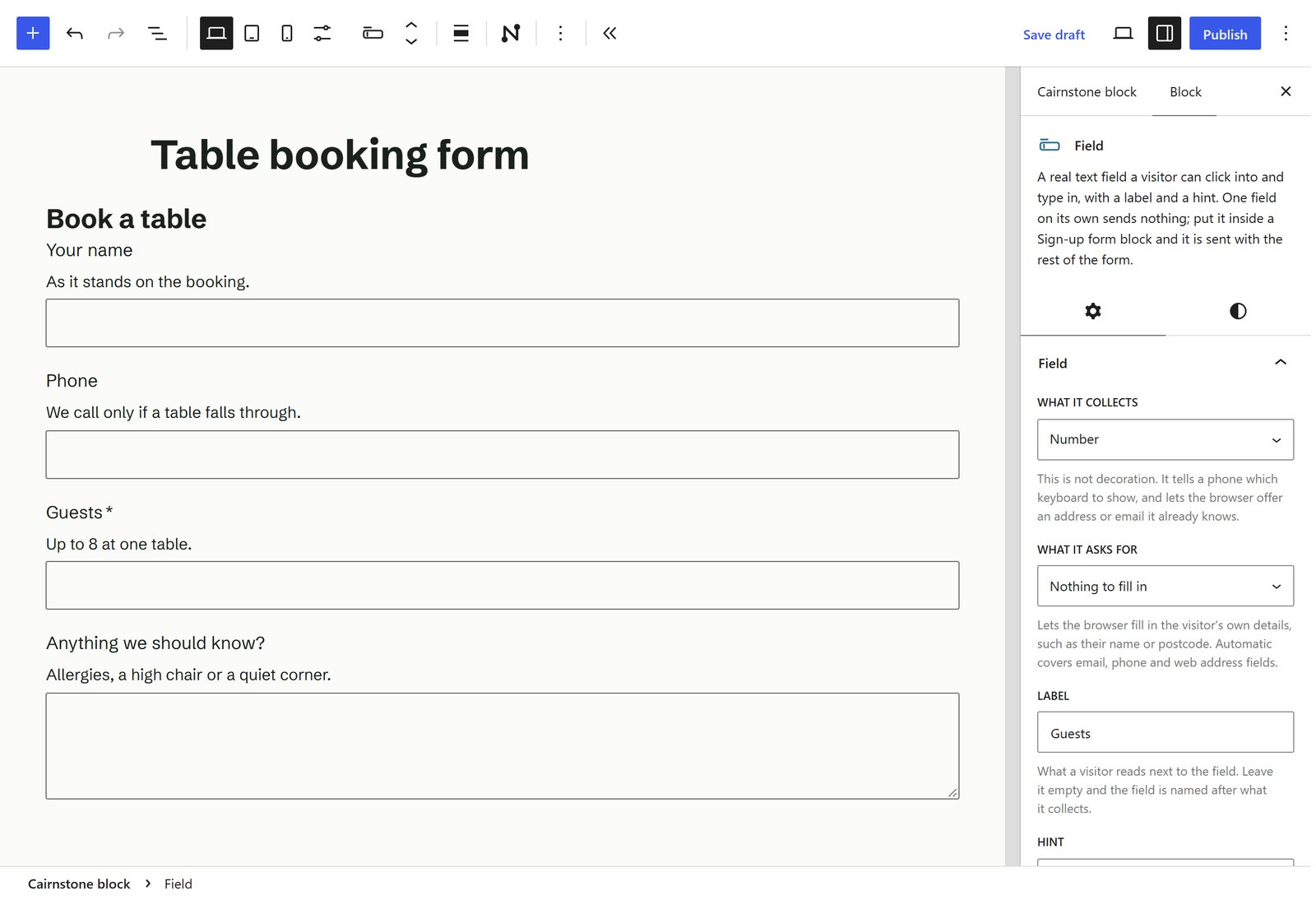
As it stands on the booking.
We call only if a table falls through.
Up to 8 at one table.
Such as 14 June.
Allergies, a high chair or a quiet corner.
Add a field
Inside a Sign-up form block, add the Field block.
In the Settings tab, pick What it collects.
Type the Label straight into the form, above the box, the way you type a heading. Add a Hint in the Settings tab if it helps.
How a form sends and saves
A Field block only holds what a visitor types. Three things make it work: the Sign-up form block around it, a button that sends, and Gillish Core, which keeps the answers.
Make a form that sends
Install and activate Gillish Core, which is free. It is Core that sends a form and keeps the answers.
Add the Sign-up form block. It starts with an Email field and a Send button.
Add a Field block in the form for each thing you want to ask.
Keep the button in the form. If you add one of your own, set What the button does to Sends the form.
Publish the page. What visitors send is kept under Gillish → Submissions.
Read more in Collect sign-ups and messages, and see what you can do with the answers in Collect form submissions with Gillish Core.
The Field settings
All of these are in the Settings tab. The fields here are real, so try them. They send nothing.
What it collects
What it collects: Text (the default), Email, Phone, Web address, Number, Long message or Password. This is not decoration: it tells a phone which keyboard to show.
Your town, for example.
A phone shows the @ key.
A phone shows the number pad.
A phone shows a keyboard for addresses.
Arrows go up and down.
What you type stays hidden.
A bigger box, for more words.
What it asks for
What it asks for: tells the browser which of the visitor’s own details belong in the field, so it can offer to fill them in. Automatic (the default) does this for Email, Phone and Web address fields. For a name or an address, pick it yourself: Full name, First name, Last name, Email, Phone, Company, Street address, Postcode, City, Country or Website. Nothing to fill in leaves it to the browser.
Label and hint
Label: what a visitor reads above the field. You type it in the form itself, and it shows here too. Leave it empty, and the form shows a grey word for what the field collects, such as Email or Phone. The page uses that word.
Hint: a help line shown with the field. It stays while the visitor types, and is read out with the field. Left empty, the field uses the site default, such as name@example.com for an email. A hint is not a label.
Hide the label
Hide the label (under Naming, off to start) takes the label out of the design but keeps it for screen readers A program that reads the screen aloud, for people who cannot see it well. They move around the page with the keyboard and hear what is there.. Use it where the hint already says what the field is, like a search box.
A dish or an ingredient, such as lemon.
Required
Required (off to start) tells screen readers the field must be filled, adds a * after the label, and lets the browser refuse an empty send. It adds no checking of its own.
We need this to send your receipt.
The name it is sent as
Name it is sent as: leave it empty, and the label is used, such as your_email for Your email.
Colours and shape
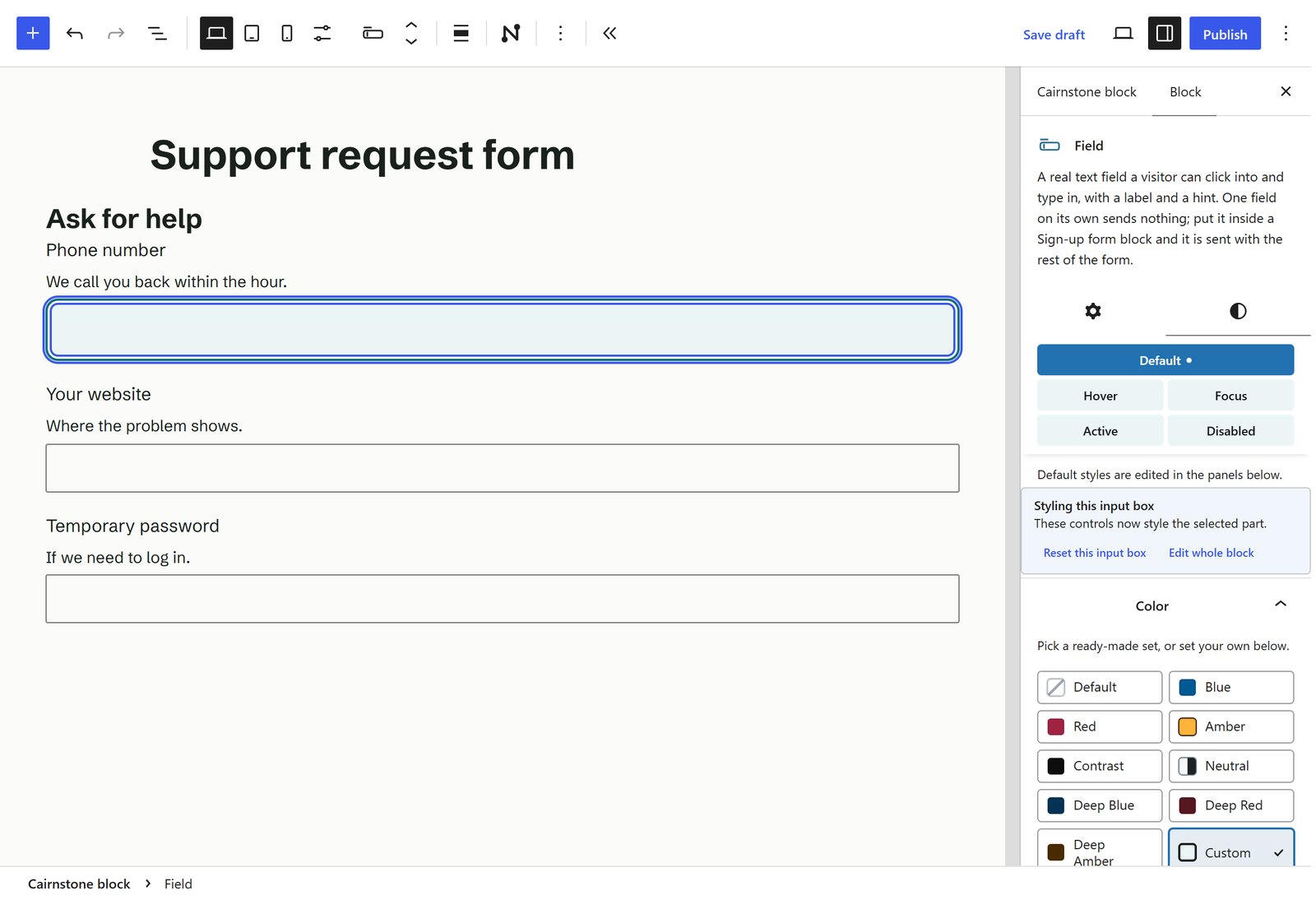
Where you set the look depends on where you edit the block. In a normal post or page, the Styles tab has WordPress’s own controls: colour, typography, padding and margin, and border. In a saved Cairnstone block, under Cairnstone → Blocks, the Styles tab has Cairnstone’s full set: colour (a ready-made set or your own), typography, border, shadow, filters, and size and spacing, each for the normal state and for hover, focus, pressed and switched off.
In a saved block, click the box itself to style it alone: its fill, line, corners, size and shadow. The label and the hint keep their own look.
Three ideas, made that way:
No line at all.
For a calm, open form.
With a soft shadow, for the one field that matters.
What visitors get
A real field with its label tied to it, and the hint read out with it.
Next, read Collect sign-ups and messages.