The Comparison Table block A piece of a page, such as a paragraph, a picture or a button. In WordPress you build a page by putting blocks one after another. sets plans side by side: the plans across the top, the features down the side, and in each cell a tick, a cross, a star rating or your own words. See it working on the Comparison Table page.
Add a comparison table
Add the Comparison Table block where you want it. It starts with three sample plans and four features.
Type over the sample in the table itself: each plan’s name and price, the features, and each cell. Press Add plan, Add section or Add feature for more, and the × to remove one.
In the Settings tab, under Plan buttons, give each plan’s button its link.
The sample buttons link to example.com, so replace the names, prices and links before you publish. A plan’s button shows once it has both a label on the table and a link.
Each cell
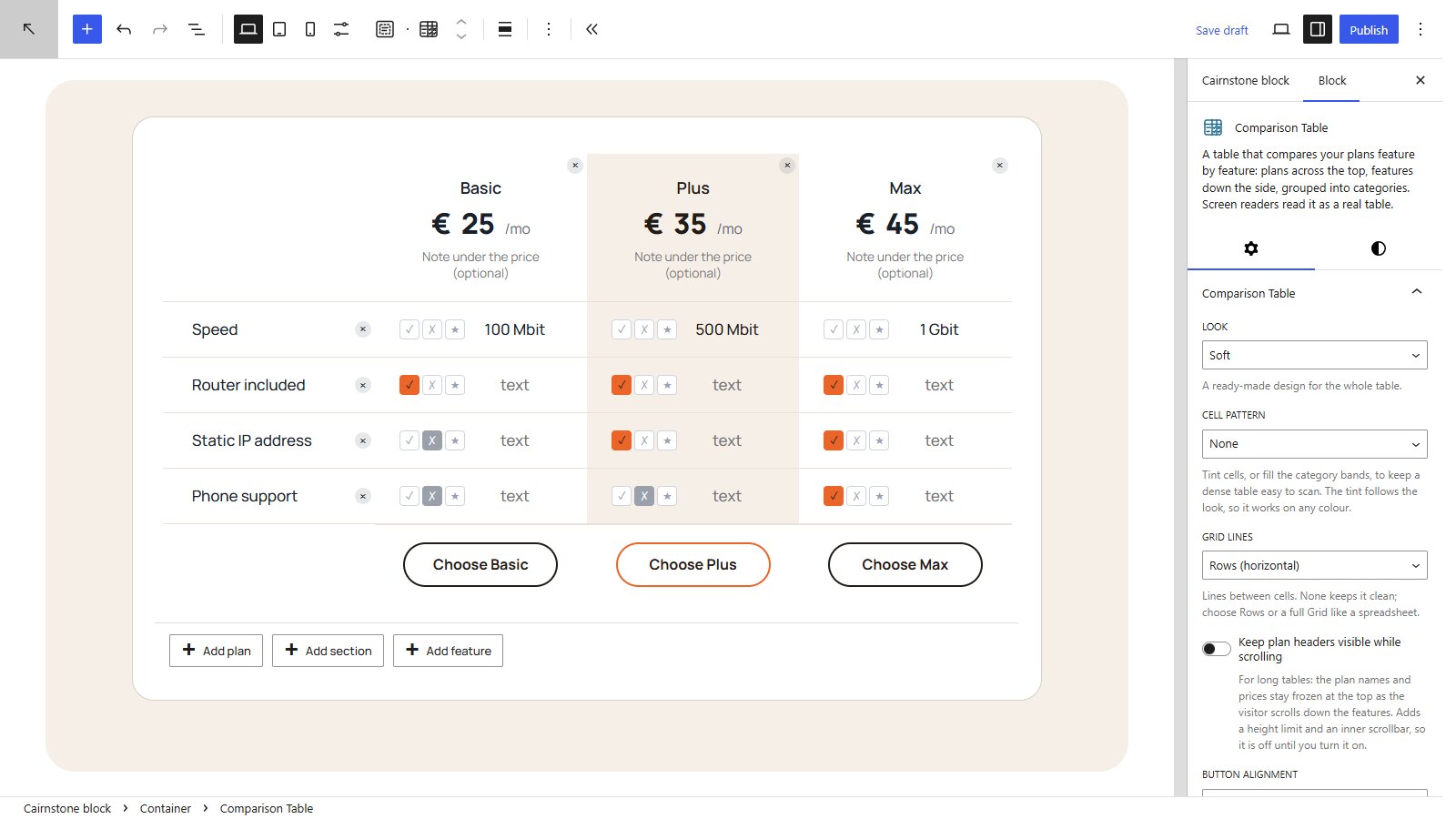
Click a cell to pick ✓ Included, ✗ Not included or ★ Star rating, or type your own value in it.
The look
- Look: a ready-made design for the whole table: Soft (the default), Bold, Brutal or Editorial, each also as a Dark version.
- Cell pattern: None (the default), Zebra rows, Column tracks, Checkerboard or Section bands.
- Grid lines: Rows (horizontal) (the default), Grid (rows + columns) or None.
- Highlighted plan: the plan that stands out, or None. Type its badge word right on the table. Most popular marker: Band (top banner) (the default), Pill (small chip) or None.
- Button alignment: Start, Centre (the default) or End. Button width: Equal (match widest) (the default), Full width or Custom.
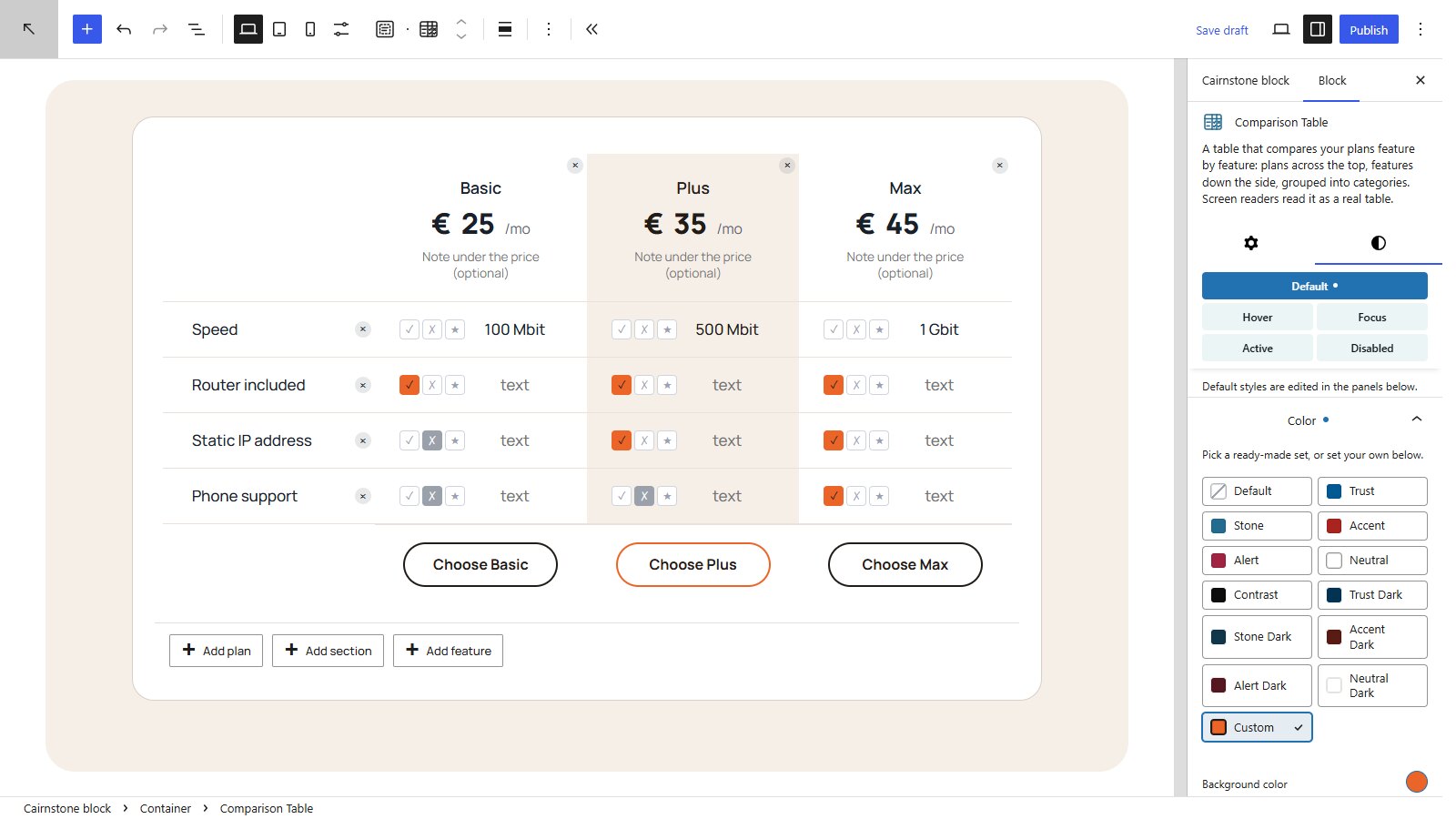
- Table background: a colour behind the table, none to start.
Prices
- Currency: US Dollar ($) to start, or Euro, British Pound, Japanese Yen, Chinese Yuan, Canadian Dollar, Australian Dollar, or your own symbol.
- Symbol position: before the price, as in $9 (the default), or after it, as in 9 €.
- Show prices by region shows a different currency and price by the visitor’s country. It needs Gillish Node for the country.
This block has its own design settings, so in a normal post or page it has no Styles tab.
What visitors get
A real table: the plan names head the columns and the features head the rows, and each section is a group of rows. So a screen reader A program that reads the screen aloud, for people who cannot see it well. They move around the page with the keyboard and hear what is there. names the section and the plan for every cell. Ticks and crosses are read as Included and Not included.
Next, read Count down to a date or run a timer.