The Author Bio Card shows who wrote a post: a round photo, a name, a role, a few lines about the person, and links to their social profiles. See it working on the Author Bio Card page.
Add an author card
Add the Author Bio Card block where you want it.
Click the name, the role and the short bio in the card and type over them.
In the Settings tab, press Choose photo and pick a picture.
A new card comes filled with a sample person. If you do not type over it, the sample text is published as it is.
The photo
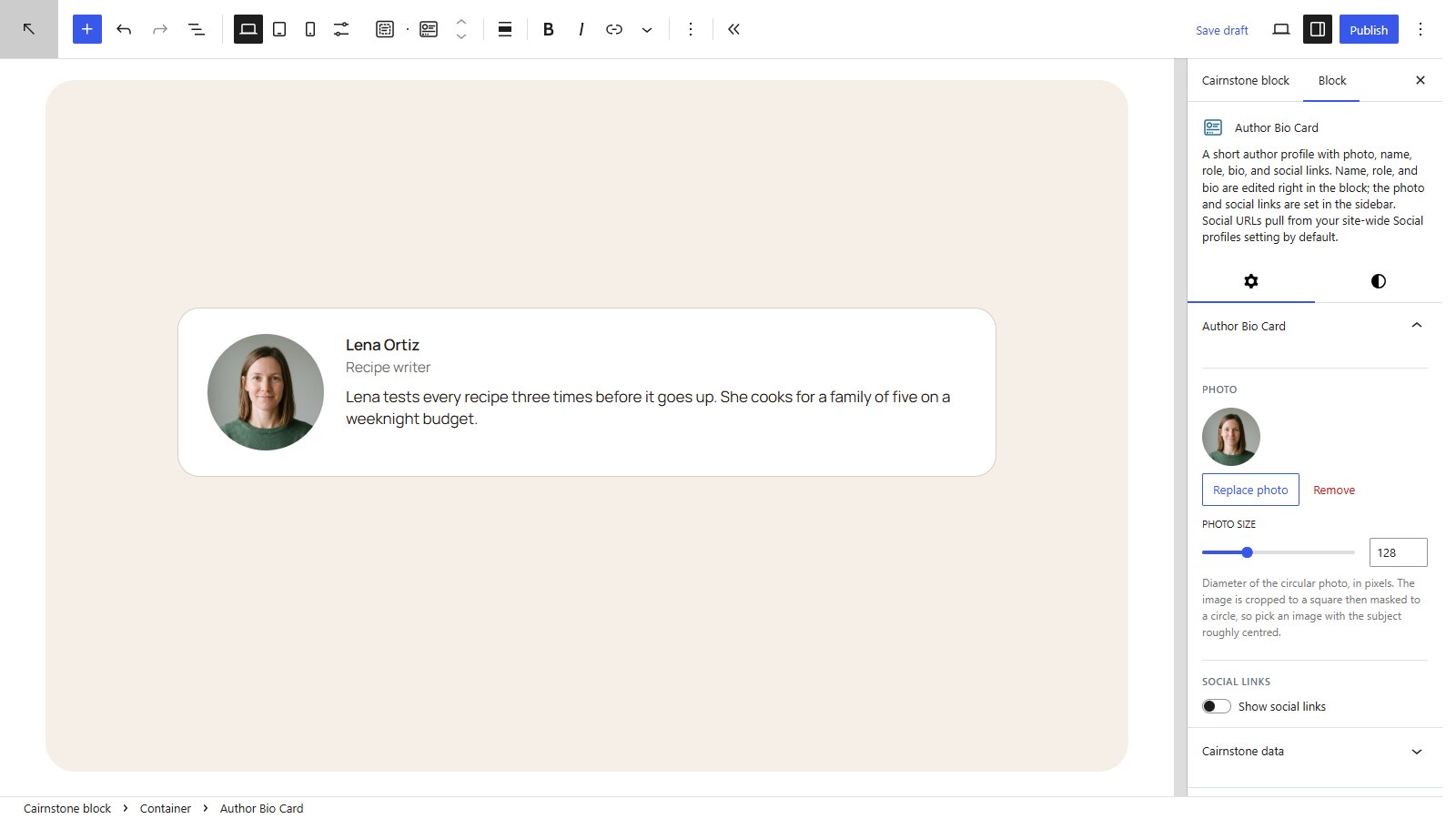
- With a photo set, Replace photo and Remove appear. Without one, the card shows no photo and no empty circle.
- Photo size: the width of the round photo in pixels, 128 to start, from 48 to 320. The picture is cut to a square and then to a circle, so pick one with the person near the middle.
Social links
- Show social links is on to start.
- Icon size: Small, Medium (the default) or Large.
- Use site-wide social profiles is on to start. It uses the links saved in Cairnstone → Settings → Site defaults, under Social profiles. Under Per-platform overrides, type an address to use another one for this card only, or leave a field empty to keep the site-wide link.
- Turn the switch off to set the links for this card only. The section is then URLs for this block, and a field you leave empty hides that network on this card.
The fields are Twitter / X, LinkedIn, GitHub, YouTube, Instagram, Facebook, Mastodon, Bluesky, TikTok and Personal website.
Colours and shape
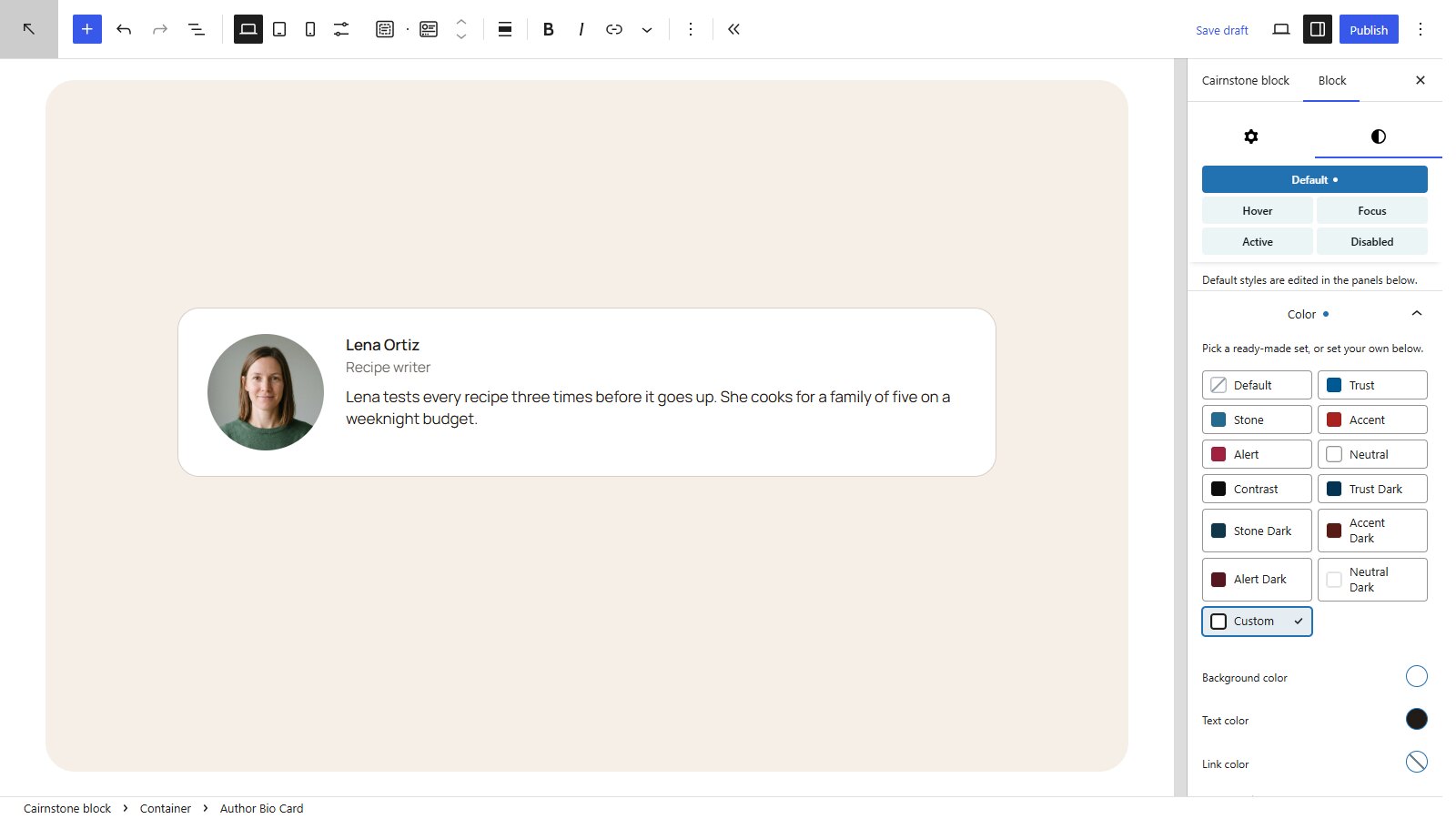
Where you set the look depends on where you edit the block A piece of a page, such as a paragraph, a picture or a button. In WordPress you build a page by putting blocks one after another.. In a normal post or page, the Styles tab has WordPress’s own controls: colour (text, background and links), typography, padding and margin, and border. In a saved Cairnstone block, under Cairnstone → Blocks, the Styles tab has Cairnstone’s full set: colour (a ready-made set or your own), typography, border, shadow, filters, and size and spacing, each for the normal state and for hover, focus, pressed and switched off.
What visitors get
- With no links saved for the site or the card, the card shows no social icons.
- With links, screen readers A program that reads the screen aloud, for people who cannot see it well. They move around the page with the keyboard and hear what is there. hear a list called Social links, and each icon is a link named after its network, such as LinkedIn. The links open in the same tab.
Next, read Add a small label such as New.