The Audio block A piece of a page, such as a paragraph, a picture or a button. In WordPress you build a page by putting blocks one after another. plays a recording from your media library in Cairnstone’s own player, with a picture, the show name and the title. See it working on the Audio page.
Add a recording
Add the Audio block where you want it.
Press Upload or pick an audio file and choose a recording.
In the player, type the Show name (optional) and the Title. Under the player, Add a caption… takes a line of text.
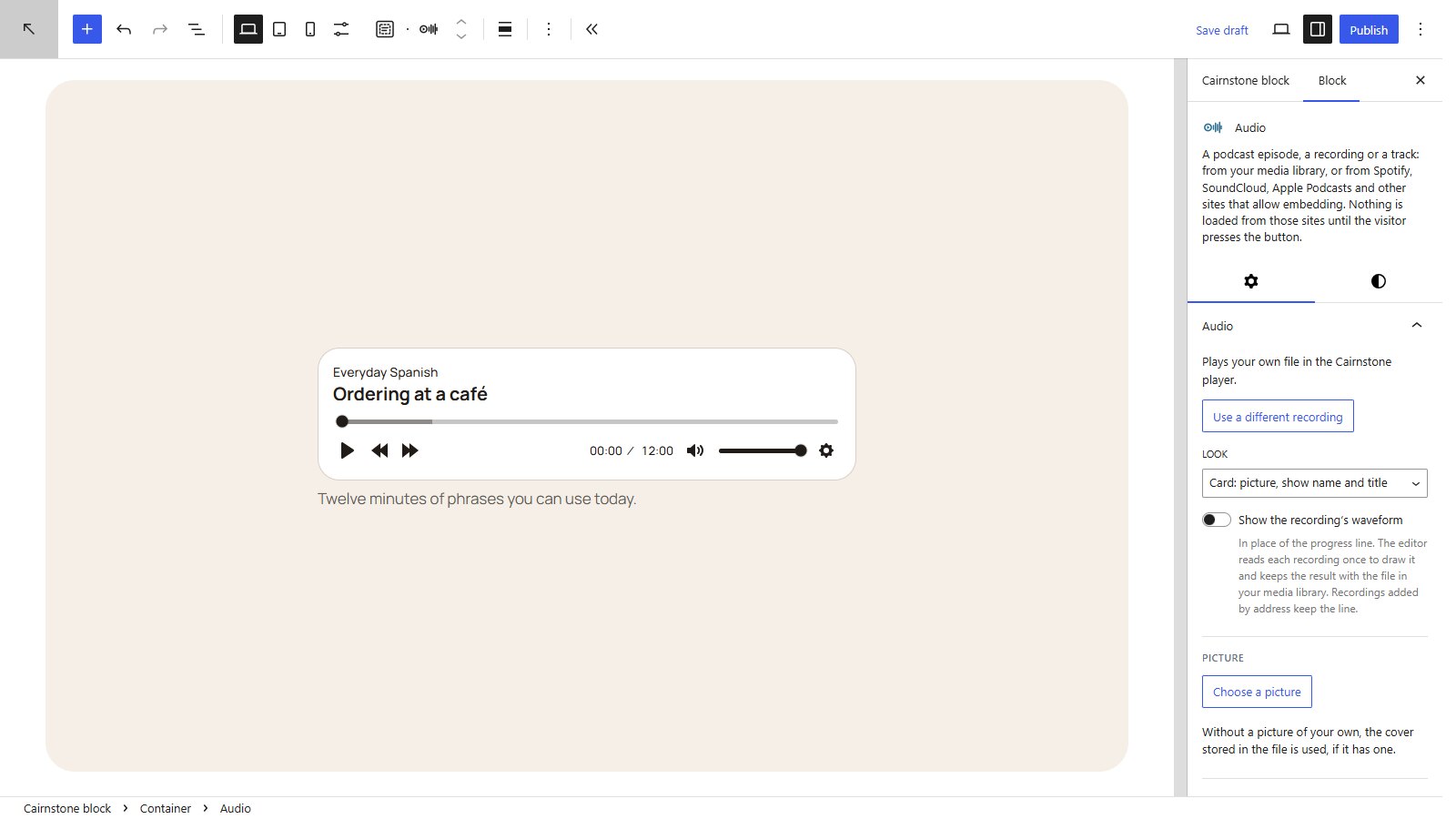
The Audio panel in the Settings tab starts with what is playing, and Use a different recording swaps it.
How the player looks
- Look: Card: picture, show name and title (the default), or Bar: one slim row with the same controls in one row.
- Picture: Choose a picture for the card. Without a picture of your own, the cover stored in the file is used, if it has one. With a picture you can Replace picture, Remove picture and Describe the picture; leave the description empty when the picture only repeats the title, such as a show logo.
- Show the recording’s waveform (off to start) draws the sound in place of the progress line.
Buttons in the player
Each button has its own switch. All are on to start except Download: Play and pause, Skip back, Skip forward, Progress bar, Time played, Length, Mute, Volume and Speed. Switch on Download to give visitors a link to the file.
Skip back (seconds) starts at 15 and Skip forward (seconds) at 30. Each can be from 5 to 120.
Loading and other players
- Load before play: Nothing (recommended) to start, so nothing loads until a visitor presses play. The player still shows the length stored with the recording. You can also pick The start of the file or The whole file.
- Pause other players on the page when this one starts is on to start.
Colours and shape
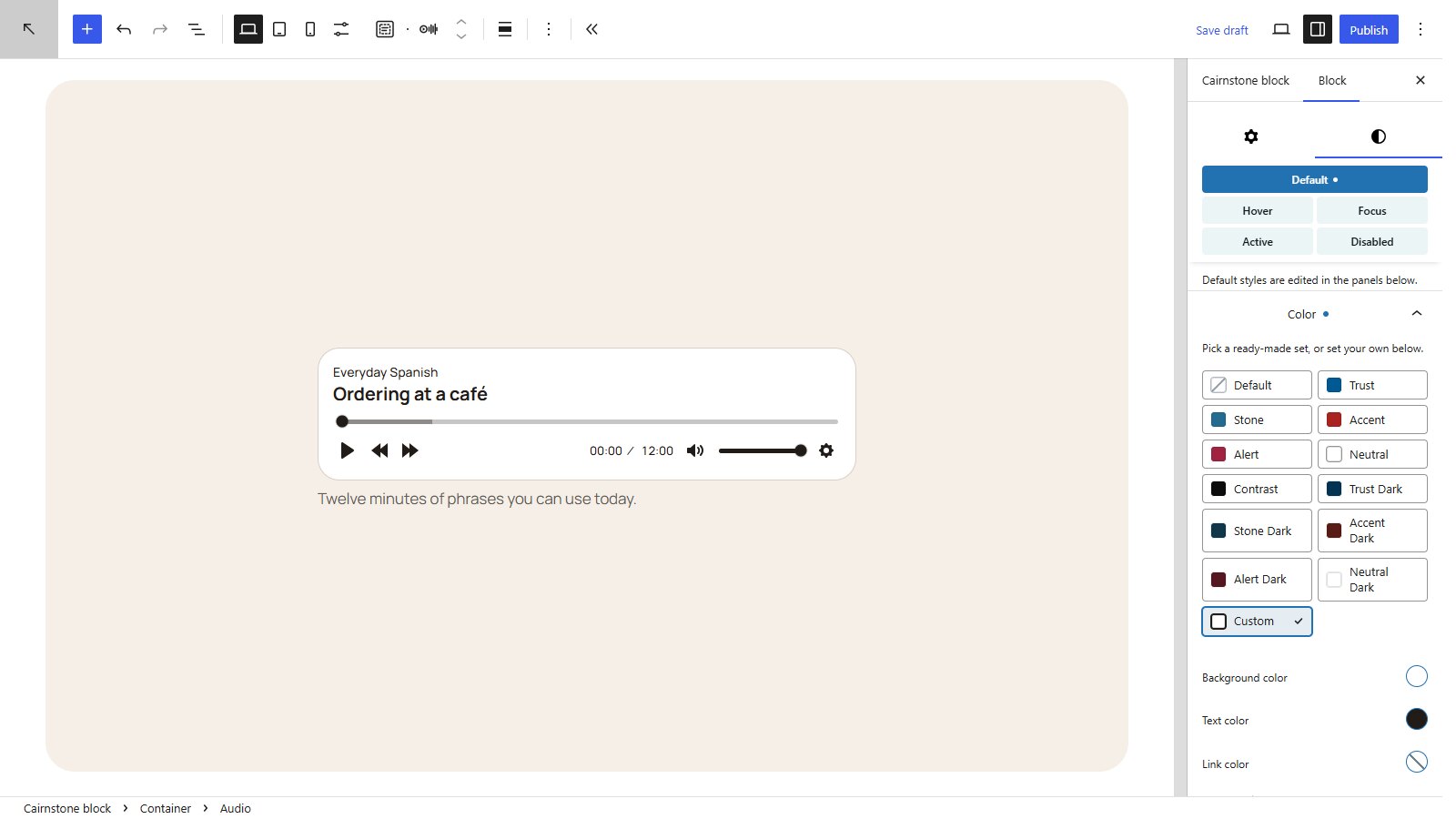
Where you set the look depends on where you edit the block. In a normal post or page, the Styles tab has WordPress’s own controls: colour (text and background), typography, padding and margin, and border. In a saved Cairnstone block, under Cairnstone → Blocks, the Styles tab has Cairnstone’s full set: colour (a ready-made set or your own), typography, border, shadow, filters, and size and spacing, each for the normal state and for hover, focus, pressed and switched off.
What visitors get
- The card shows the picture, the show name, the title and the progress line, with Play, skip back, skip forward, the time, mute, volume, and a settings button for the speed. The bar shows the same in one slim row. The caption sits under the player.
- Nothing plays by itself, and nothing loads before a visitor presses play.
Next, read Show who wrote a post.