The Interactions panel makes a block A piece of a page, such as a paragraph, a picture or a button. In WordPress you build a page by putting blocks one after another. react to what a visitor does, with no code. Each interaction reads as a sentence: When something happens, Then do something. It is in the sidebar’s Settings tab on every block.
Add an interaction
Select the block.
In the sidebar’s Settings tab, open Interactions and click Add an interaction.
Under When, pick what starts it.
Under Then, pick what happens.
Save the post or block.
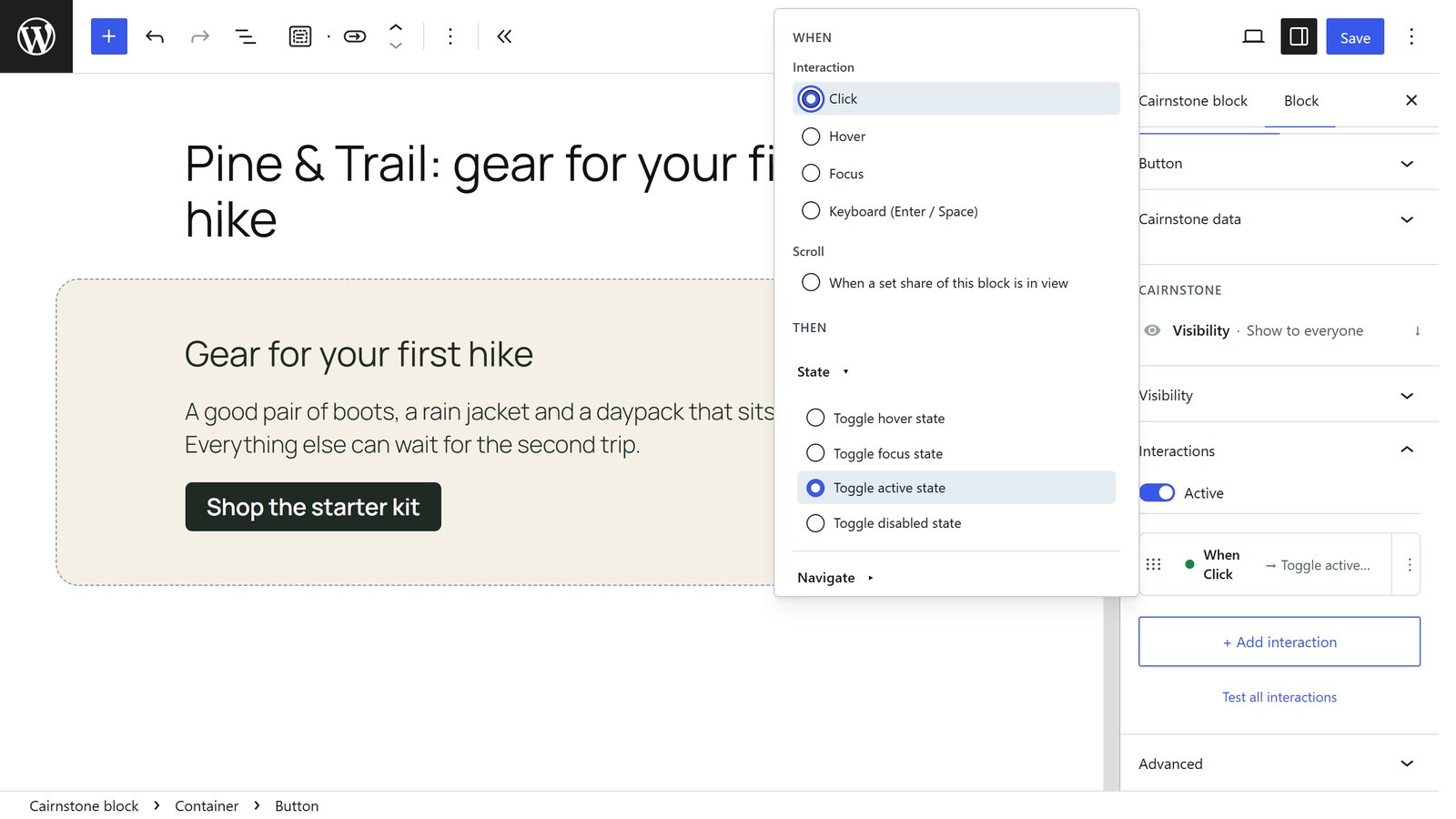
When
The visitor clicks the block (Click), points at it (Hover), tabs to it (Focus), or presses Enter or Space on it (Keyboard (Enter / Space)). Or, as the page scrolls, a set share of the block comes into view: When a set share of this block is in view, with Fire at from 0 to 1 (0.5 is half the block).
Then
- Turn one of the block’s states on or off, so a look you styled for that state comes to life (see Style a block in the Styles tab).
- Scroll to the target: the page glides to another block, for example from a button to a section further down. Choose Another block, then click Click to target and click the block on the canvas (Esc cancels), or choose it from Pick from list. Visitors who prefer less motion get an instant jump.
- Save a visitor signal that the Visibility panel can read later.
- Set a bound value, or write a style variable on a target. Setting a bound value needs an account that can edit other people’s posts, such as an Editor.
Change or pause interactions
Each interaction shows as one row, such as “When Click → Scroll to the target”. Click the row to change it, or use its menu to test it in the editor, duplicate it, move it up or down, or delete it. Test all interactions tests every one in the editor. The Active switch at the top pauses every interaction on the block without deleting any.
Next, read Add structured data with the Schema panel.