After you activate Cairnstone, the admin menu gets an item called Gillish Cairnstone, or Cairnstone when Gillish Core is active. It opens the Dashboard.
Every Cairnstone screen starts with the same band: the Cairnstone mark, links to the plugin An add-on you install in WordPress to give your site new features. Gillish Cairnstone and Gillish Core are plugins.‘s parts, a Documentation link, and three buttons, Light, Dark and High contrast. The colour you pick applies to every Gillish screen and stays until you pick another. High contrast is a dark mode with stronger text and edges, for bright light or weaker sight.
The screens
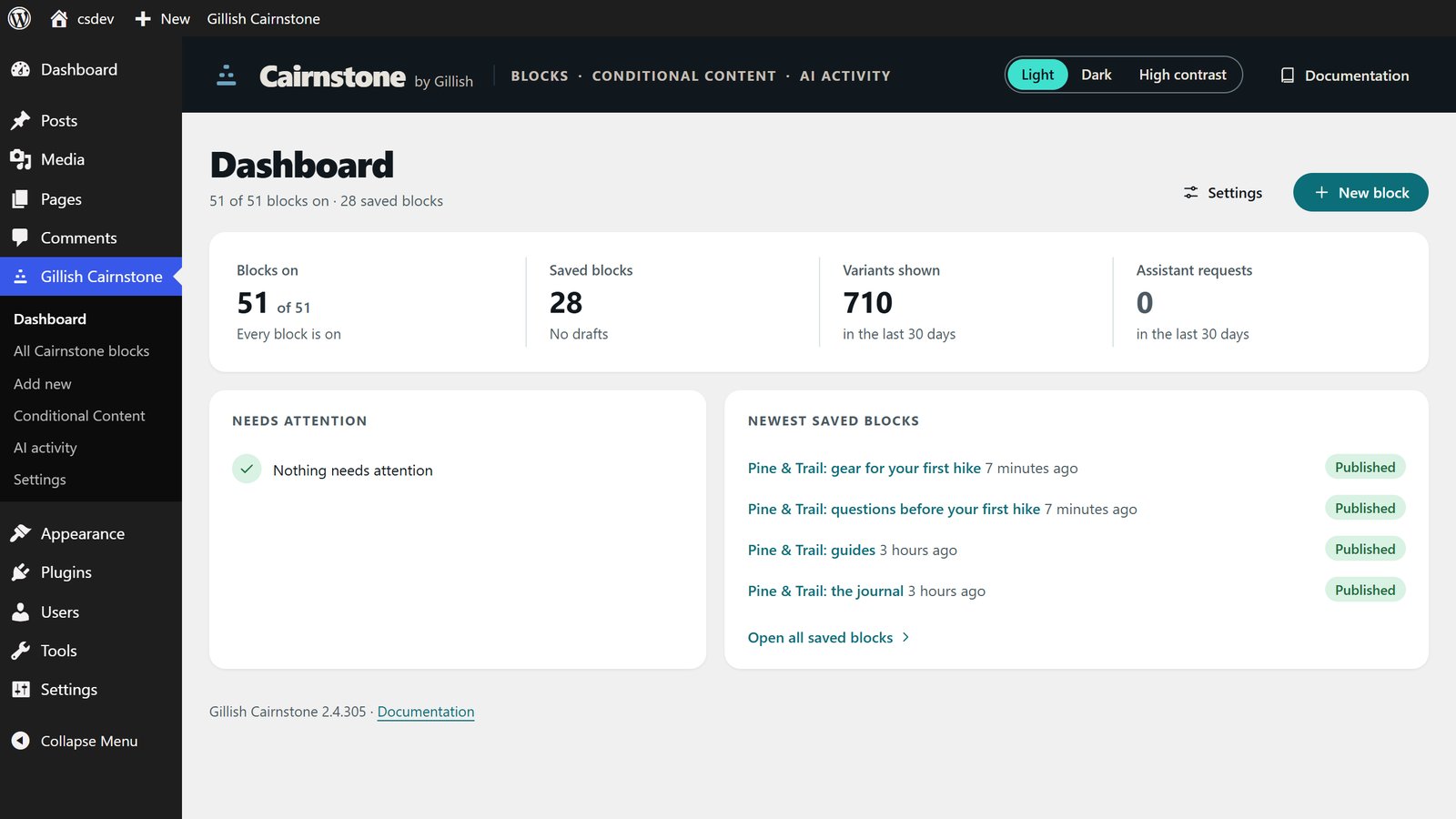
- Dashboard: how many blocks A piece of a page, such as a paragraph, a picture or a button. In WordPress you build a page by putting blocks one after another. are on, how many saved blocks you have, and what Conditional Content and AI assistants counted in the last 30 days. Needs attention lists only what calls for action, such as a block you turned off that pages still use, each with a link to the screen that settles it. Newest saved blocks shows your five newest. The buttons Settings and New block sit at the top. With Gillish Core active, Core’s dashboard shows your number of saved blocks and the first three Needs attention lines too.
- All Cairnstone blocks: every block you have built, on a screen called Cairnstone blocks, with the buttons Add new Cairnstone block, Import and Export all. See Build your own block and Export and import blocks.
- Add new: start building a new block, the same as Add new Cairnstone block. See Build your own block.
- Conditional Content: how often your changing sections were shown in the period you pick, a chart per day, the top blocks, and each version’s count when you click into a block. It is in the menu while that module is on. See Show different content to different visitors.
- AI activity: every call an AI assistant made to your site in the last 30 days. See Let an AI assistant build blocks.
- Settings: six tabs, below. With the keyboard, the arrow keys move between tabs, Home and End go to the first and last, and Tab goes into the open tab.
General
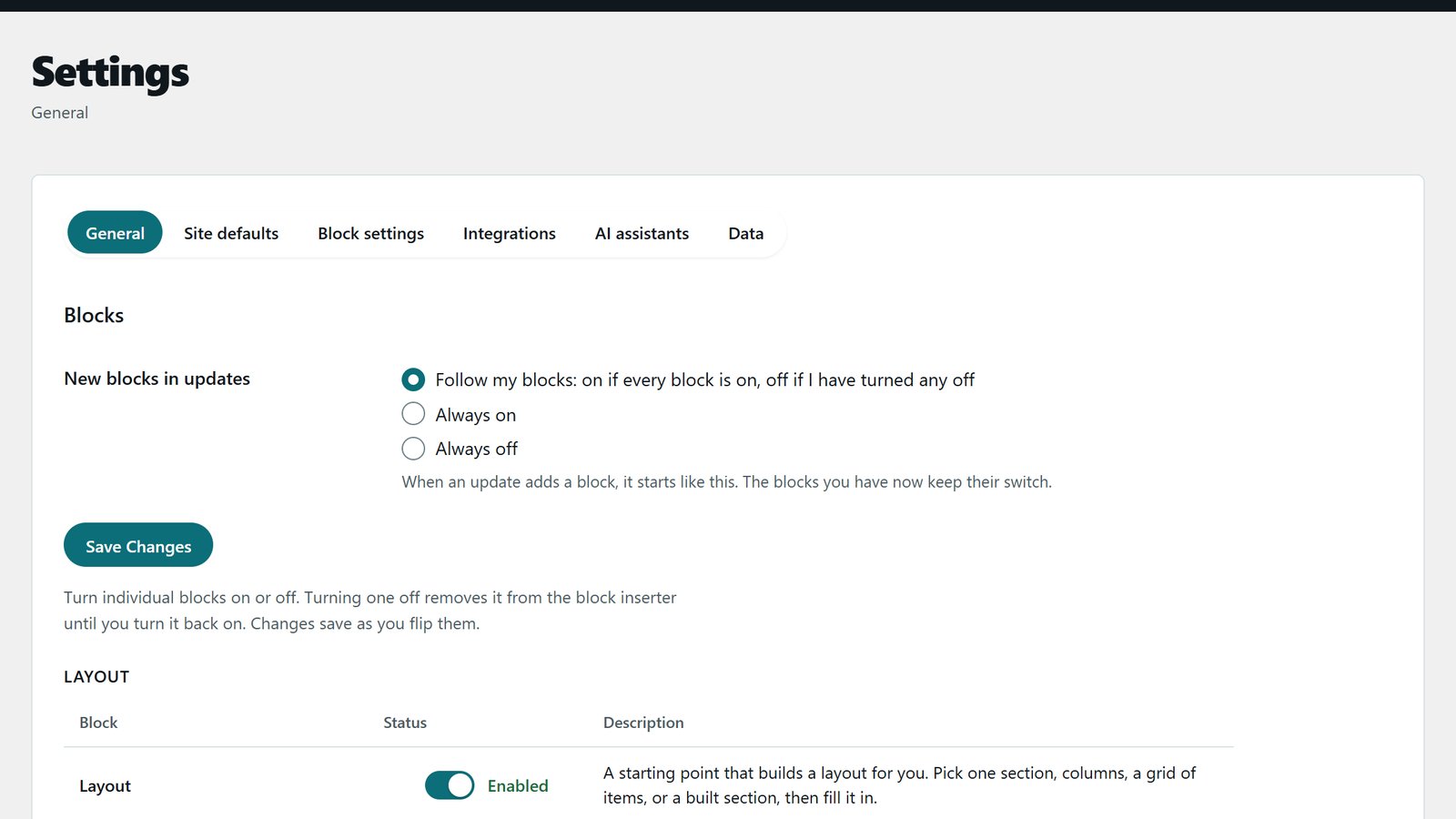
- Blocks: one switch per block. Turning one off removes it from the block inserter, and from the pages that hold it, until you turn it back on. When pages still use a block you turn off, a note beside the switch says how many and links to the first few. Changes save as you flip them.
- New blocks in updates: whether a block that an update adds starts on or off: Follow my blocks, Always on or Always off. See Update Cairnstone.
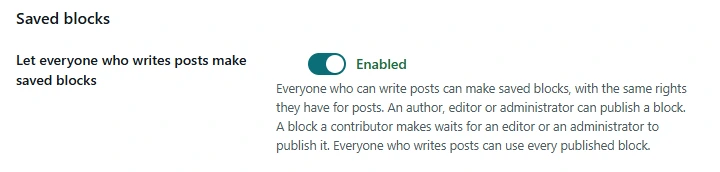
- Saved blocks: who may make them. With Let everyone who writes posts make saved blocks on, which it is from the start, everyone who can write posts can make saved blocks, with the same rights they have for posts. An Author publishes their own blocks and can change or delete them afterwards. A Contributor makes a block and sends it for review; it waits until an Editor or an Administrator publishes it, the block builder says so, and after that the Contributor can no longer change it. An Editor or an Administrator can change, publish and delete a block someone else made. These roles find the list under Cairnstone blocks in the admin menu; an Administrator finds it inside the Gillish Cairnstone menu. Turned off, only Administrators can make saved blocks; the blocks other people made before stay where they are and keep working, but only an Administrator can change them. Either way, everyone who writes posts can use every published saved block. Only an Administrator can change this setting. One thing to know: a page that uses a saved block itself follows every change to that block, so the person who made the block can change what that page shows. A copy placed in the editor keeps its own content.
Site defaults
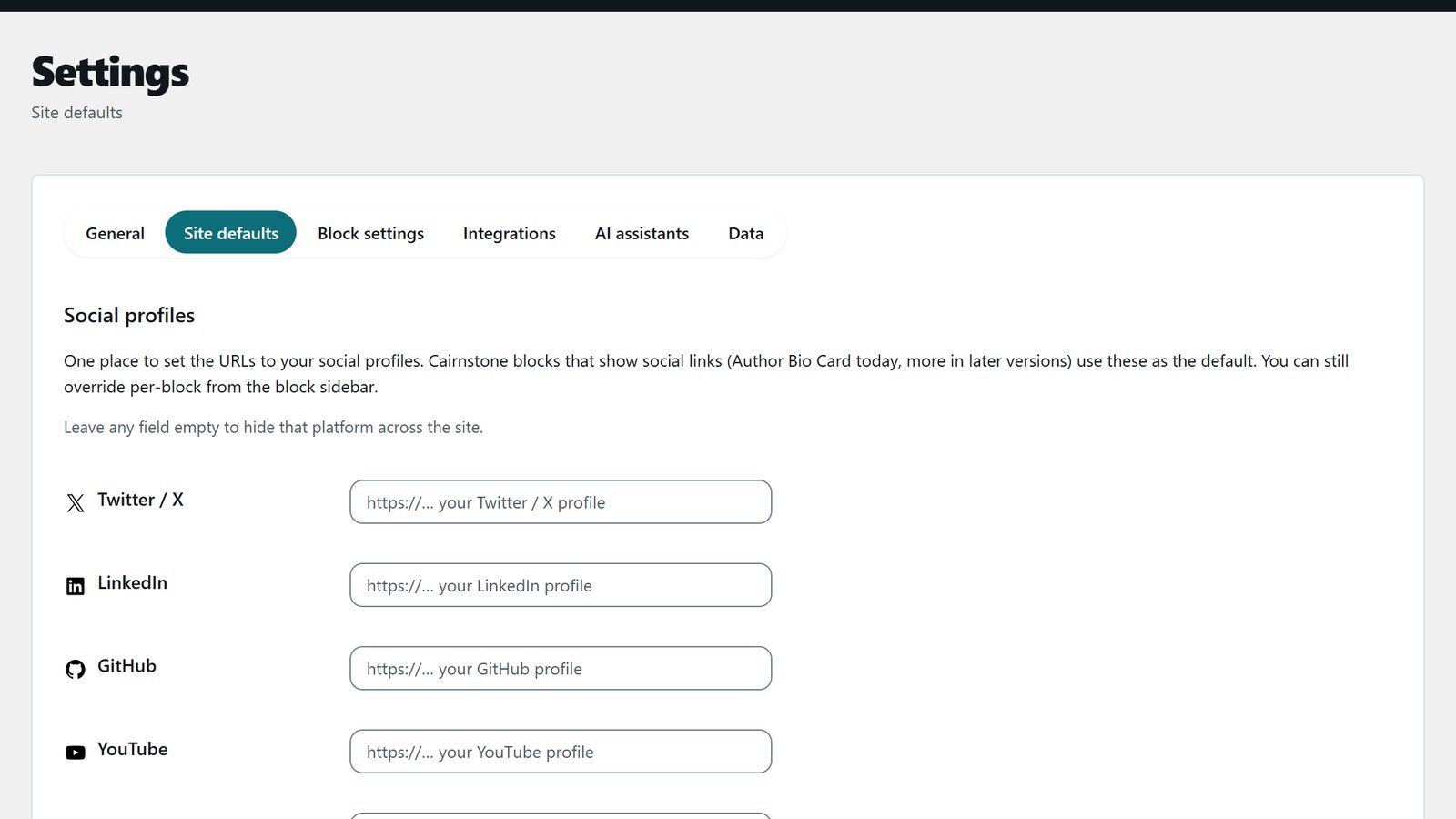
- Social profiles: the addresses of your profiles on Twitter / X, LinkedIn, GitHub, YouTube, Instagram, Facebook, Mastodon, Bluesky and TikTok, and your personal website. Blocks that show social links use them, and a block can still set its own. Leave a field empty to hide that platform across the site.
- Brand colors: named colour sets with a background, text and link colour, which blocks and the Styles tab apply by name. The built-in sets are Trust, Stone, Accent, Alert, Neutral and Contrast, and a Dark twin of the first five. The Contrast column checks each set as you change it: aim for 4.5:1 or higher. Change a built-in set and it changes everywhere it is used, add your own with Add role, or go back with Reset brand colors.
- Shadow presets: named drop shadows for the Styles tab, with Horizontal, Vertical, Blur, Spread and a colour, and a preview. Change the built-in Soft, Medium, Strong and Glow, add your own with Add shadow, or go back with Reset shadow presets.
- Responsive breakpoints: Desktop starts above and Phone at or below, the browser widths where the layouts change. Until you change them, they follow WordPress and your theme The design of your whole site: its fonts, colours and where the menu and footer go. You pick it under Appearance, then Themes. (782 and 480 in WordPress’s own setting). See Make a layout work on phone, tablet and desktop.
- Working unit: Work in rem (recommended) or px, the unit size fields start in. It never converts what you have set. See Style a block in the Styles tab.
- Default field hints: the short help line shown with a form field, set once per kind of field. See Set default hints for form fields.
Block settings
Each section shows when a block that uses it is on.
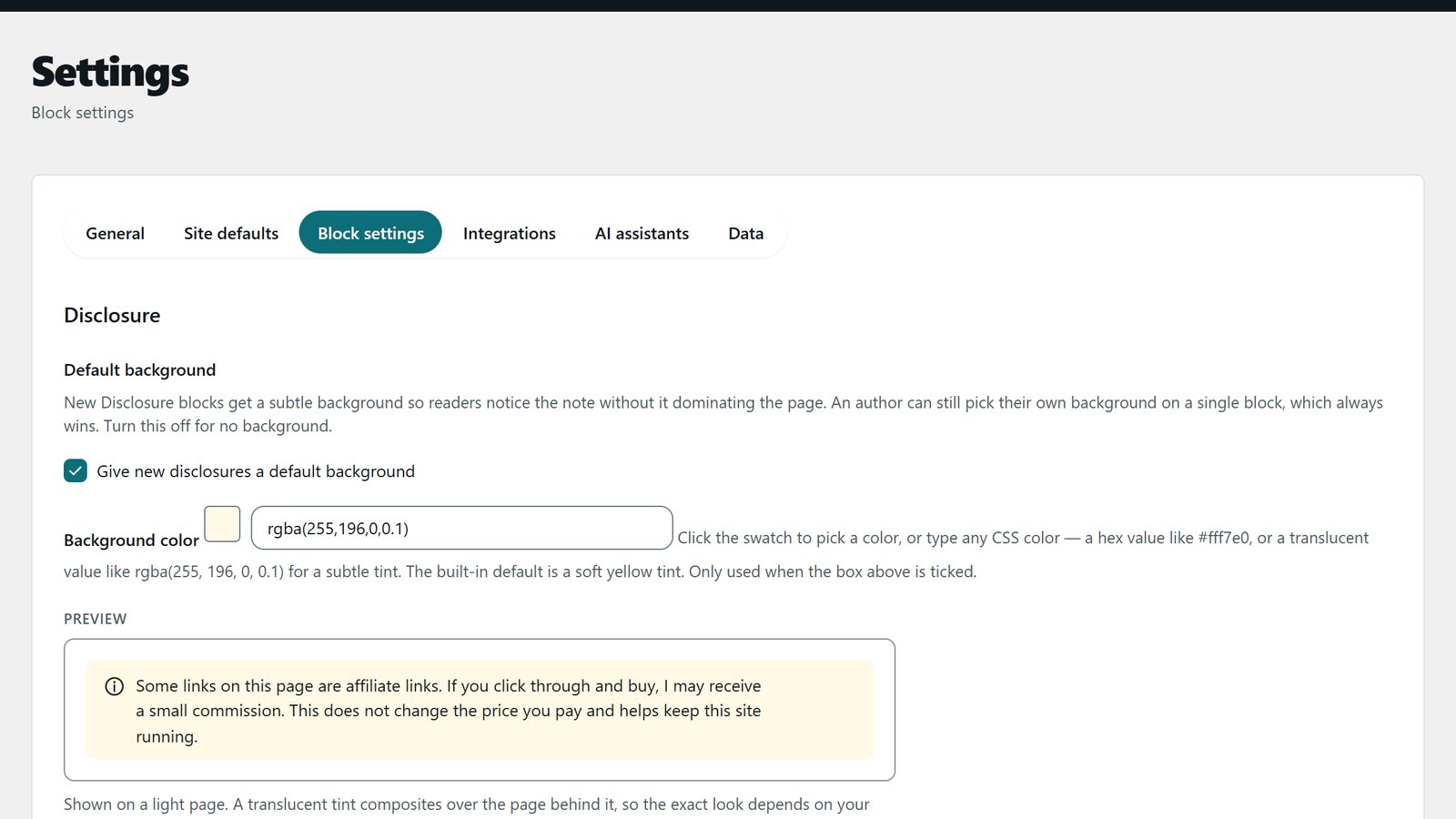
- Disclosure: Give new disclosures a default background with its Background color (a soft yellow tint to start with), and Disclosure templates: rename, reword and recolour the five built-in templates, and add your own for any market or language with Add template. A single Disclosure block can still set its own colours.
- Audio and video statistics: Also send to Google Analytics or Matomo, so each play, how far it got and each download also go there, for visitors whose consent banner allows statistics. Gillish Core (free) counts the plays; see Read your statistics.
- Quizzes: how many Answer checks (300) and Finished quizzes (60) one network address may send in a minute. 0 turns the limit off. Many people can share one address, such as a school or an office.
- Statistics and cookies, for Conditional Content: Count which version was shown, Keep the counts for (90 days to start with), Respect Do Not Track, and Remember the same version for (30 days to start with). See Show different content to different visitors.
- Default visibility signals: the signals the Visibility panel shows first; the rest sit behind Advanced.
- Preview-as fixtures: the visitor profiles in the editor’s Preview as list, so you can see a block the way a phone user or a visitor from one language sees it. Add one with Add visitor profile.
Integrations
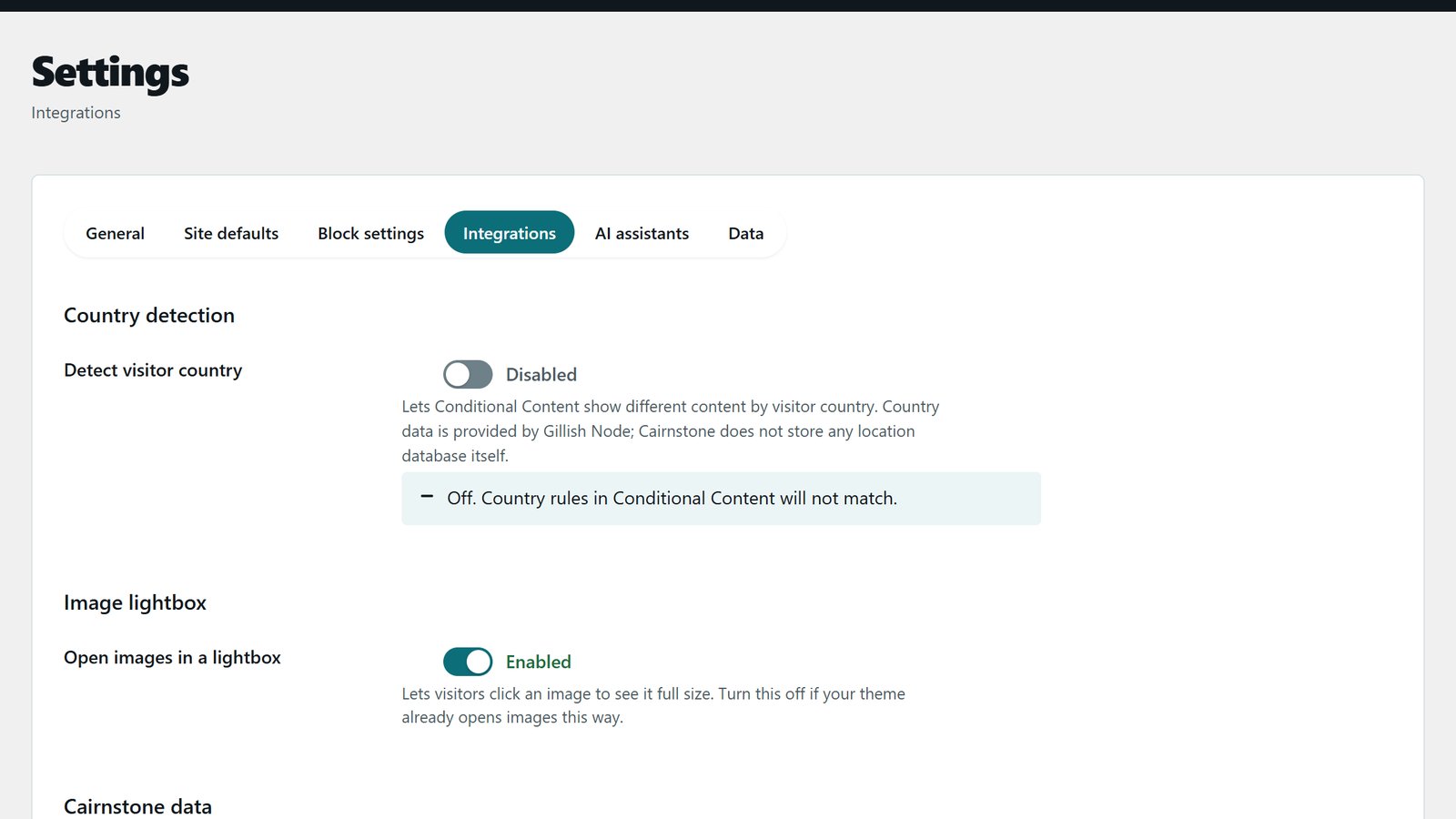
- Detect visitor country: lets country rules work, with a line that says whether Gillish Node is active and has a country source. See Show different content to different visitors.
- Open images in a lightbox: visitors click an image to see it full size. Turn it off when your theme already does that.
- Bind block text to your data, under Cairnstone data: shows the Cairnstone data panel on the blocks that support it, on to start with. See Fill a block from your page’s fields.
AI assistants
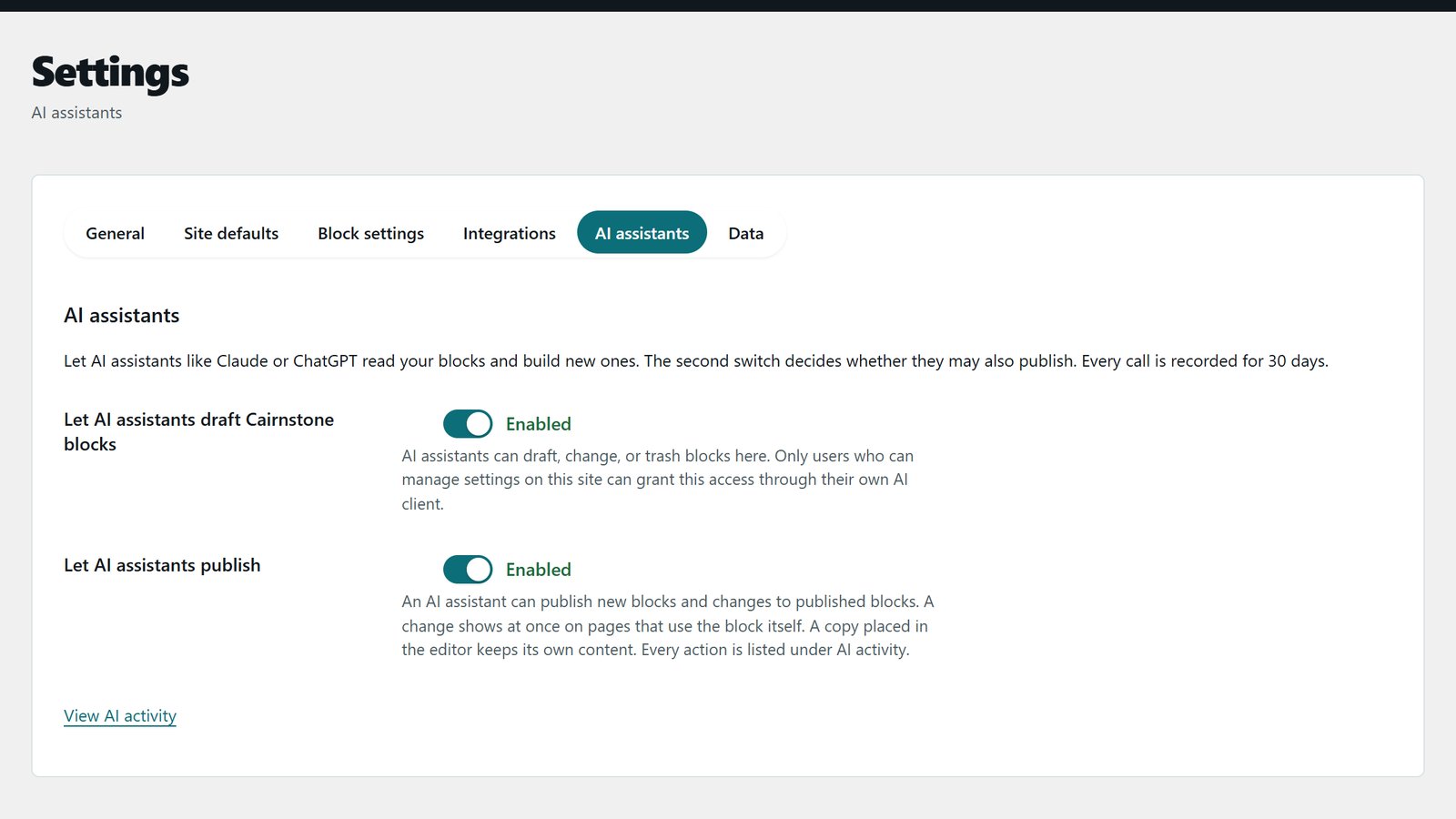
Two switches: Let AI assistants draft Cairnstone blocks, off until you turn it on, and Let AI assistants publish, on from the start but with no effect, and locked, while the first is off. See Let an AI assistant build blocks.
Data
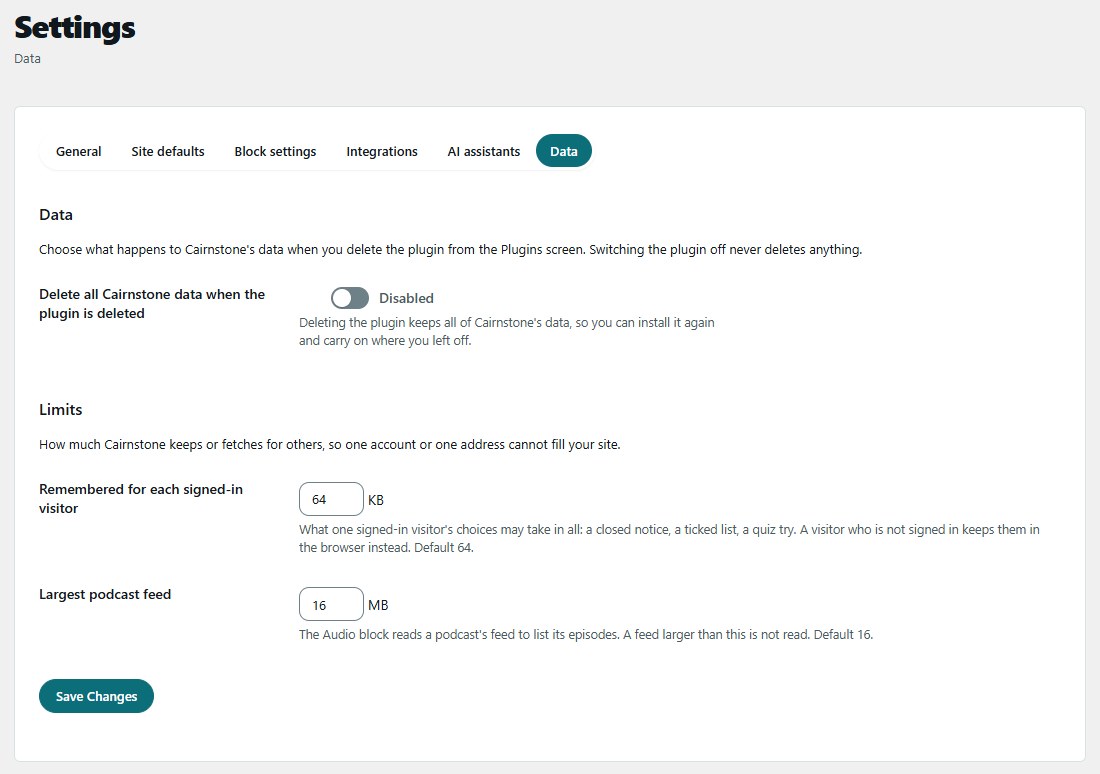
Delete all Cairnstone data when the plugin is deleted is off to start with, so deleting the plugin keeps everything and you can install it again where you left off. Turned on, deleting the plugin on the Plugins screen also deletes Cairnstone’s settings, its visitor statistics and AI activity log, the record of who passed your quizzes and the questions in your videos, the choices it remembered for signed-in visitors, and the video pictures it copied into your media library. Your pages and the blocks you built are kept. Switching the plugin off never deletes anything. Only an administrator can change this setting.
Under Limits, two settings keep things from growing too big:
- Remembered for each signed-in visitor: how much one signed-in visitor’s choices may take in all, such as a notice they closed, a list they ticked or a quiz they tried. 64 kilobytes (KB) to start, up to 10 megabytes (MB). A visitor who is not signed in keeps these choices in their own browser.
- Largest podcast feed: the Audio block does not read a podcast feed bigger than this. 16 MB to start, up to 200 MB.
Next, read Build your own block.