A sub-ID goes at the end of a short URL A web address, such as https://example.com/contact/. It is what you type in the browser to open a page., so you see where each click came from. For example, /node/amazon-camera/sidebar counts its clicks apart from /node/amazon-camera/footer.
Add a sub-ID
Open a managed link under Manage Links and open Sub-IDs.
Click Add sub-ID and type its label. The address with the sub-ID shows next to it.
Click Update link to save.
Use the address with the sub-ID where you place the link, for example in your newsletter.
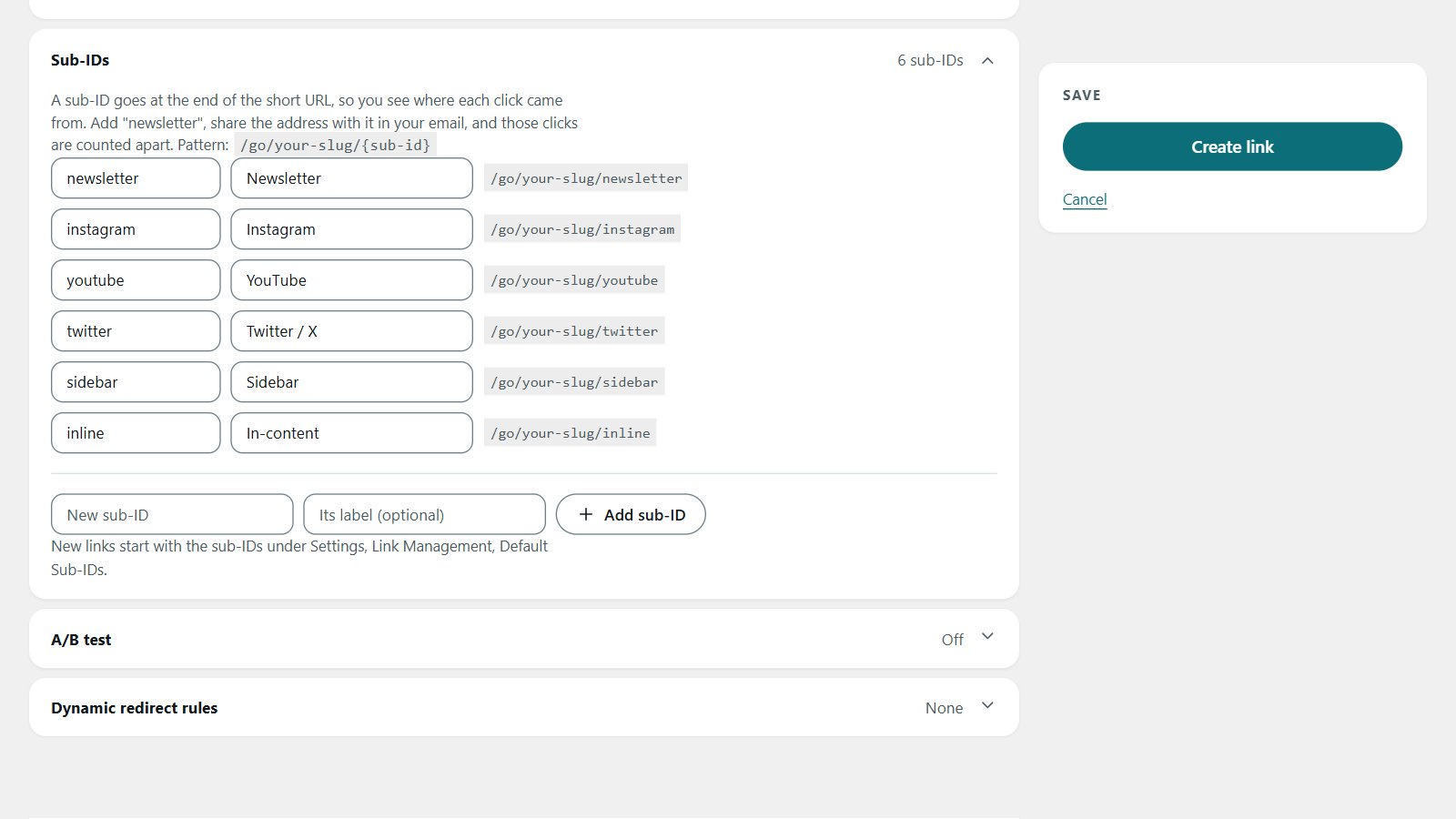
New links start with the sub-IDs under Settings → Link Management → Default Sub-IDs: Newsletter, Instagram, YouTube, Twitter / X, Sidebar and In-content, which show in the address as newsletter, instagram, youtube, twitter, sidebar and inline. The / between the short URL and the sub-ID is the Sub-ID Separator in the same tab; with a dash, the address is /node/amazon-camera-sidebar.
A Synced or shortcode A short code in square brackets, such as 
See the clicks per sub-ID
Open the link in Link Analytics, for example with View clicks in Manage Links. Its Sub-IDs card shows the clicks per sub-ID, with No sub-ID for the rest, and the latest clicks show each click’s sub-ID. See Read your link statistics.
A redirect rule can count the clicks it sends under a sub-ID of its own, with Count clicks as sub-ID. See Send visitors elsewhere with redirect rules.
Next, read Send visitors elsewhere with redirect rules.