You can link to a page before it is live, for example a post you have scheduled for next week. Gillish Node keeps visitors from landing on “page not found” through such a link. It works by itself, with nothing to set up.
What visitors see
A link in a post or page to a page visitors cannot open yet shows as plain words. Such a page is a draft, scheduled, waiting for review, private or in the trash. For example, in “Read part two next week”, with “part two” linked to a scheduled post, visitors see the same words with no link.
- Buttons: a button to such a page is left out, with the box it stood in, because words alone where a button stood would look broken. This holds for the Button block A piece of a page, such as a paragraph, a picture or a button. In WordPress you build a page by putting blocks one after another., for Gillish Cairnstone’s Button block, and for the buttons in Cairnstone’s Hero, Discount Banner, Pricing Cards and Comparison Table blocks. In a Comparison Table only the button goes; its cell stays, so the table keeps its shape.
- Images: an image linked to such a page still shows, without the link.
- Every other link stays as it is: links to live pages, to other sites and to files, and your Node links.
Everyone sees the same, also when you are logged in and could open the page yourself. To see which links are hidden, open the post in the editor.
See them while you write
The block editor shows which links visitors get as plain words:
- A link to a page that is not published has a dashed line under it, in the text’s own colour.
- A button to such a page has a dashed frame round it. This holds for the Button block and for Gillish Cairnstone’s Button block.
- In the sidebar, on the Post (or Page) tab, the panel Links to unpublished pages lists each such page, says it is not published yet, and gives its state, for example Draft or Scheduled. Click a page’s name to open it in a new tab. The panel shows only when the post has such links. When you add a block, WordPress opens the sidebar’s Block tab; click Post (or Page) to see the panel again.
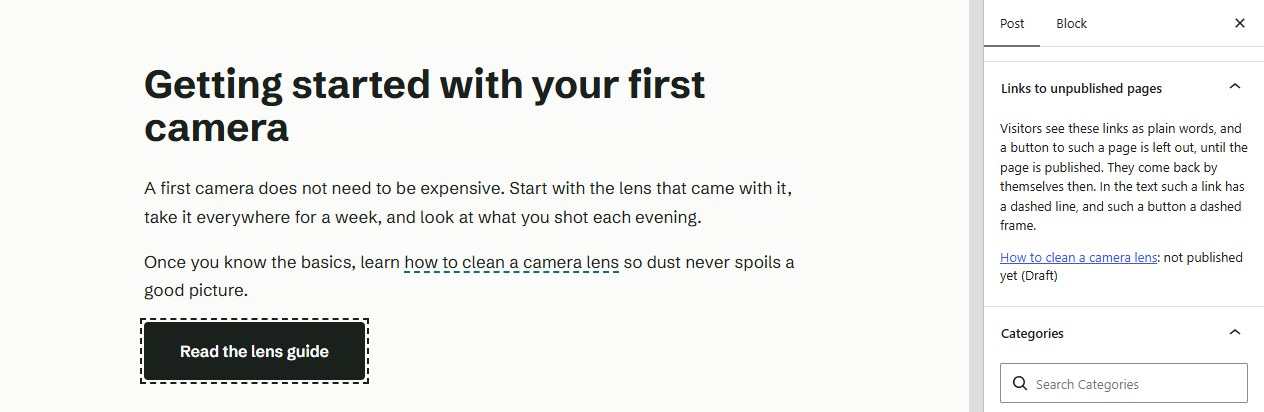
The marks follow what you write: add or remove a link and they change a moment later. When you publish the page in another tab and come back to the editor, the marks and the panel go away.
To see the hidden links across your site, open Auto-Link and click the Hidden links tile under Link Health. It counts the links in published posts, each post once for each page it points to, and lists each post with the page it links to and that page’s state, for example Draft. Click a post’s name to open it in the editor. Node counts a post once it has been saved or visited. To count an older post at once, open it on your site, or click Update in the editor.
When the page goes live
When you publish the page, or WordPress publishes it at the time you scheduled, the links and buttons to it come back by themselves. Nothing in your posts was changed, so there is nothing to undo. If your site uses a page cache Saved copies, such as copies of your pages, that make the site load faster. After a change, you may have to clear them before visitors see the new version., clear it after the page goes live, or wait until the cache renews its pages.
Turn it off
Switch it off
Open Node → Settings and pick the tab General.
In the Links box, switch off Links to unpublished pages.
Click Save changes.
Links to pages that are not live then show as links again. Switch it on the same way to bring it back.
For developers
gillish_node_unpublished_links_action(filter): what happens to one link. Return'unwrap'(show the words, the default for a link),'remove'(leave it out, the default for a button) or'keep'. Arguments: the action, the ID of the page that is not live, the link as written, and the ID of the post being shown.gillish_node_unpublished_links_is_viewable(filter): return true to treat a page as live. Arguments: the answer, the page’s ID, and the page (null when it is gone).gillish_node_unpublished_links_posts_changed(action): fires when a page goes live or stops being live, with the IDs of the posts that link to it and the page’s ID. A page cache can use it to renew exactly those posts.
Next, read Schedule a link.