Attributes decide how a managed link behaves on your pages and what it tells search engines: whether it opens in a new tab, which labels it carries, and what it passes on to the target.
Set the attributes of a link
Open a managed link under Manage Links.
Under Link attributes, set each one to Default, Yes or No.
Click Update link to save.
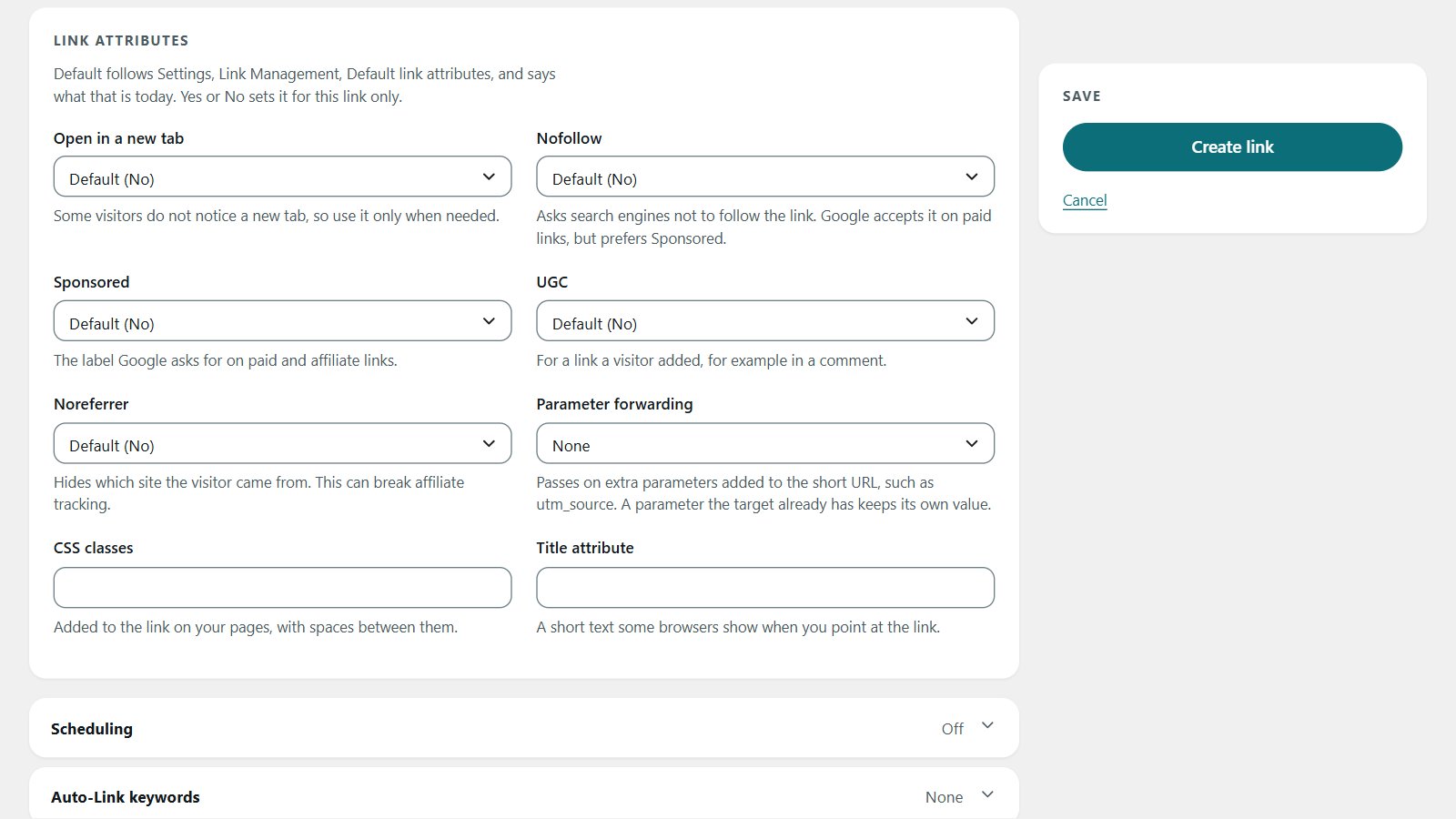
- Open in a new tab: some visitors do not notice a new tab, so use it only when needed.
- Nofollow: asks search engines not to follow the link. Google accepts it on paid links, but prefers Sponsored.
- Sponsored: the label Google asks for on paid and affiliate links.
- UGC: for a link a visitor added, for example in a comment.
- Noreferrer: hides which site the visitor came from. This can break affiliate tracking.
- CSS classes: added to the link on your pages, with spaces between them.
- Title attribute: a short text some browsers show when you point at the link.
Default follows Settings → Link Management → Default link attributes, and the list says what that means right now, for example Default (No). Yes or No sets it for this link only. When you change a default, every Synced link and shortcode A short code in square brackets, such as 
Pass parameters on to the target
Set Parameter forwarding to Forward all parameters, and extra parameters a visitor adds to your short URL A web address, such as https://example.com/contact/. It is what you type in the browser to open a page., such as ?utm_source=newsletter, are passed on to the target. A parameter your target URL already has always keeps your value: if the target carries tag=your-id, a visitor who adds ?tag=their-id still lands on tag=your-id. With None, nothing extra is passed on.
To add the same campaign values to many links, save them once and pick them in UTM template, in the same section. See Add campaign tags with UTM templates.
Change attributes for one placement
When you insert a link in a post, the picker has ⚙ Override attributes: New tab, Noreferrer, Nofollow and Sponsored for this one placement, without changing the link itself. The boxes start with the link’s own settings, so you only change what should differ. They apply to Direct and Shortcode placements; a Synced link always uses its settings from Manage Links.
Params in the same panel adds your own parameters to this one placement, in all three modes. Tick it and write them as name=value, joined with &, for example utm_source=newsletter&utm_campaign=welcome. When someone clicks, Node passes them on to the target, even when the link’s Parameter forwarding is None. A parameter the target already has keeps its own value. Node signs the parameters, so a visitor who changes one in the address cannot pass it on as yours.
Next, read Schedule a link.