The Link Builder lets you plan a group of linked posts on a canvas, a hub with its pillars and clusters, and then create them as draft posts with the links between them already in place. Open it under Node → Link Builder. The canvas is the editor, not a preview.
Plan and create linked posts
Pick a start under Quick-start: Full silo, Hub + N pillars or Topical cluster (no hub), or click the empty canvas to place a post. The Add buttons choose its role and carry your level names: Topical Hub, Pillar, Cluster, Long Tails or Free. + Add Topical Hub at centre and Start from an existing post… start a plan too.
Drag a post onto another to put it under that one. It takes the next role down: dropped on a hub it becomes a pillar, on a pillar a cluster, on a cluster a long tail.
Use Connect and click two posts to draw a link across. Esc cancels.
Use Add existing post to put a published, draft or scheduled post on the canvas. It has a dashed border. Creating the drafts never makes it again or changes its title; when new posts sit under it, Node adds a Related new posts list to the end of it, linking to each new post.
With nothing selected, fill in the Batch label and the post type in the Plan Summary, and click Validate plan.
Click Create drafts, or Save plan to keep the plan without creating posts.
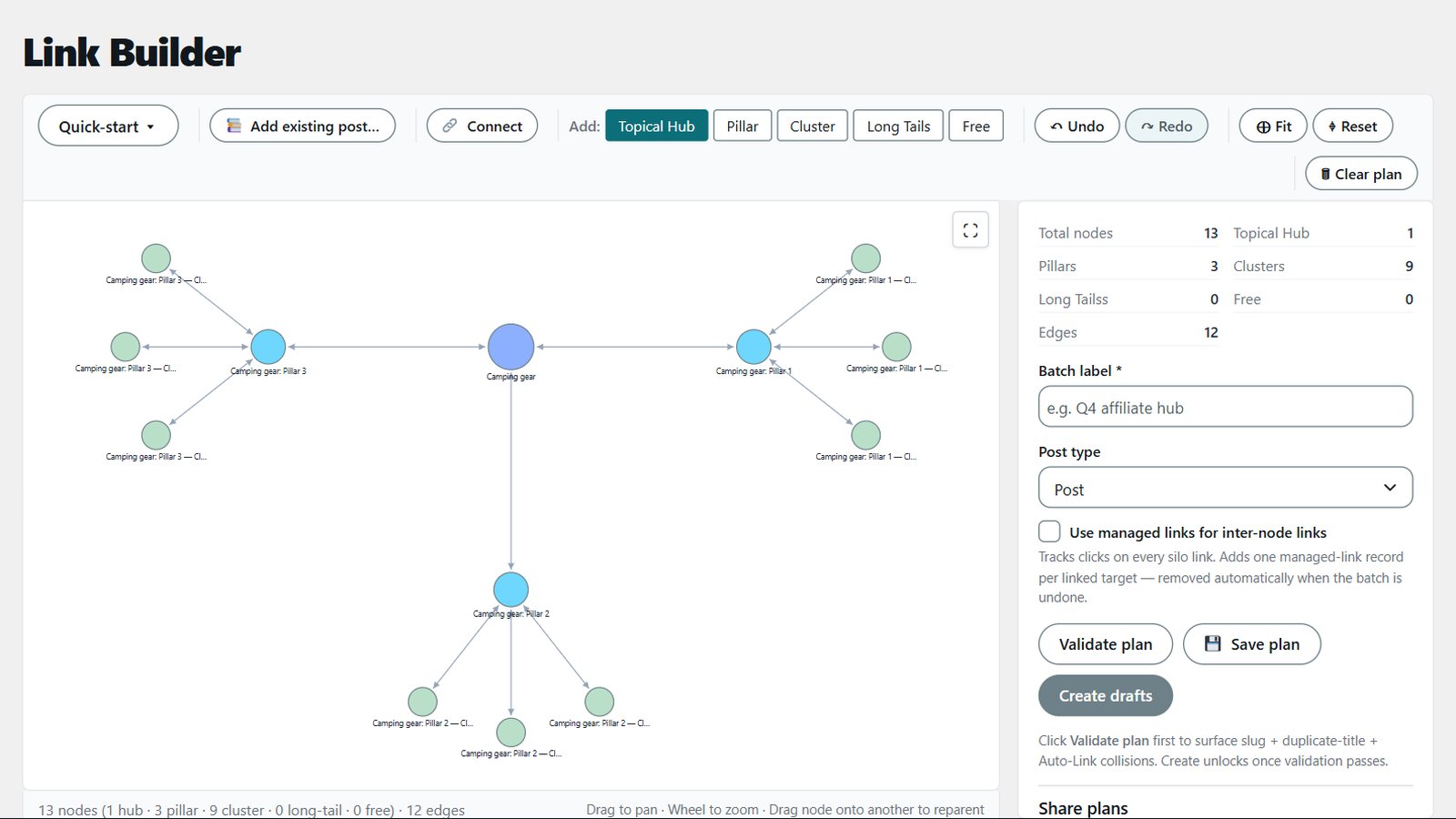
Double-click a post to rename it; right-click to delete it, after you confirm. Its children move one level up. Undo, Redo, Fit, Reset and Clear plan sit in the toolbar.
Roles and depth
The first four roles match the Content Graph’s levels 1 to 4: Topical Hub, Pillar, Cluster and Long Tails. The fifth, Free, is for a post outside the hierarchy. If you renamed the levels under Settings → Content Graph → Level labels, the Link Builder uses your names.
The depth you picked in the Content Graph’s panel (2, 3 or 4 levels) is a guide here, not a block A piece of a page, such as a paragraph, a picture or a button. In WordPress you build a page by putting blocks one after another.: posts deeper than that get a thick red border, and the Plan Summary warns how many there are. You can still create the drafts.
Before you create the drafts
Validate plan stops a plan only when it goes over the batch cap: 200 posts unless you change it under Settings → Content Graph → Silo Builder, existing posts in the plan included. A slug The last part of a page’s web address, made from its title. For a page called About us, the slug is often about-us. that is taken gets -2, -3 when the post is made, and a duplicate title only warns; you can go on after you confirm. Create drafts works once the plan has passed.
Tick Use managed links for inter-node links to give every post in the plan, existing posts included, a managed link, so the clicks between them are counted. Deleting the batch deletes those links too. It is off unless you tick it.
Plans and batches
Saved plans and created batches are listed under Plans & batches. A batch shows its status, and a note when posts were moved or deleted outside it.
- Resume: finishes a batch that stopped before its links were written. It writes each unfinished post’s links up to its parent and down to its children (through the batch’s managed links when it has them), keeps the content brief, adds the Related new posts list where it is missing, and marks the batch completed. Links drawn with Connect are not written into a resumed post.
- Load: puts the batch’s posts back on the canvas as existing posts, so you can add new ones next to them and create a fresh batch.
- Export: downloads the plan as a JSON file, with titles, slugs, roles and structure, for use on another site.
- Delete: after you confirm, deletes the batch’s new posts for good, with its managed links and its Related new posts lists, and removes the batch. Existing posts in the plan are kept. There is no Trash here; to move posts to the Trash instead, use the Posts list.
A saved plan has Load, Export and Delete too. Export plan and Import plan above the list move the plan on the canvas as a JSON file; an imported plan always creates fresh drafts.
Keyboard shortcuts
- + / – zoom, and the arrow keys pan.
- F toggles fullscreen.
- Ctrl or Cmd + Z undoes; Ctrl or Cmd + Shift + Z, or Ctrl or Cmd + Y, redoes.
- Delete or Backspace removes the selected post.
- Esc cancels Connect.
The Link Builder is a module under Settings → General, and it needs the Content Graph module on.
Next, read Track your rankings with Rank Tracker.