A redirect rule sends some of a link’s visitors to another URL A web address, such as https://example.com/contact/. It is what you type in the browser to open a page., chosen by their country, device, the time and more. Rules are checked from the top, and the first rule that matches decides. When none matches, visitors get the link’s target URL.
Add a rule
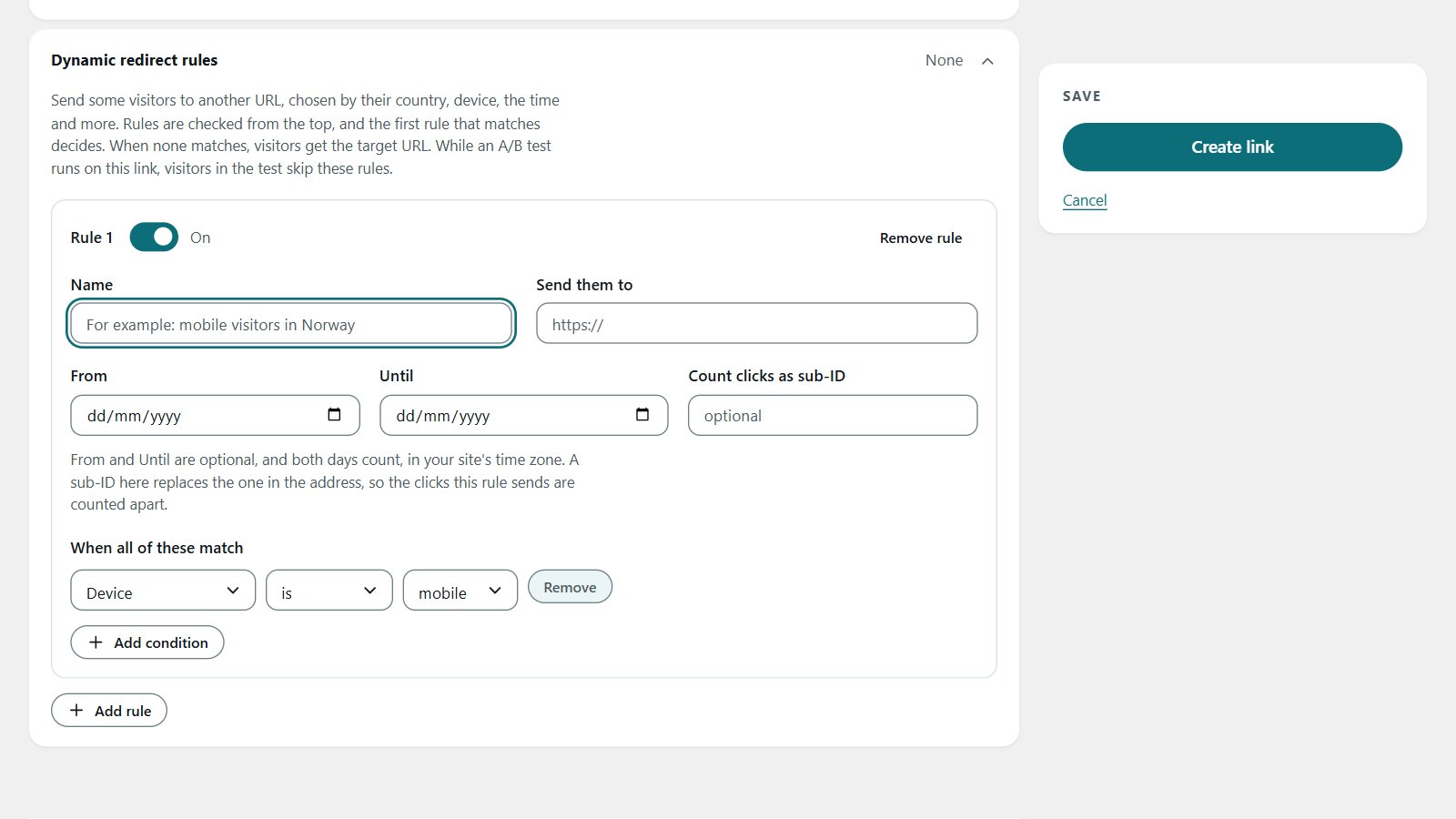
Open a managed link under Manage Links and open Dynamic redirect rules.
Click Add rule.
Give it a Name, and type the URL under Send them to.
Under When all of these match, pick a condition, how it compares, and the value. Use Add condition for more; all of them must match.
If you want, set From and Until, and a sub-ID under Count clicks as sub-ID.
Click Update link to save.
Conditions
A rule can test: Device, Country, Browser, Operating system, Weekday, Language, Date, Time, Referring site, Referring page, Total clicks, Sub-ID clicks, Random share (%), Logged in, User role, Sub-ID, URL parameter and Cookie.
Each condition offers its own comparisons, for example is, is not, is one of and is none of for Device. Where a comparison has no opposite of its own, Not turns it around. For a range, write the lowest and the highest with a comma between, for example 10,20. A time window can run over midnight: 22:00,06:00 matches from 22:00 until 06:00 the next morning.
Country needs Node’s country detection, switched on in Node’s settings with a country source picked. See Choose a country source.
More about each rule
- Each rule has its own on/off switch, and Remove rule deletes it.
- From and Until are optional. Both days count, in your site’s time zone.
- Count clicks as sub-ID: the clicks this rule sends are counted under that sub-ID instead of the one in the address, so they show apart in the click data. See Track each placement with sub-IDs.
- Search engine bots skip the rules, and while an A/B test runs on the link, visitors in the test skip them too.
Next, read Shorten links with a URL shortener.