An A/B test sends visitors who click one managed link to different destinations. Gillish Node records which destination each click went to. The public link stays the same. Only where it leads changes.
Set up a test
Open a managed link and open the A/B test section.
Turn the Test switch on and give the test a Test name. The name is needed while the test is on.
Under Variants, use Add variant until you have two to five. Each needs a Name, a URL and a Weight.
Tick Control: uses the target URL on the variant that should use the link’s normal target.
Save the link. The test starts right away.
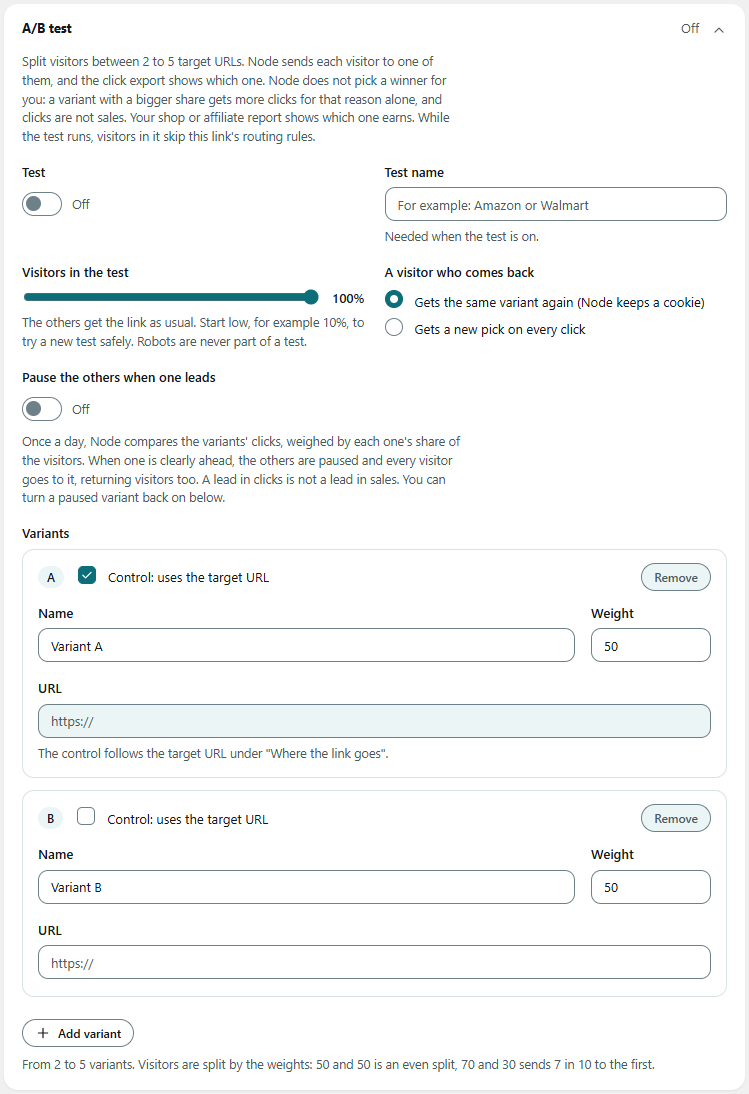
Weight and who is in the test
- Weight (0 to 100) sets how often a variant is picked. 50 and 50 split evenly; 70 and 30 sends 7 in 10 visitors to the first. 0 pauses a variant without deleting it.
- Visitors in the test is the share of visitors who enter the test, from 1% to 100%. The rest get the normal target. Start low, for example 10%.
- A visitor who comes back: choose Gets the same variant again to give a returning visitor the same variant for 30 days, or Gets a new pick on every click. When a consent tool is active, the same variant is kept only for visitors who allow statistics.
- Pause the others when one leads: when on, the other variants are set to 0 once one gets a clear lead on clicks, and every visitor goes to the leader. Off by default. To bring a paused variant back, tick Turn it back on when I save on it and save the link.
Search engine bots never enter a test.
Read the results
Manage Links has an A/B column that shows each test: Running with its share of visitors, Off, or Ended with the winner. Turn the column on under Screen Options. The Clicks spreadsheet (CSV) under Node → Import / Export lists the variant of every click. A click from a visitor outside the test has no variant.
Once a day Node compares the variants for you. When a test has at least 500 clicks and one variant has at least 20% more clicks than the next, weighed by each variant’s share of the visitors, you get an email to the site’s admin address (at most one a day) and a notice on Node’s pages and the WordPress Dashboard, with Open the test and Dismiss. This is a hint to go and look, not a statistical verdict.
Clicks are not sales
A click is counted before the visitor reaches the destination. So the variant with the most clicks is the most used, not the one that earns the most. If you sell, check your affiliate or shop report before you pick a winner.
End the test
Under End the test, pick the winner and click End test, then confirm. The winner becomes the link’s normal target. To run a new test on the link later, turn the Test switch on again and save: the test starts over. The control now uses the winner’s URL A web address, such as https://example.com/contact/. It is what you type in the browser to open a page., so set the other variants’ URLs to what you want to compare next.
Next, read Link keywords automatically with Auto-Link.