On Node → Redirects you send visitors from an old address on your site to a new one, and you see every old address your managed links still answer.
A redirect works only where your site has no page: a page or post at the old address always comes first, and so does any plugin An add-on you install in WordPress to give your site new features. Gillish Cairnstone and Gillish Core are plugins. that answers the address before Node. The page belongs to the Redirects module under Settings → General, which is on unless you switch it off. Switching the module off stops every redirect at once; the redirects are kept and work again when you switch it back on.
Add a redirect
Go to Node → Redirects.
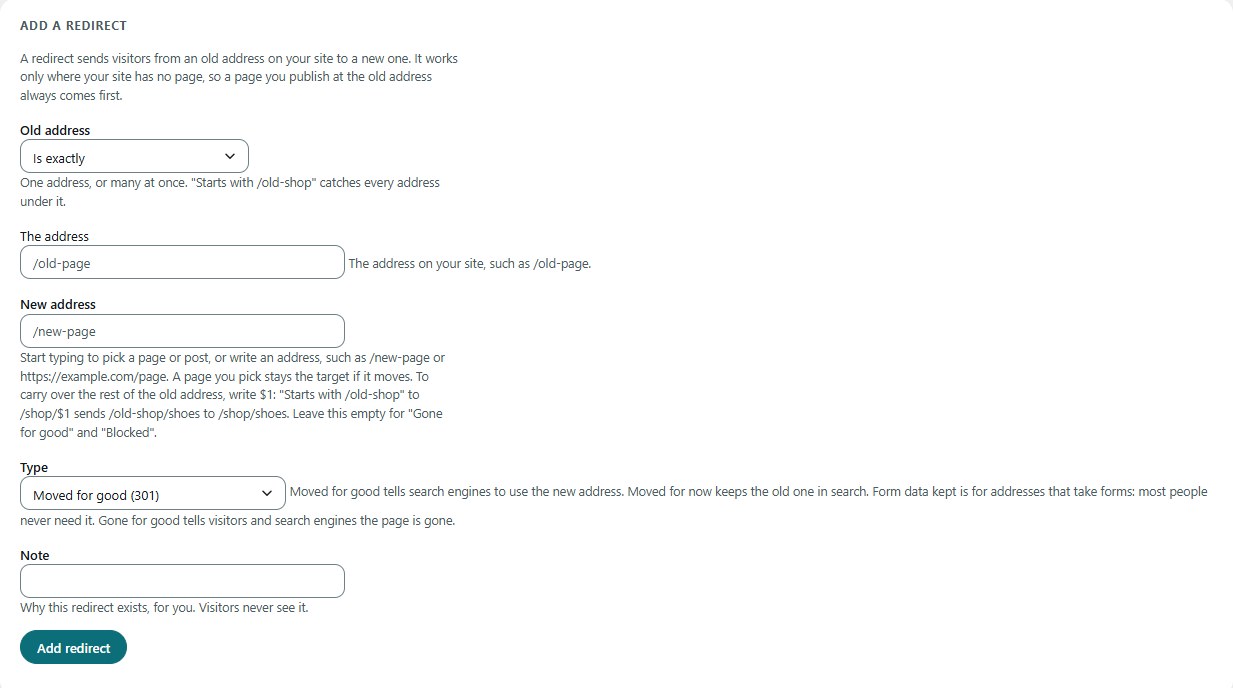
Under Add a redirect, leave Old address on Is exactly, and write the address under The address, such as
/old-page. A whole address on your site, such ashttps://yoursite.com/old-page, works too. Node keeps the part after your site’s address, in small letters, without the slash at the end and without what comes after ?.Under New address, start typing to pick a page or post, or write an address: an address on your site that starts with /, such as
/new-page, or a whole address, such ashttps://example.com/page. Leave it empty for Gone for good and Blocked for legal reasons.Choose the Type: Moved for good (301) tells search engines to use the new address, Moved for now (302) keeps the old one in search, and Gone for good (410) tells visitors and search engines the page is gone. The list has three more: Moved for good, form data kept (308) and Moved for now, form data kept (307) matter only for addresses that take forms, and Blocked for legal reasons (451) says a page may not be shown.
Click Add redirect.
Node says “Redirect added.” When your site has a page at the old address, it says “Redirect added. Your site has a page at that address, so the page answers until it is gone.” Node turns a redirect away, and says what to write instead, when the old address has a redirect already (/Old-Page/ and /old-page count as one), when it is the front page or an address on another site, and when the new address neither starts with / nor is a whole address starting with http:// or https://.
A visitor who opens the old address is sent on with what came after ?, for example ?utm_source=news, so campaign tags reach the new page. Gone for good shows your theme The design of your whole site: its fonts, colours and where the menu and footer go. You pick it under Appearance, then Themes.‘s “page not found” page with the status 410. Node tells the browser not to keep any of these answers, so a change you make on the Redirects page takes effect at once.
One rule for many addresses
Under Old address, choose how the rule matches:
- Is exactly: one address.
- Starts with:
/old-shopcatches/old-shop/shoesand everything else under it. - Ends with:
.htmlcatches/news/story.html. - Contains:
/2019/catches/news/2019/story. - Regular expression (for experts): written the way your address looks, with a slash first, such as
^/blog/(\d{4})/(.+)$.
To carry part of the old address to the new one, write $1 in the New address. With Starts with /old-shop and the new address /shop/$1, the address /old-shop/shoes goes to /shop/shoes. $1 is what came after the match. With Ends with, it is what came before. With Contains, $1 is what came before and $2 what came after. With a regular expression, they are its groups.
An exact rule always goes first. After that, the longest rule goes first. Addresses are matched in small letters, and an address longer than 512 characters skips these rules.
Node refuses a regular expression that does not work, one that could slow your site down, a rule that would catch its own new address, and $1 in the site name of a new address. A rule that catches almost every address, or everyday addresses such as missing images, is saved with a warning.
Try an address
Under Try an address, write any address on your site and click Try it. Node says what happens there: a page answers, a managed link answers, a redirect sends visitors on, or visitors see “page not found”. This changes nothing.
Worth a look
This box shows only when something needs you. A Chain sends visitors through more than one redirect, which is slower, so change the first redirect to go straight to the end. A Circle never ends. Node refuses to save one, but a circle can still appear when rules are switched on again. A rule behind a real page is left out, as it never runs. On a site with more than 5,000 redirects switched on, this check is skipped.
Your redirects
The list shows each redirect’s old address, where it goes, its type, how many times it was used, when it was last used, and who made it: You, A page or post moved, A page or post left, or An import. Switch off keeps a redirect but stops it, and the old address answers “page not found” until you click Switch on. Change opens it again, and Delete removes it for good. Use Find and Show to narrow the list, which shows 50 at a time. Tick redirects to switch them on or off, set their count to zero, or delete them together. A Note says why a redirect exists, and visitors never see it.
When a page or post moves
When a published page or post, or other public content, gets a new address, for example because you change its slug The last part of a page’s web address, made from its title. For a page called About us, the slug is often about-us., Node adds a redirect from the old address by itself. It shows in the list as made by A page or post moved, with the page’s title and its address now.
The same goes for a redirect you add yourself: when you pick a page or post under New address, it stays the target if it moves. The redirect follows the page, not an address: when the page moves again, every old address goes to the newest one, without a chain of redirects. When you move a page back to an old address, Node removes the redirect from that address, so the page answers there again. A page that is no longer published sends nobody on, and the list says “No longer published, so nobody is sent on.”
To stop Node from adding these redirects, go to Node → Settings, open the Redirects tab, and in the section Pages that move or go away switch off When a published page or post gets a new address, send its old address to it. Then click Save changes. A page that moves while it is off gets no redirect from Node; the redirects made before keep working.
Bring your redirects with you
Open Node → Import / Export and find the card Redirect rules. Node reads rules from Redirection, Rank Math, 301 Redirects Pro, 301 Redirects (EPS) and Simple 301 Redirects on your own site, or from a CSV file.
- Under Import from, pick the plugin and click Preview. Or choose a CSV file and click Preview.
- Read what happens: how many rules are added, how many are switched off, how many are skipped because the address has a rule already, and what stays behind and why.
- Tick I have a backup of my site and click Import the rules.
- Switch the other plugin off. While it is on, it may answer first.
Nothing is saved before step 3. Undo this import removes the rules the last import added. Each rule keeps its switch and its count. Check Worth a look on the Redirects page afterwards.
Import before you delete. Deleting Redirection or 301 Redirects (EPS) removes their rules. Switching them off is fine. Rules from Rank Math, 301 Redirects Pro and Simple 301 Redirects stay when the plugin is deleted, so Node can still read them.
Some rules stay behind, and the preview counts them: rules that depend on something like login or a referrer, rules that do more than redirect, answers Node does not have (such as 403), rules that match what comes after ?, rules kept in .htaccess or nginx, a wildcard in the middle of an address, and a regular expression that could slow your site down. A rule in Rank Math’s trash stays behind too. A 303 or 304 comes over as a 302.
A CSV file has these columns, in this order: old address, new address, code, match, note. Only the first two are needed. Match is exact, starts, ends, contains or regex. A first row of headings is fine. Save as CSV gives you a file in this form, as a backup or to move your rules to another site. A file can be up to 5 MB.
When a page or post is trashed or unpublished
Go to Node → Settings and open the Redirects tab. In the section Pages that move or go away, under When a published page or post is trashed or unpublished, choose what happens, and click Save changes. Do nothing is the start. Send visitors to its parent page or category makes a redirect to the page above it, or to its first category. A page with neither gets no redirect. Say it is gone for good (410) makes a 410. The redirect shows as made by A page or post left, and goes away by itself if the page comes back. An address that has a redirect already keeps it.
Missing pages
Node can list the addresses visitors reach that your site does not have. It is off to start with. Go to Node → Settings and open the Redirects tab. Switch on List the addresses visitors reach that my site does not have and click Save changes. While the list is off, the Open the Redirects settings button under Missing pages on the Redirects page takes you there.
Each address shows how many People and Robots came, how many people came From your site or From elsewhere, and when it was last seen. An address that names a file, such as a picture, is marked File. A high number under From your site means one of your own pages has a broken link. The most visited come first.
- Send to nearest page: under an address, Node names the published page or post closest to it, after Nearest page:. Click the title to look at it first. Click Send to nearest page, and Node adds a redirect from the address to that page, “Moved for good (301)”, and the address moves to Fixed. The redirect follows the page, so it still works if the page moves later. You can change or delete it in the list, like any redirect. See how Node picks the page below.
- Make a redirect fills in the old address in the form. Save it, and the address moves to Fixed.
- Ignore moves it to Ignored, for addresses that do not matter, such as probes from robots.
- Empty the list removes every address.
Node keeps the address, without what came after ?, and the counts. It keeps no IP address, browser details or referring page. The list stops at 5,000 addresses: a new address is then left out until you empty the list, while addresses already there keep counting. Where a consent tool is used, the list counts only visitors who allow anonymous statistics. While the list is on, the Policy Guide has a paragraph about it for your privacy policy.
WordPress sends some wrong addresses to the closest match it can find. Switch on Stop WordPress from guessing where a missing address should go on the same Redirects tab, and click Save changes, to keep them missing, so they reach the list.
How Node picks the nearest page
Node reads the words in the missing address and leaves out numbers, file endings such as .html, and short words. For /2019/05/best-tent-guide.html the words are best, tent and guide. It then looks at your published pages, posts and other public content whose address or title holds one of those words. A page scores higher the more of the words it holds, and the more its own address looks like the end of the missing one. A word and a longer form of it count as the same word, such as tent and tents. Letters such as å and æ work too. Node does not read what the pages say.
Node offers a page only when it is clearly close. When no page is, nothing is offered, and you can still use Make a redirect. Drafts, private pages and pages with a password are never offered. Addresses of files, such as pictures, get no offer, and neither do addresses under Ignored. Broken Links uses the same pick: see Find and fix broken links.
Old link addresses
Under Old link addresses, Node lists the addresses your managed links had before and still answer: a short URL A web address, such as https://example.com/contact/. It is what you type in the browser to open a page. you changed while the link was on (You changed the short URL), and the addresses of links you imported from another plugin (Imported from another plugin). Each row shows the link, its short URL now, and Off when the link is switched off. Click Delete when nothing uses an old address any more: Node stops answering it, and it answers “page not found”. The link and its current short URL stay as they are.
Next, read Choose a country source.