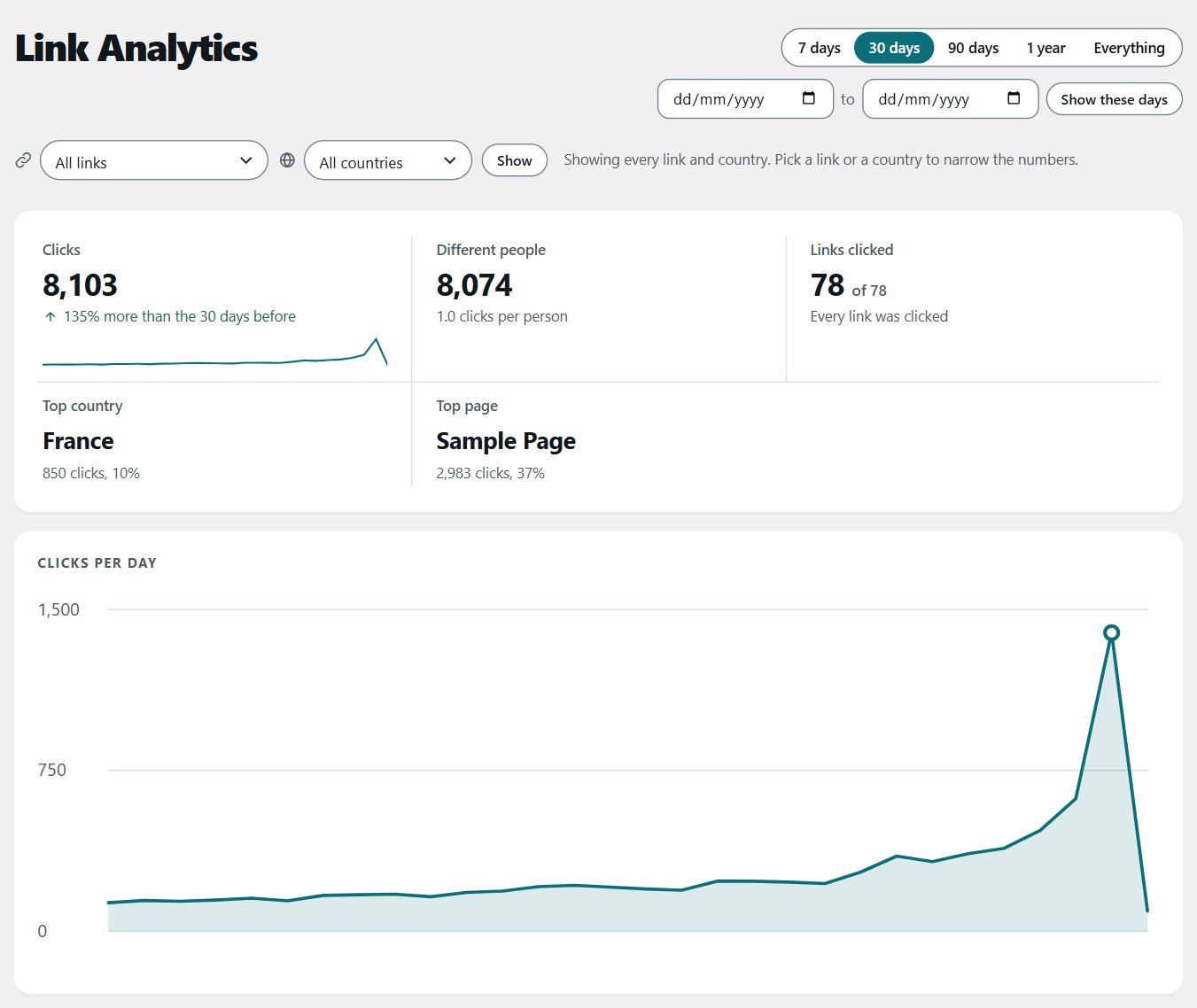
Node → Link Analytics shows the clicks on your managed links. The line under the title says what is in view: the days, the link and the country, and that it counts people only, no robots.
Choose what to see
Open Node → Link Analytics.
Pick 7 days, 30 days (the default), 90 days, 1 year or Everything in the title band, or set your own first and last day and click Show these days.
To narrow it down, pick one link, one country or both, and click Show. Show every link and country clears them.
The days are your site’s own days, from midnight. When the period reaches further back than Node keeps single clicks, the screen says so: older clicks live on as monthly totals.
On a site with many clicks. Node counts each past day once and keeps the totals, so a year of clicks opens in seconds, also on a large site. On a test site with 1 million clicks, a whole year opened in about 2 seconds and 30 days in half a second; your own host may be faster or slower. The first time, Node counts your past days in the background, which took under a minute on that test site. Until it is done, the screen reads the clicks themselves: slower, but every number is the same. When clicks are added or removed later, for example by an import or by Clear clicks, Node counts those days again. The totals are only numbers per day; they hold nothing about a single visitor.
What it shows
- Key figures: Clicks, with the change from the same number of days just before, for example “12% more than the 7 days before”. When you set your own dates and pick a single day, it compares with the day before, for example “No clicks in the day before”; Different people (see below); Links clicked, with how many links got a click and how many got none; Top country; and Top page, the page on your own site that sent the most clicks.
- Clicks per day: a chart of the period, with its busiest day marked.
- Top links: the five most-clicked links, each with its clicks and, when Node kept address codes, its different people. Click a name to narrow the screen to that link.
- Countries: clicks per country, the rest summed as Other countries, and clicks without a country as Not recorded. Click a country to narrow the screen to it. With Privacy mode on, the card says Privacy mode keeps no country.
- Browsers, Devices and Systems: which browsers clicked (such as Chrome, Safari, Firefox, Edge and Opera), on which kind of device (Phone, Tablet or Computer) and on which system (such as Windows, macOS, iOS, Android and Linux). See below.
- Pages that sent clicks: the pages on your own site that sent the clicks. Node keeps no addresses of other websites, so a click from another site, an app or an email counts as No page kept. With Privacy mode on, the card says Privacy mode keeps no page.
- Latest clicks: the ten newest clicks with their time, link, country, sub-ID and page (the column Came from). Export every click leads to Node → Import / Export, where Clicks spreadsheet (CSV) gives one row per click; see Move your links from another plugin.
Different people
Different people shows how many different people clicked, for all your links or for the one link in view, in the days and country you picked. Node counts the codes it keeps for each visitor’s IP address, so the number is close, not exact. People who share one network, such as a home or an office, count as one person. A phone that moves between networks can count as more than one. Robots are left out, as everywhere on this screen.
The line under the number says how far you can trust it. When every click kept a code, it shows the clicks per person. When some clicks kept none, it says how many clicks the number comes from. When no click kept a code, the figure shows Not recorded and the reason: Privacy mode is on, or Log IP hash is off under Settings → Privacy.
Browsers, devices and systems
Three cards under Countries show where the clicks were made. Each lists the five largest with their clicks and share of all clicks. The rest is summed as Other browsers, Other devices or Other systems. The cards show browser families only, such as Chrome, not exact versions.
- Node reads the browser name each click already keeps while Log user agent is on under Settings → Privacy. It is on from the start. Nothing new is stored, and no outside service is used. Older clicks show too, as long as they kept a browser name.
- Node reads the name the same way as the Device, Browser and Operating system conditions in redirect rules, so a rule and these cards always agree.
- Not recognised is a browser Node does not know, such as the browser inside the Facebook app. Not recorded is a click that kept no browser name, for example while Log user agent was off.
- A tablet that says it is a computer, such as an iPad with its desktop view on, counts as a computer.
- With Privacy mode on, Node keeps no browser names, and the cards say so. With Log user agent off, the cards say where to turn it on.
- Robots are left out, as everywhere on this screen. The cards cannot be clicked to narrow the screen.
One link
Pick a link above, click its name in Top links, or use View clicks in Manage Links or the link editor. The screen then shows that link only. Its key figures include All-time clicks, a card shows the link’s name, short URL A web address, such as https://example.com/contact/. It is what you type in the browser to open a page. and target, and a Sub-IDs card shows its clicks per sub-ID. See Track each placement with sub-IDs.
Get a report by email
Go to Node → Settings and open the Link Management tab.
In the Email report card, set Send a report to Every week or Every month.
In Send it to, type one or more email addresses, split by commas, for example anna@example.com, ole@example.com. Leave it empty to send it to your site’s own email address (the one under Settings → General in WordPress). Anything that is not an email address is skipped.
Click Save changes.
Node can send you your link numbers by email, once a week or once a month: your clicks, your most clicked links and your broken links. The email is plain text. It is off until you turn it on.
When it comes. A weekly report comes on the first day of a new week and covers the week that just ended. Your week starts on the day set under Settings → General → Week Starts On in WordPress, Monday on most sites. A monthly report comes on the first day of a new month and covers the month before. Node checks once a day, and WordPress runs that check when someone visits your site, so on a quiet site the report can come some hours later. The first report comes when the next week or month begins, not on the day you turn it on. Each week or month is sent once.
See one now. Click Send a report now in the same card. It saves your settings and sends the report for the week that just ended, or the month if you chose Every month. A note at the top of the screen says how it went. The planned report still comes as usual. If the note says WordPress could not send the email, your site cannot send email yet. Many hosts need an SMTP plugin for that.
What it holds.
- Clicks: how many clicks your links got, and the number for the week or month before, with how much it went up or down. Clicks by robots, such as search engines, are not counted, the same as on this screen.
- Most clicked links: your ten most clicked links, each with its clicks and its short URL.
- Broken links: your switched-on links whose page is gone, the same ones Link Health marks as broken. Each has an address that opens it in the link editor: the first ten by name, the rest as a count with an address to the full list. While Broken Links is on, the report also says how many links in your posts lead nowhere.
The report holds numbers and the names of your own links. It holds nothing about a single visitor.
Change or stop it. Change how often or who gets it in the same card, and click Save changes. After you change how often, the next report comes when the next week or month begins. To stop the report, set Send a report to Off and click Save changes. Each email also has an address at the bottom that opens these settings.
What a click stores
Each counted click stores the link, the sub-ID, the A/B variant, the time, the page on your own site it came from, the browser’s user agent, a code made from the visitor’s IP address and your site’s secret key (so it is still personal data), the country and a bot flag. Under Settings → Privacy you can switch off Log IP hash, Log user agent and Log referrer. These three switches do not stop the country: to stop it, switch off Country detection under Settings → General, or switch on Privacy mode. The Privacy mode module, under Settings → General, keeps only the link, sub-ID, variant and time, and drops robot clicks instead of storing them.
Node writes each click while it sends the visitor on. Single clicks older than Click Data Retention under Settings → Link Management (180 days unless you change it) are kept only as monthly totals per link; a link’s all-time clicks include those totals.
Cookies. Node sets one cookie for visitors, and only for an A/B test set to Gets the same variant again (Node keeps a cookie), the choice a new test starts with. Its name is gillish_node_ab_ followed by the link’s number, it holds only the name of the variant the visitor got, such as a, and it lasts 30 days. Scripts on the page cannot read it. Pick Gets a new pick on every click in the link’s A/B Testing section and Node sets no cookie. A redirect rule on Cookie reads a cookie the visitor’s browser already has; Node does not set it and keeps nothing from it. Node keeps nothing in a visitor’s browser storage.
Clicks Node leaves out
Node does not count clicks from search engine bots and other robots, more than 600 clicks an hour from one address unless you change that limit, or clicks from visitors who have not allowed statistics when a consent tool is active. It also leaves out clicks by signed-in users with the roles you tick under Settings → Link Management (Administrators from the start, so your own clicks are left out), quick checks that only ask whether the link answers, such as uptime monitors and link checkers, and a browser fetching the link ahead of a click. The link still works in each case.
Robot clicks. Under Settings → Bot Detection, Bot click policy decides what happens to a click from a robot, such as a search engine. Drop, the default, stores nothing. Flag stores the click marked as a robot, with the robot’s name, such as Googlebot. A flagged click counts nowhere: not on this screen, not in all-time clicks, not toward a link’s click limit or a total clicks rule, and not in the monthly totals. With Privacy mode on, robot clicks are always dropped.
The click limit. Set it in Clicks counted per address, per hour under Settings → Link Management (600 from the start; 0 turns it off). To count, Node keeps a code made from the visitor’s network address and your site’s secret key for one hour, then it is gone. It keeps this code in every mode, Privacy mode included, but not when the limit is 0. A visitor on IPv6 is counted by their network, not their single address.
Next, read Set the defaults for your links.