Gillish Node helps you manage links. It maps how your pages link to each other, tracks clicks on links you create, and can add links to your posts for you.
Start on the Dashboard
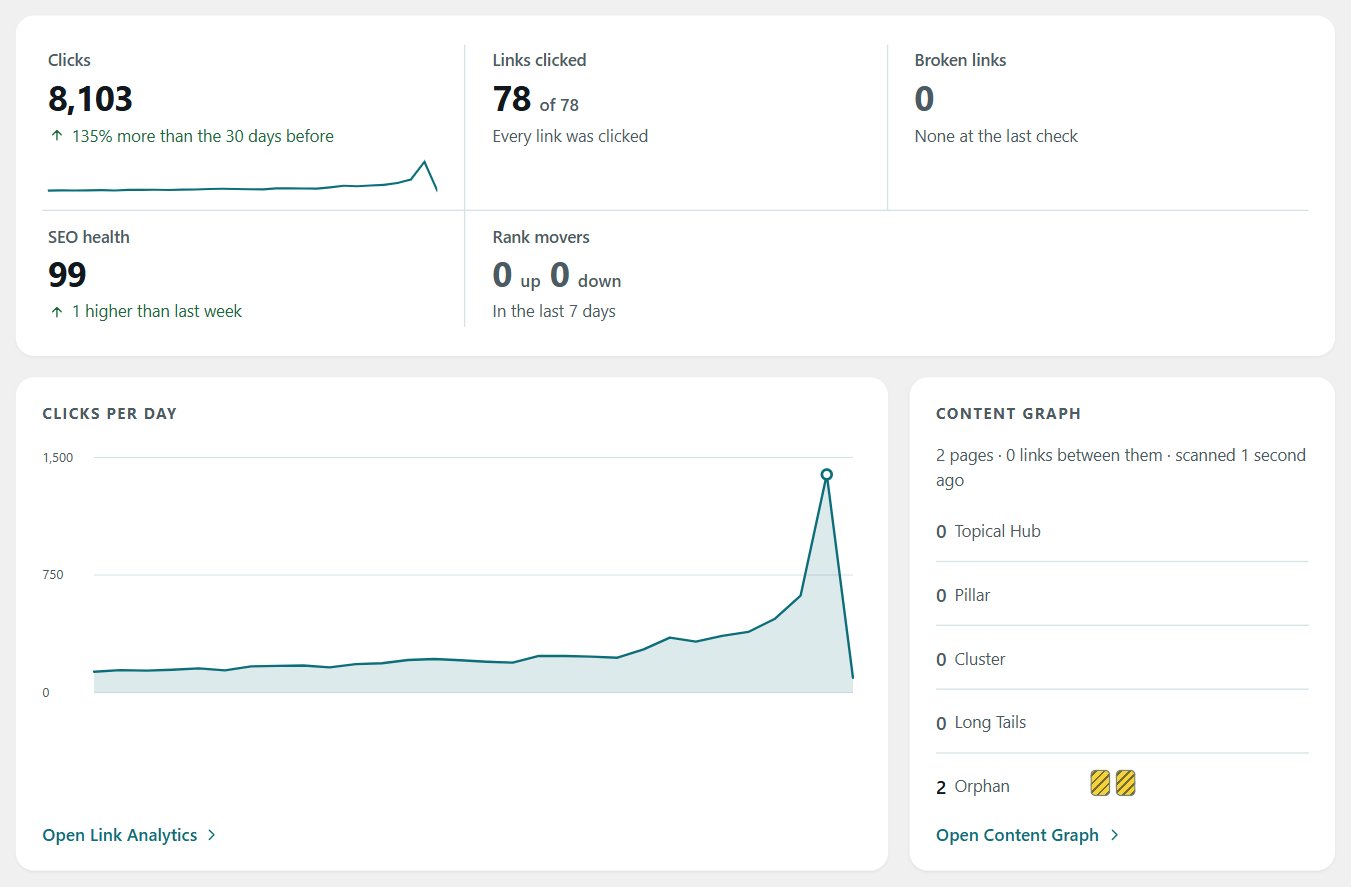
The Dashboard is the first page you see. At the top you pick 7 days, 30 days or 90 days, or click New link. A row of key figures comes first: Clicks, Links clicked, Broken links, SEO health and Rank movers. When links wait for their start date, a Scheduled links card under the figures lists the first five to start, the soonest first. Click a name to open that link, or click the line at the bottom, for example “See all 8 scheduled links” (or “See the scheduled link” when only one waits), to list them all in Manage Links. Then come cards for clicks per day, the Content Graph, SEO issues, rank movers, Google, your top links and Auto-Link. Each card links to the page with the details. A card for a module you have turned off is not shown; a Turned off card lists those modules.
On a new site with no published managed links, the Dashboard opens on three first steps: Add your first link, Or try it with sample data and Choose what Node does. Click Skip and show the dashboard to see the full Dashboard; Node remembers that for your account. The full Dashboard also shows as soon as a managed link is published.
Every Node screen has three buttons at the top right: Light, Dark and High contrast. Your choice is saved with your account, so it follows you to any computer, and every Gillish plugin An add-on you install in WordPress to give your site new features. Gillish Cairnstone and Gillish Core are plugins. uses it.
Make your first tracked link in four steps
Go to Manage Links and click New link. The New link button on the Dashboard opens the same screen.
Under Where the link goes, enter the Target URL: the full address visitors are sent to, for example
https://amazon.com/dp/B001ABC. You can leave Short URL empty; Node makes one from the name.Enter a Name, for example Amazon camera deal. Only you see it.
Click Create link. The screen then shows your short URL, with Copy short URL, Test redirect and View clicks.
Then put the link in a post, as Create a managed link and add it to a post shows. Add keywords to the link if you want Node to link them in your posts for you. Once the link has had clicks, View clicks takes you to its numbers in Link Analytics.
Try it with demo data
Not ready to use real content? On the Content Graph page, Generate Sample Data sits at the bottom of the Settings & Advanced Insights panel, above the map. It creates about 75 test posts that link to each other and, when the site has no sample links yet, sample links with clicks and keywords. When you are done, click Delete Sample Content in the same place to remove the sample posts, categories and tags, then click Delete sample data on the Dashboard’s Sample data card to remove the sample links and their clicks.
To try only the click numbers, use the Sample data card on the Dashboard. Add sample data adds sample links with two years of clicks, and Delete sample data removes them with their clicks.
How the parts fit together
- Content Graph shows your internal links as a map and finds problems like broken links and pages nothing links to. See Map your internal links with the Content Graph.
- Redirects send visitors from an old address on your site to a new one, keep a page’s old address when it moves, and show every old address your links still answer. See Redirect old addresses on your site.
- Broken Links checks the links in your posts and pages and helps you fix those that lead nowhere. See Find and fix broken links.
- Link Builder lets you plan groups of linked posts on a canvas and create them as drafts. See Plan linked posts with the Link Builder.
- Managed Links are tracked links such as
/node/my-linkthat count clicks. - Auto-Link turns chosen keywords in your posts into managed links.
- Shorteners connect services like Bit.ly to make short URLs A web address, such as https://example.com/contact/. It is what you type in the browser to open a page. for your links. See Shorten links with a URL shortener.
- Link Analytics shows clicks per day, top links, countries and the pages on your site that sent clicks. See Read your link statistics.
- SEO Stats lists the SEO problems the Content Graph found, page by page.
- Search Performance and Rank Tracker show data from Google Search Console. See Read your Search Console data and Track your rankings with Rank Tracker.
Next, read Create a managed link and add it to a post.