gillish

Author: Gjellis

  • What Gillish stores about your visitors

    What Gillish stores about your visitors

    Gillish Cairnstone, Gillish Node and Gillish Core keep as little as they can about the people who visit your site. This article lists what each one keeps about a visitor who is not logged in: in the visitor’s browser, on your server, and what it sends to other services.

    The short version

    • None of them stores a visitor’s IP address. Where a plugin An add-on you install in WordPress to give your site new features. Gillish Cairnstone and Gillish Core are plugins. must tell visitors apart, it keeps a scrambled code made from the address and your site’s secret key.
    • None of them sends anything about your visitors to Gillish.
    • Maps, video and audio from other websites wait until the visitor presses play or Show map, unless you choose otherwise for a block A piece of a page, such as a paragraph, a picture or a button. In WordPress you build a page by putting blocks one after another..
    • What a visitor types in a form is kept by Gillish Core until you delete it.

    In the visitor’s browser

    Gillish Cairnstone

    Cairnstone’s blocks remember a few things in the visitor’s browser, and only the blocks you use:

    • Changing sections (Conditional Content): how many times the visitor has been here (one year), the campaign tags of the link they followed (30 days), which version of a section they are kept on (30 days unless you change it), and, when country detection is on, their country, for five minutes and only while the tab is open.
    • Choices the visitor makes: which checklist points they ticked, that they sent a form or finished a quiz, and which notices, pop-ups or bars they closed. Most of these last 30 days, or as long as you set for the block.
    • Players: where the visitor stopped in a video or recording, and their volume, speed and caption choices.
    • Countdown: when the visitor first saw a countdown that gives each visitor their own time. Other countdowns keep nothing.

    A video protected by a password also uses WordPress’s own cookie, for ten days, once the visitor has typed the password.

    Gillish Node

    Node sets one cookie, and only for an A/B test set to Gets the same variant again (Node keeps a cookie), the choice a new test starts with. It holds only the name of the version the visitor got, lasts 30 days, and scripts on the page cannot read it. Pick Gets a new pick on every click and Node sets no cookie. Node keeps nothing else in the browser.

    Gillish Core

    Core sets no cookie and keeps nothing in the visitor’s browser.

    On your server

    Gillish Cairnstone

    • Quiz limits: a quiz that lets each visitor take it only so often, when it counts by address, keeps a scrambled code made from the visitor’s IP address. The code goes when the limit runs out; for a quiz that may be taken only once, it stays. To stop abuse, every quiz also keeps such a code for one minute after a visitor checks an answer or finishes.
    • AI assistant requests: the record of what AI assistants asked, including refused requests from people who are not logged in. It keeps no IP address, and each entry is deleted after 30 days.
    • Changing sections: the count of which version of a section was shown. It holds the section, the version, the rule that chose it and the time, and nothing about the visitor. It is kept for 90 days unless you change it.
    • Choices kept with an account: some blocks remember what a visitor did, such as a callout they closed, the points they ticked or a text they opened. For a signed-in visitor, this is kept with their account on your site. So that no account can fill your database, Cairnstone keeps at most 4,096 bytes in one value, 100 values in one group (each block or feature has a group of its own), 32 groups on one account, and 60 saves a minute from one account.

    Quiz answers are scored and then thrown away. What a visitor types in a Cairnstone form goes to Gillish Core.

    For developers: the first three limits change with the gillish_cs_visitor_state_limits filter (the keys maxValueBytes, maxKeysPerNamespace and maxNamespacesPerUser), and the saves a minute with gillish_cs_visitor_state_rate_limit_per_minute. Each limit must be a whole number of 1 or more; anything else keeps the default. A browser keeps at most about 4,096 bytes in one cookie, so a larger value only works for signed-in visitors.

    Gillish Node

    • Each click on a managed link keeps the time, the sub-ID, the A/B version, the page on your own site it came from (without anything after ?), the browser’s user agent, a scrambled code made from the IP address, and the country. The code is the same each time the same address clicks, which is how Node counts different people, so it is still personal data.
    • How long: clicks older than Click Data Retention (180 days unless you change it) are deleted and kept only as monthly totals per link, with nothing about who clicked.
    • The click limit: to count clicks per address, Node keeps a scrambled code of the visitor’s network for one hour, then it is gone.
    • Robots: a click from a robot, such as a search engine, is not stored, unless you set Bot click policy to Flag.

    The country is worked out on your own server. Node asks no outside service about a visitor.

    Gillish Core

    • Form submissions: the form, the page, the email address and the answers to the form’s own fields, and when it was sent. A form placed with a recording also keeps how far into the recording the visitor was. No IP address and no user agent is kept. Submissions stay until you delete them, or until Core deletes them after the number of days you set in Keep submissions for (days) (see Collect form submissions with Gillish Core).
    • Statistics: plays, downloads and quizzes counted per day, per item and per page, with nothing about who did it. Counts older than How long to keep counts (90 days unless you change it) are deleted once a day.
    • Limits per address: to limit how many forms or counts one address can send, Core keeps a scrambled code of the address with a counter, for one hour for forms and one minute for counts. With the limit set to 0, Core keeps nothing about the address.
    • Page views: only when Dynamic Tags is on, the view counter keeps a scrambled code of the page and address for 30 minutes, so a reload does not count twice.

    Sent to other services

    • Maps (Cairnstone) load from OpenFreeMap or Google Maps when the visitor presses Show map. You can set a map to load as soon as the visitor accepts marketing cookies, or as soon as the page opens. With the last choice the map’s service gets the visitor’s IP address, and Google Maps may set cookies, before the visitor has answered your cookie banner.
    • Video and audio (Cairnstone) from YouTube, Vimeo, Spotify and other services load when the visitor presses play. A background video loads with the page, and a player you set to wait for marketing consent loads as soon as the visitor agrees. Plays go to your own Google Analytics or Matomo only if you turn that on; it is off from the start.
    • Email services (Core): when a form’s author picked one, the email address and, if the form has one, the name go to that service after the visitor sends the form. Nothing else goes with them. If the connection asks new people to confirm their address, the service first emails the visitor a link to confirm it.
    • Links (Node): Node sends the visitor’s browser on to the link’s target and tells the target nothing itself. The tags in the address the visitor came with, such as a campaign tag, are passed on only for a link where you turned that on.

    All three work with cookie banners that support the free WP Consent API plugin, such as Complianz, Cookiebot, CookieYes and iubenda:

    • Cairnstone asks before it keeps visit counts, campaign tags, the visitor’s country and the player and countdown choices. The choices a visitor makes on the page, such as ticking a checklist, are not asked about.
    • Node counts no click and sets no A/B cookie until the visitor allows statistics.
    • Core counts nothing until the visitor allows anonymous statistics.

    Core’s statistics and Cairnstone’s changing sections also keep nothing for a visitor whose browser asks not to be tracked. Without such a banner, all three keep what this article describes.

    Keep less

    • Node: switch on the Privacy mode module under Settings → General, and each click keeps only the time, the sub-ID and the A/B version. Or switch off Log IP hash, Log user agent and Log referrer under Settings → Privacy; these do not stop the country, which stops only when you switch off Country detection. A shorter Click Data Retention keeps clicks for fewer days.
    • Core: switch off Count plays, downloads and quizzes on the Statistics tab of Core Settings, or keep counts for fewer days. A limit set to 0 keeps no code at all.
    • Cairnstone: a block you switch off keeps and sends nothing. The count of changing sections can be switched off or kept for fewer days in Cairnstone’s settings.

    When a visitor asks for their data

    Use Tools → Export Personal Data and Tools → Erase Personal Data. These tools find people by email address.

    • Core finds the forms a visitor sent by the email address they gave. Erasing removes them, and Core’s line in the result names each email service the address was passed to, so you know where else to ask.
    • Node‘s clicks hold no name and no email address, so the tools cannot find them. The erase result says so, and the clicks leave when Click Data Retention runs out.
    • Cairnstone keeps a visitor’s choices in their own browser, and they remove them by clearing their cookies and site data. For people with an account, the tools include the choices kept with the account and the quizzes they passed.

    To add this to your privacy policy, read Prepare your privacy policy for Cairnstone and Prepare your privacy policy for Node.
  • Add a button that links or acts

    Add a button that links or acts

    The Button block A piece of a page, such as a paragraph, a picture or a button. In WordPress you build a page by putting blocks one after another. is one call to action. A click can go to a link or do something on the page, and it can do a second thing on the same click, for example copy a code and scroll to a section. See it working on the Button page.

    Add a button

    1. Add the Button block where you want it.

    2. Type the words on the button itself.

    3. In the Settings tab, pick What the button does, and fill in the field it shows.

    What the button does

    What the button does starts as Goes to a link. Each choice shows the fields it needs:

    • Goes to a link: the Link, a web address or a Gillish Node link. Switch on Open in a new tab if you want that; screen readers A program that reads the screen aloud, for people who cannot see it well. They move around the page with the keyboard and hear what is there. are told it opens a new tab. Switch on Paid link for a link you are paid for, such as an affiliate link, and search engines are told so. A button with no link shows as plain text.
    • Opens a modal and Closes a modal: Opens which modal? takes the modal’s id. A Button added together with a Modal is linked already. A closing button goes inside the modal.
    • Closes a callout and Sends the form: place the button inside the callout box or the Form block.
    • Downloads a file: File to download, the address of a PDF, an image or a zip. A click saves it instead of opening it.
    • Copies text: Text to copy, and “Copied!” feedback (optional), the words the button shows for a moment after a copy. Screen readers are told about each copy.
    • Prints the page: opens the browser’s print window.
    • Shares the page: opens the device’s share window. Address to share (optional) and Title to share (optional) let you share another page. Where there is no share window, as on many computers, the button copies the link and shows “Link copied”.
    • Scrolls to a section: Section to scroll to, the HTML anchor of the target block, for example pricing. Set it on that block under Advanced, HTML anchor.
    • Controls media: Media to control (id), and What to do: Play / pause, Play, Pause or Mute / unmute.
    • Shows or hides content: Content to show or hide (id), the HTML anchor of the block to show or hide.
    • Does nothing (for show): a real button that stays put on a click, for showing how a button looks. It still reacts when you point at it, reach it with Tab or press it, and it has no And also.

    And also (optional) adds a second action on the same click, for example scroll to a section and close the modal. It offers the same choices, apart from going to a link, downloading a file, opening a modal and sending a form.

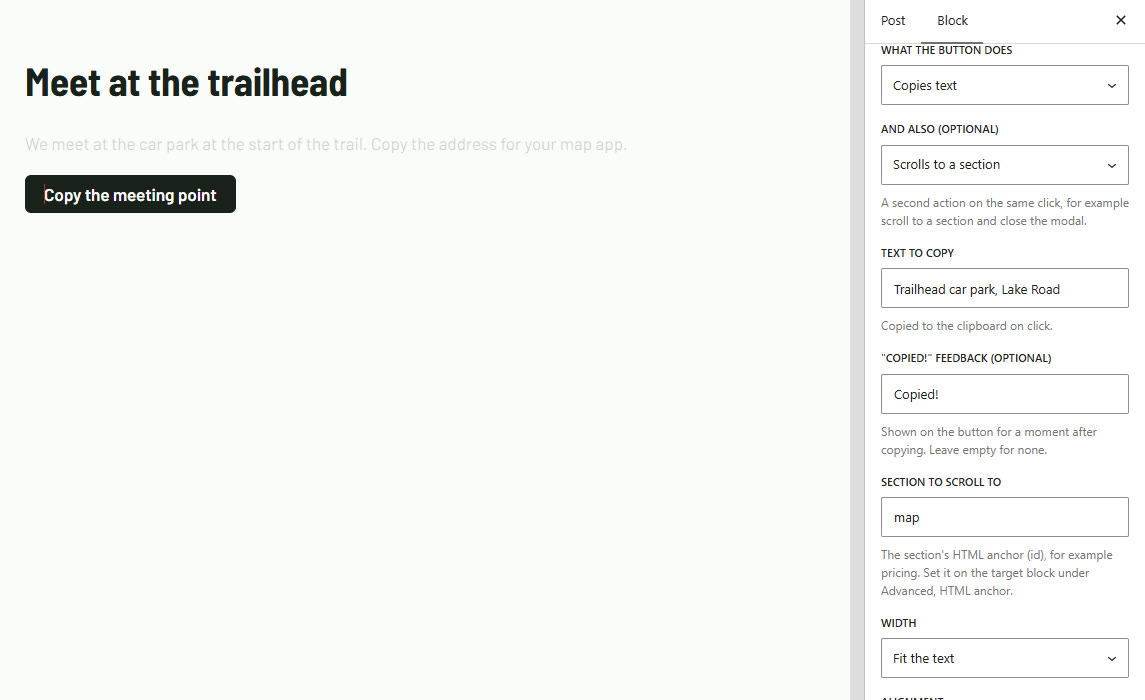
    A button in the editor with its settings: What the button does is Copies text, And also is Scrolls to a section, with the text to copy, the Copied! feedback and the section to scroll to filled in.
    A button that copies an address and then scrolls to the map.

    Size and place

    • Style: Filled (the default), Outline or Text link, all three shown below.
    • Size: Small, Normal (the default) or Large. The size of the words is set in the Styles tab.
    • Width: Fit the text (the default), Full width, or Custom, a share of the width there is.
    • Alignment: left (the default), centre or right.
    • Icon: pick one from the Cairnstone set, type a Dashicon name or paste your own SVG, and choose whether it sits before or after the words.

    Try them: the three styles of the Button block itself. Point at them or reach them with Tab to see each state; a click keeps you on this page.

    A filled button starts with the colour of your page’s text as its fill, and white or black words, whichever reads better. The Cairnstone data panel puts a field such as the post’s title or date into the button’s words.

    Colours and shape

    Where you set the look depends on where you edit the block. In a normal post or page, the Styles tab has WordPress’s own controls: typography. In a saved Cairnstone block, under Cairnstone → Blocks, the Styles tab has Cairnstone’s full set: colour, typography, border, shadow, filters, and size and spacing. There, a switch sets colours and shape for each state: Default, Hover, Focus, Active and Disabled. See Style a block in the Styles tab.

    What visitors can do

    • A button that goes to a link is a real link. Every other button is a real button: Tab reaches it, and Enter or Space runs it.
    • A button that shows or hides content tells screen readers whether the content is open.
    • Scrolling is smooth, unless the visitor has asked their device for less motion.

    Next, read Fold answers away in an accordion.

  • Fold answers away in an accordion

    Fold answers away in an accordion

    The Accordion block A piece of a page, such as a paragraph, a picture or a button. In WordPress you build a page by putting blocks one after another. holds questions and answers, or any list of headings a reader opens one at a time. You type each heading, and under it you put any blocks you like. See it working on the Accordion page.

    Add an accordion

    1. Add the Accordion block where you want it. It starts with two items.

    2. Click a heading and type it.

    3. Under each heading, write the answer. You can add any blocks there.

    4. To add another heading, select the accordion and click Add item under it.

    Settings

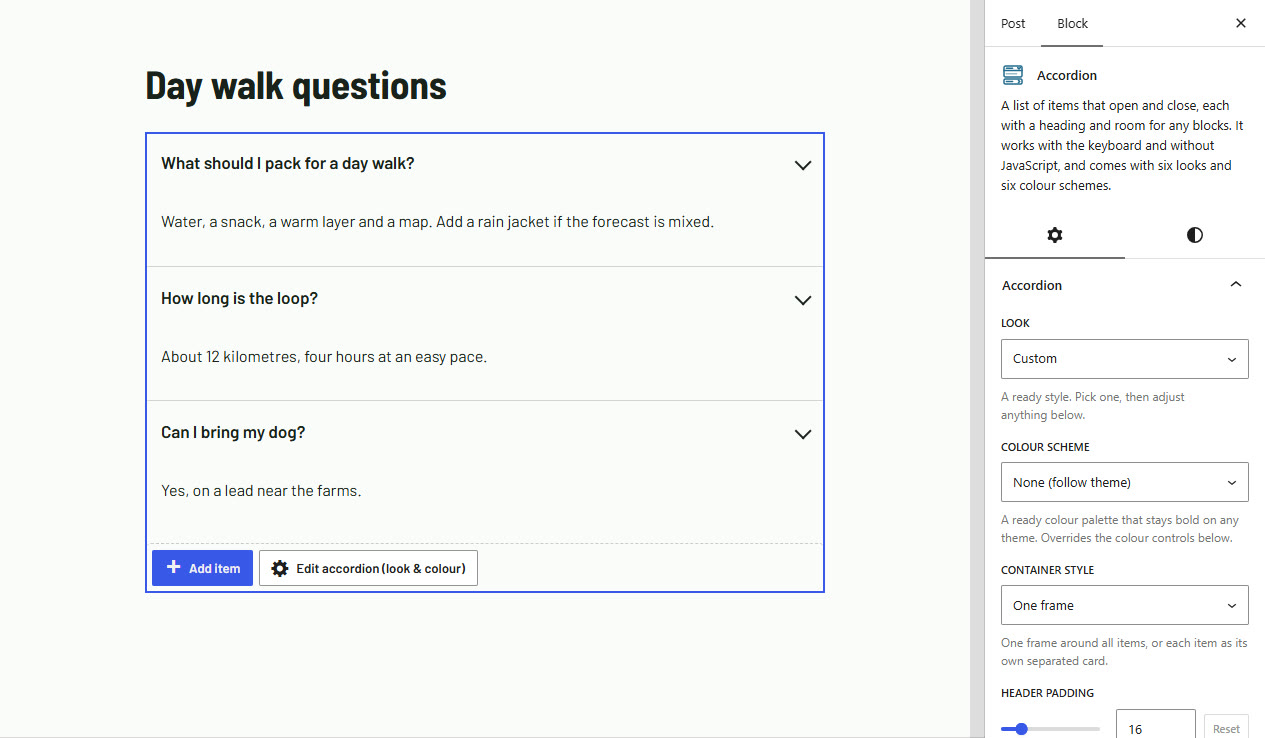
    Select the accordion (or click Edit accordion (look & colour) under it) and open the Settings tab. The Accordion panel holds:

    The editor with an accordion of three questions selected, and the Accordion panel in the Settings tab: Look, Colour scheme, Container style and Header padding.
    An accordion in the editor, with its settings.
    • Look: a ready style, from Custom (the default) to Minimal, Elevated, Editorial, Flat, Inverted and Continuous. Pick one, then adjust anything below.
    • Colour scheme: one of eight ready palettes that stay bold on any theme The design of your whole site: its fonts, colours and where the menu and footer go. You pick it under Appearance, then Themes., or none to follow your theme. A scheme overrides the colour settings below.
    • Container style: One frame around all items (the default), or Separated cards, each item on its own. With cards, Space between items sets the gap.
    • Header padding and Content padding: the space inside each heading and each answer, 16 pixels to start.
    • Divider lines between items: on to start.
    • Expand symbol: Chevron (the default), Plus / minus or None, and Symbol side: at the end of the heading or at the start.
    • Question heading level: Heading 3 to start. Screen reader A program that reads the screen aloud, for people who cannot see it well. They move around the page with the keyboard and hear what is there. users can jump from question to question, so pick the level one below the heading of the section the accordion sits in.
    • Open mode: Any number open (the default) lets several items stay open. One at a time closes the others when one opens.
    • Closed item background, Open header and Open content: how a closed item, and an open item’s heading and answer, look.

    Open an item when the page loads

    Start with an item open

    1. Click the heading of the item.

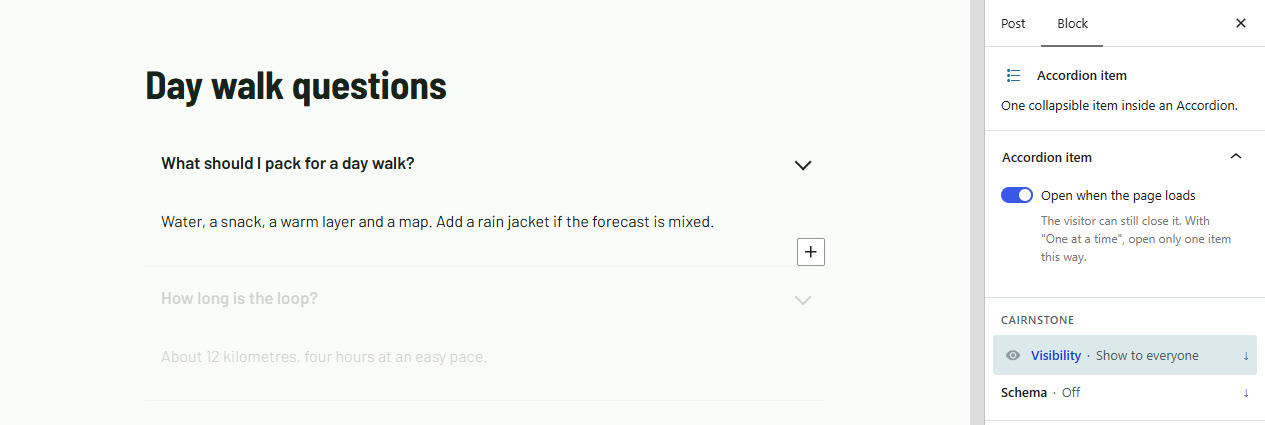
    2. In the Settings tab, in the Accordion item panel, switch on Open when the page loads.

    The first item of an accordion selected in the editor, and the Accordion item panel with Open when the page loads switched on.
    Open when the page loads, on the first item.

    The visitor can still close it. With One at a time, open only one item this way. To link straight to an item, give it an HTML anchor under Advanced; a link to it opens the item.

    Colours and shape

    Where you set the look depends on where you edit the block. In a normal post or page, the Styles tab has WordPress’s own controls: typography, padding and margin, and border width and corners. In a saved Cairnstone block, under Cairnstone → Blocks, the Styles tab has Cairnstone’s full set: colour, typography, border, shadow, and size and spacing. There, a switch sets colours and shape for each state: Default, Hover, Focus, Active and Disabled. See Style a block in the Styles tab.

    What visitors can do

    Try it: this is the Accordion block itself, with the first item open when the page loads.

    What should I pack for a day walk?

    Water, a warm layer, a rain jacket, food for the day and a map.

    How long is the loop?

    About 12 kilometres, four hours at an easy pace.

    Can I bring my dog?

    Yes, on a lead near the farms.

    • Click a heading to open or close its answer.
    • With the keyboard: Tab moves from heading to heading, Enter opens an item and Space closes it.
    • Screen readers hear each question as a heading at the level you chose.
    • The items open and close even when a browser runs no scripts.

    Next, read Add a button that links or acts.

  • Link to a page before it is live

    Link to a page before it is live

    You can link to a page before it is live, for example a post you have scheduled for next week. Gillish Node keeps visitors from landing on “page not found” through such a link. It works by itself, with nothing to set up.

    What visitors see

    A link in a post or page to a page visitors cannot open yet shows as plain words. Such a page is a draft, scheduled, waiting for review, private or in the trash. For example, in “Read part two next week”, with “part two” linked to a scheduled post, visitors see the same words with no link.

    • Buttons: a button to such a page is left out, with the box it stood in, because words alone where a button stood would look broken. This holds for the Button block A piece of a page, such as a paragraph, a picture or a button. In WordPress you build a page by putting blocks one after another., for Gillish Cairnstone’s Button block, and for the buttons in Cairnstone’s Hero, Discount Banner, Pricing Cards and Comparison Table blocks. In a Comparison Table only the button goes; its cell stays, so the table keeps its shape.
    • Images: an image linked to such a page still shows, without the link.
    • Every other link stays as it is: links to live pages, to other sites and to files, and your Node links.

    Everyone sees the same, also when you are logged in and could open the page yourself. To see which links are hidden, open the post in the editor.

    See them while you write

    The block editor shows which links visitors get as plain words:

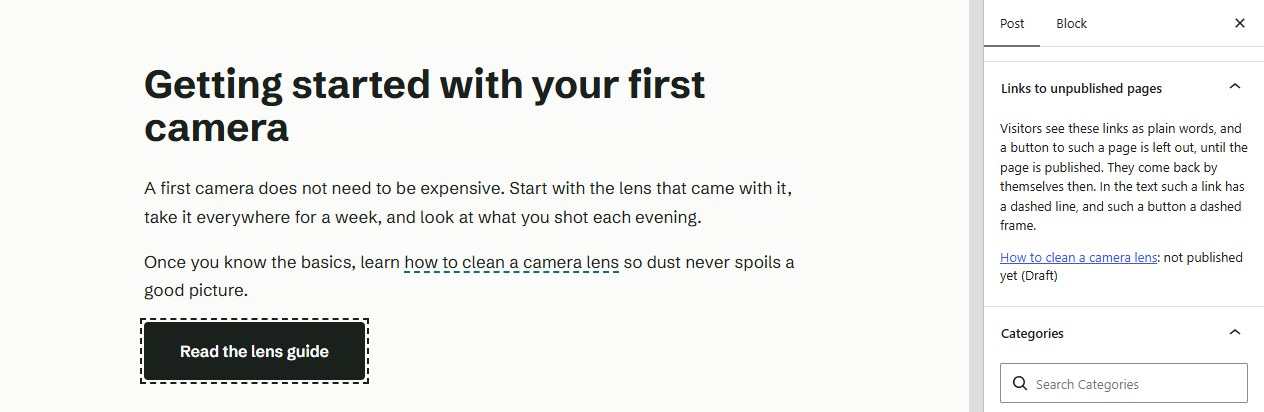
    • A link to a page that is not published has a dashed line under it, in the text’s own colour.
    • A button to such a page has a dashed frame round it. This holds for the Button block and for Gillish Cairnstone’s Button block.
    • In the sidebar, on the Post (or Page) tab, the panel Links to unpublished pages lists each such page, says it is not published yet, and gives its state, for example Draft or Scheduled. Click a page’s name to open it in a new tab. The panel shows only when the post has such links. When you add a block, WordPress opens the sidebar’s Block tab; click Post (or Page) to see the panel again.
    The block editor with a link and a button to a draft post: the link has a dashed line under it, the button a dashed frame, and the sidebar panel Links to unpublished pages lists the draft.
    A link and a button to a draft, marked in the editor.

    The marks follow what you write: add or remove a link and they change a moment later. When you publish the page in another tab and come back to the editor, the marks and the panel go away.

    To see the hidden links across your site, open Auto-Link and click the Hidden links tile under Link Health. It counts the links in published posts, each post once for each page it points to, and lists each post with the page it links to and that page’s state, for example Draft. Click a post’s name to open it in the editor. Node counts a post once it has been saved or visited. To count an older post at once, open it on your site, or click Update in the editor.

    When the page goes live

    When you publish the page, or WordPress publishes it at the time you scheduled, the links and buttons to it come back by themselves. Nothing in your posts was changed, so there is nothing to undo. If your site uses a page cache Saved copies, such as copies of your pages, that make the site load faster. After a change, you may have to clear them before visitors see the new version., clear it after the page goes live, or wait until the cache renews its pages.

    Turn it off

    Switch it off

    1. Open Node → Settings and pick the tab General.

    2. In the Links box, switch off Links to unpublished pages.

    3. Click Save changes.

    Links to pages that are not live then show as links again. Switch it on the same way to bring it back.

    For developers

    • gillish_node_unpublished_links_action (filter): what happens to one link. Return 'unwrap' (show the words, the default for a link), 'remove' (leave it out, the default for a button) or 'keep'. Arguments: the action, the ID of the page that is not live, the link as written, and the ID of the post being shown.
    • gillish_node_unpublished_links_is_viewable (filter): return true to treat a page as live. Arguments: the answer, the page’s ID, and the page (null when it is gone).
    • gillish_node_unpublished_links_posts_changed (action): fires when a page goes live or stops being live, with the IDs of the posts that link to it and the page’s ID. A page cache can use it to renew exactly those posts.

    Next, read Schedule a link.

  • Report a security flaw

    Report a security flaw

    Found a security flaw in Gillish Cairnstone, Gillish Node or Gillish Core? Tell us in private, so we can fix it before anyone can use it against a site.

    Report a security flaw

    1. Name the plugin and the version you found the flaw in. You see the version on the Plugins screen.

    2. Describe the flaw, the steps that show it (a proof of concept if you have one), and what an attacker could do with it.

    3. Keep it private. Do not open a public issue or post about it before the fix is out.

    What happens next

    • We confirm that we got your report within 5 business days.
    • Within 10 business days we tell you how serious we judge the flaw to be.
    • The most serious flaws are fixed first, and a flaw that is already being used against sites comes first of all. The fix ships as an update to the plugin An add-on you install in WordPress to give your site new features. Gillish Cairnstone and Gillish Core are plugins. as soon as a safe fix exists.
    • When the fix is out, we publish a security notice in the plugin’s changelog and name you as the one who found the flaw, unless you ask us not to.
    • We aim to make the flaw public within 90 days of our first assessment. That can be sooner, when the fix is ready sooner, or later, if we agree with you on more time for a hard fix. A flaw that is already public, or already being used against sites, is made public as fast as a fix allows.

    There is no bug bounty: we do not pay for reports.

    Research in good faith

    We welcome security research done in good faith. We will not take or support legal action against you when you:

    • test only on your own site,
    • stay within what this page covers,
    • do not read other people’s data, destroy data or slow down a service,
    • give us a fair time to fix the flaw before you make it public.

    What this covers

    This covers the code of the Gillish plugins only. It does not cover WordPress itself, your server or host, other plugins, how your site is set up, or outside services you connect to a plugin.

    For anything else, see Contact Gillish.

    Next, read Update Cairnstone, so your site gets each fix.

  • Prepare your privacy policy for Node

    Prepare your privacy policy for Node

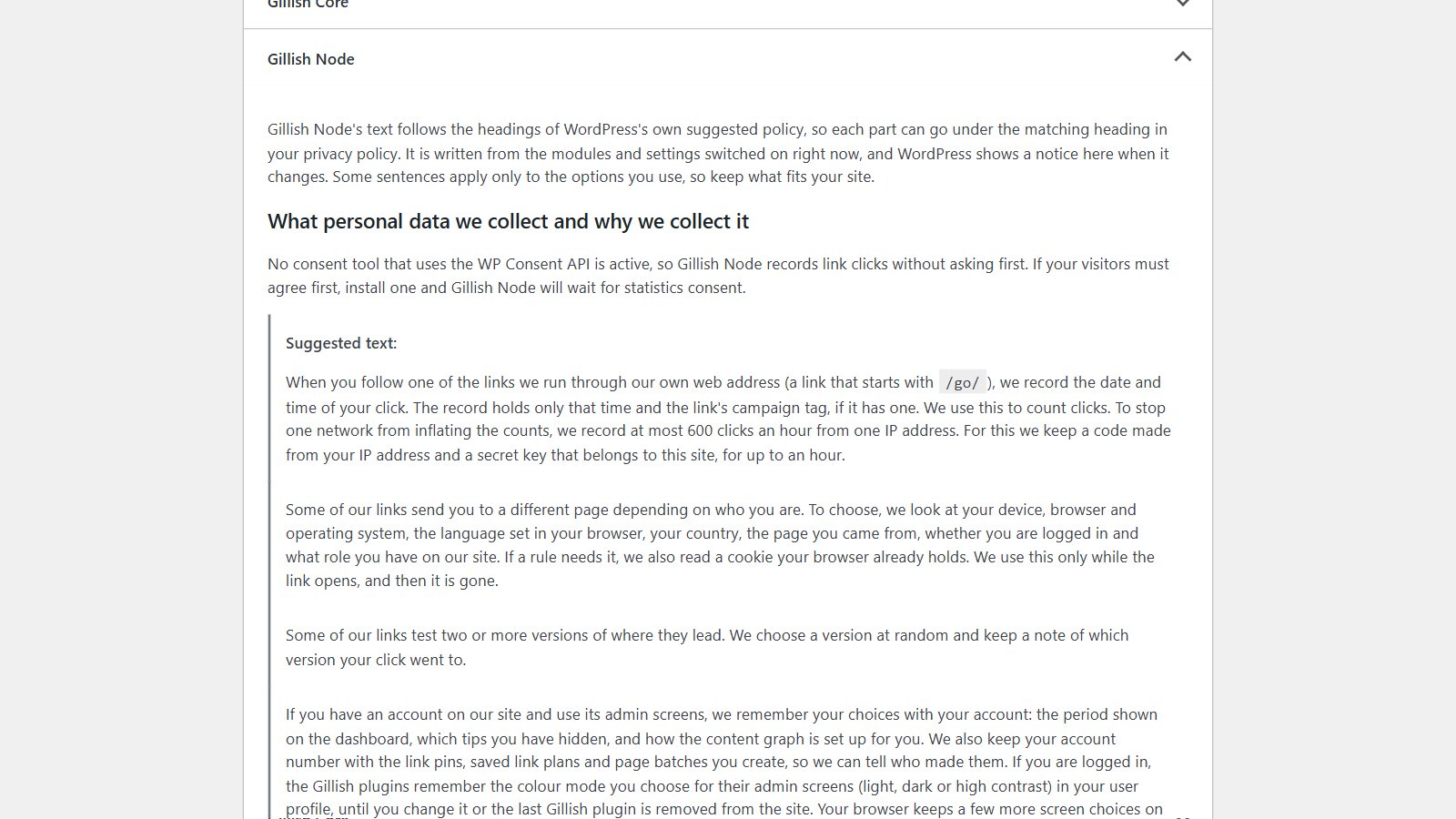
    Node has written a suggested text for your privacy policy page. It says what Node keeps about visitors and why. Node also takes part in WordPress’s tools for requests for personal data, with nothing to switch on. For every Gillish plugin on one page, see What Gillish stores about your visitors.

    Add Node to your privacy policy

    1. Go to Settings → Privacy in WordPress and open the Policy Guide tab. The Privacy tab in Node’s own settings links straight there.

    2. Find the Gillish Node section, and click Copy suggested policy text to clipboard.

    3. Paste it into your privacy policy page, change what does not fit your site, and update the page.

    WordPress's Privacy Policy Guide with the Gillish Node section open and its suggested text.
    Node’s part of the Privacy Policy Guide.

    When you change what Node keeps under Settings → Privacy in Node, read the text again and change your page to match.

    While a URL A web address, such as https://example.com/contact/. It is what you type in the browser to open a page. shortener is on, Node’s Privacy tab also says that when you shorten a link, its destination address is sent to that service. No visitor data is sent.

    When someone asks for their data

    Use Tools → Export Personal Data and Tools → Erase Personal Data. WordPress finds a person’s data by their email address.

    • Export includes what Node keeps with the person’s user account on your site: screen choices, such as the colour scheme, searches pinned in Rank Tracker, plans saved in Link Builder and page batches made with the Silo Builder. It also includes a note that lists what each click keeps with your settings right now, and for how long. With Privacy mode on, for example, the list reads “Date and time, campaign tag, A/B test version”.
    • Erase removes the screen choices. Pins, saved plans and page batches stay, because other people on the site may use them, but they no longer name the account.

    What happens to clicks

    A click keeps no name and no email address, so export and erase cannot find it and leave it as it is. The erase result says so in its message. With Log IP hash on, a click keeps a code made from the visitor’s IP address; see Read your link statistics.

    Click rows are deleted when they are older than Click Data Retention under Settings → Link Management, 180 days unless you change it. To keep less from now on, switch off Log IP hash, Log user agent or Log referrer under Settings → Privacy, or switch on the Privacy mode module under Settings → General.

  • Update Cairnstone

    Update Cairnstone

    To update Cairnstone, upload the newer zip file from Gillish over the copy you have.

    Update Cairnstone

    1. Back up your site.

    2. Download the newest gillish-cairnstone.zip from Gillish.

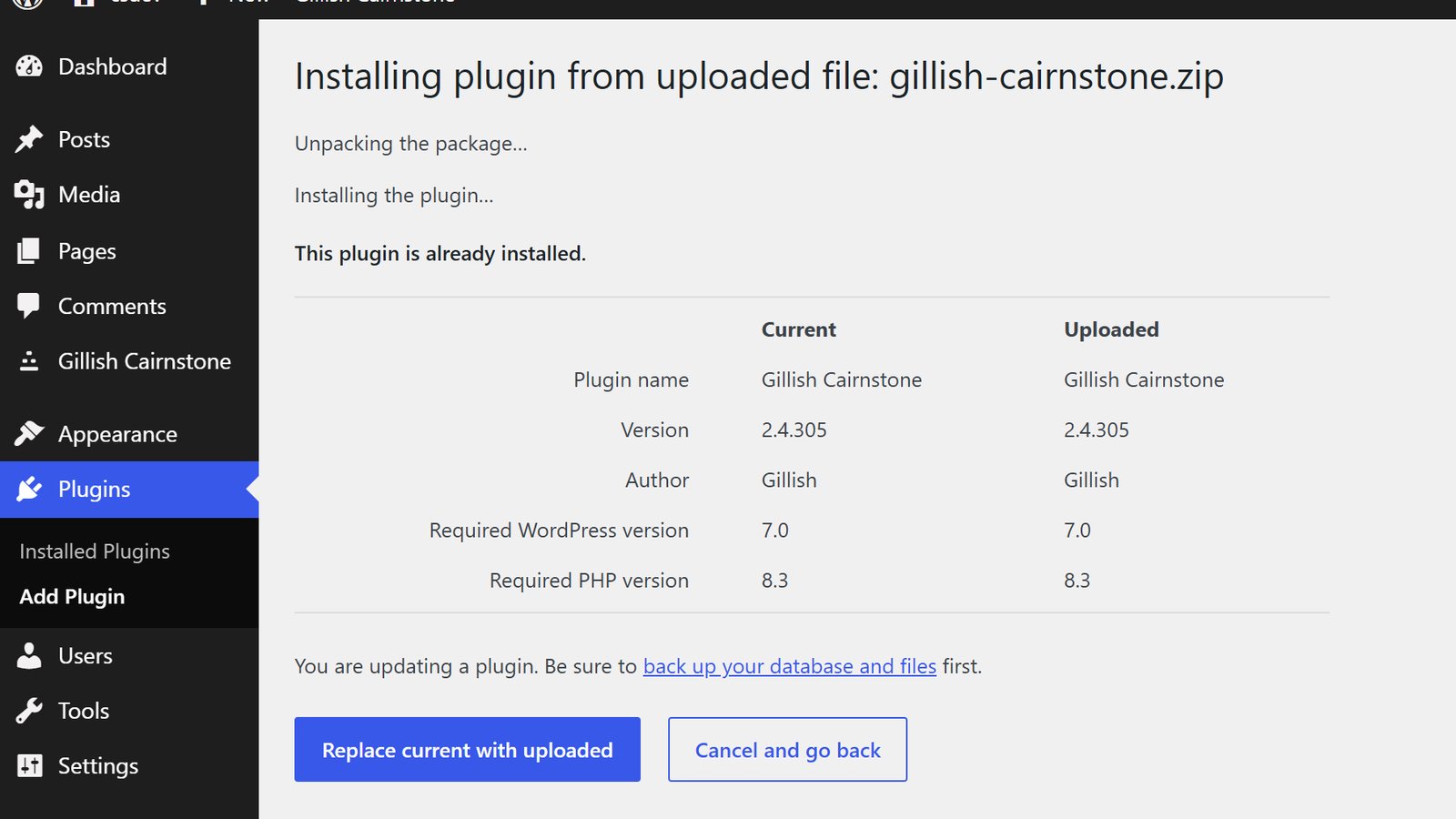
    3. Go to Plugins → Add Plugin → Upload Plugin, choose the file and upload it.

    4. WordPress sees the copy you have and offers Replace current with uploaded. Click it.

    WordPress's This plugin is already installed screen, comparing the current and the uploaded Cairnstone, with Replace current with uploaded.
    Replacing Cairnstone with the uploaded version.

    Back up before you update any plugin An add-on you install in WordPress to give your site new features. Gillish Cairnstone and Gillish Core are plugins. that adds blocks A piece of a page, such as a paragraph, a picture or a button. In WordPress you build a page by putting blocks one after another.. Cairnstone warns you before a change to a block you built alters your pages (see Change a block that is already in use); a backup covers everything else.

    Blocks that an update adds

    A new install starts with every block on. A block that an update adds follows Cairnstone → Settings → General → New blocks in updates (the menu reads Gillish Cairnstone when Gillish Core is not active):

    • Follow my blocks: on if every block is on, off if you have turned any off.
    • Always on and Always off do what they say.

    This is decided once, when the update arrives. After that the new block has its own switch like every other, and your blocks keep theirs.

    Next, read Fix common Cairnstone problems.

  • Add breadcrumbs with structured data

    Add breadcrumbs with structured data

    A breadcrumb trail shows where a page sits on your site: Home, then its category, then the page. Use WordPress’s own Breadcrumbs block A piece of a page, such as a paragraph, a picture or a button. In WordPress you build a page by putting blocks one after another. for the trail (it comes with WordPress 7.0 and later), and Cairnstone adds the structured data that tells search engines the same path.

    Add breadcrumbs

    1. Open your theme’s templates in the Site Editor, for example the ones for posts, categories and search.

    2. Add WordPress’s Breadcrumbs block where the trail should show.

    3. Save the template.

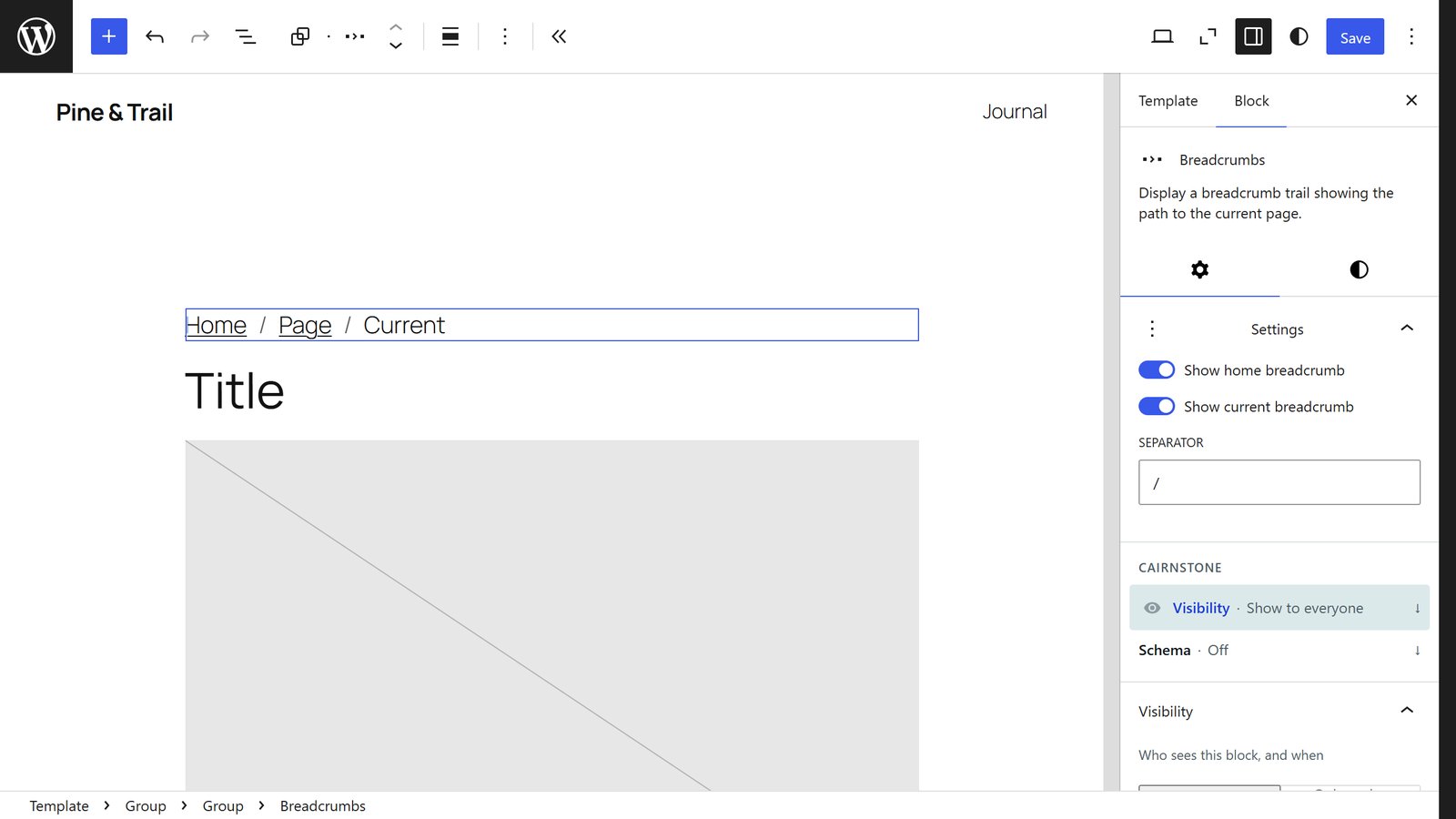
    The Site Editor on the Single Posts template, with WordPress's Breadcrumbs block selected above the title and its settings in the sidebar.
    The Breadcrumbs block in a template.
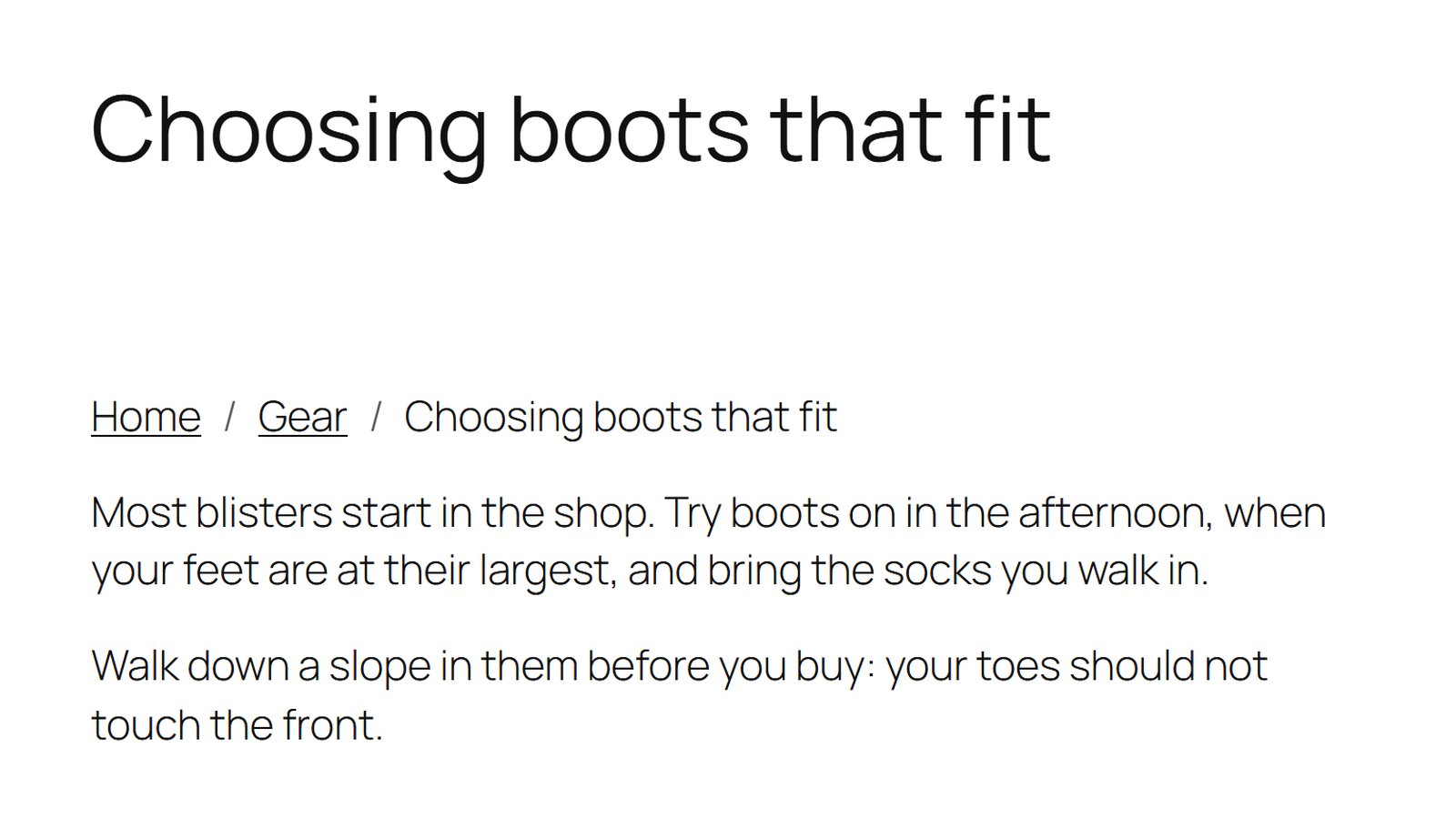
    A page with the breadcrumb trail Home, Gear, Choosing boots that fit, under its title.
    A breadcrumb trail on a page.

    After every Breadcrumbs block on a page, Cairnstone adds the structured data, built from exactly the trail the block shows, so the two always agree. Nothing is added when the trail has one item or shows nothing. When your SEO plugin An add-on you install in WordPress to give your site new features. Gillish Cairnstone and Gillish Core are plugins. already adds breadcrumb data to the page, Cairnstone leaves its own out, so search engines get one answer.

    If your SEO plugin adds breadcrumbs data

    Switch Cairnstone’s off with one line in a small plugin or your child theme The design of your whole site: its fonts, colours and where the menu and footer go. You pick it under Appearance, then Themes.‘s functions.php:

    PHP
    add_filter( 'gillish_cs_breadcrumb_schema', '__return_false' );

    Next, read Update Cairnstone.

  • Control how Cairnstone loads its styles

    Control how Cairnstone loads its styles

    A page loads the styles of the Cairnstone blocks A piece of a page, such as a paragraph, a picture or a button. In WordPress you build a page by putting blocks one after another. it holds, and none of Cairnstone’s when it holds none. Within a block, it loads only what the block shows: a colour set’s styles only when a block uses one, a rating’s only when one is shown, and a How-to’s image rules only when a step has an image. The editor always loads everything, so every choice looks right while you write.

    Small style sheets are printed straight into the page, so the browser does not wait for a separate file. A larger one, such as the Video block’s, stays a file, which the browser keeps for the next page.

    WordPress limits how much style it prints into a page (40,000 bytes to start with). On a page with Cairnstone blocks, Cairnstone adds the size of its own small sheets to that limit, so they never push your theme The design of your whole site: its fonts, colours and where the menu and footer go. You pick it under Appearance, then Themes.‘s or WordPress’s styles out into separate files. On other pages the limit is untouched.

    For developers

    Add these lines to a small plugin An add-on you install in WordPress to give your site new features. Gillish Cairnstone and Gillish Core are plugins. or your child theme’s functions.php.

    Every style sheet as a file, for example when your Content-Security-Policy forbids inline styles: set WordPress’s limit to 0. Cairnstone then prints nothing into the page.

    PHP
    add_filter( 'styles_inline_size_limit', '__return_zero' );

    WordPress’s limit as it is: stop Cairnstone adding its share.

    PHP
    add_filter( 'gillish_cs_inline_style_share', '__return_false' );

    Next, read Add breadcrumbs with structured data.

  • Use Cairnstone on a multilingual site

    Use Cairnstone on a multilingual site

    Cairnstone blocks A piece of a page, such as a paragraph, a picture or a button. In WordPress you build a page by putting blocks one after another. are ordinary WordPress blocks, so a translation plugin An add-on you install in WordPress to give your site new features. Gillish Cairnstone and Gillish Core are plugins. handles them with the rest of the page. With WPML, Cairnstone tells the plugin which block settings are texts. With Polylang or TranslatePress, some blocks keep their text in the block’s settings, such as the How-to steps, so check one block of each kind before you rely on it.

    WPML

    WPML sends the texts of a page to a translator, one text at a time. Cairnstone ships a file, wpml-config.xml, that tells WPML which settings of each block are texts. You do not set anything up: WPML reads the file by itself when Cairnstone is active.

    • What you need. WPML Multilingual CMS and its String Translation add-on, both active. WPML reads block settings only while String Translation runs.
    • What a translator gets. The words a visitor reads or hears: headings, labels, button texts, list rows, questions and answers, captions, alternative texts for pictures, table cells, the lines and steps of a recipe, the rows of a price list, the plans and features of a pricing table, and more.
    • What a translator never gets. A block’s look, colours, colour set, icon, sizes, ids and rules. A translator cannot change how a block looks or who sees it.
    • Links. A button’s or a card’s address is offered as a link, so a translated page can point at the translated page.
    • Post Grid. On a translated page, a Post Grid lists the posts and the category you picked in that page’s language.
    • Pictures. With WPML’s Media Translation add-on, you can give a picture another file for each language. The translated page then shows that file, in the Image block and in every other block that shows a picture, the full-size view included.
    • Blocks inside blocks. A Container, Columns, Tabs, an Accordion or one of your own saved blocks holds other blocks. Their texts are translated in the same way.
    • Kept as you wrote them. The name of a quiz result, a heading you renamed in the Table of Contents, and price zones. Rules and matching depend on these, so they are the same in every language.

    With every translation plugin

    • To show a block by language, use the Language signal in the Visibility panel’s custom rule builder. It reads the language the visitor’s browser asks for, not the language your translation plugin gave the post. A language you pick also matches its regional forms: Norwegian Bokmål (nb) matches a browser that asks for nb-NO, while a regional choice matches only itself. To show a block by the post’s language, use your translation plugin’s own rules. See Show different content to different visitors.
    • Each variant of a Conditional Content block holds its own content, which your translation plugin translates with the post. The variant’s name and rule are block settings; check that your plugin carries them over.

    Next, read Control how Cairnstone loads its styles.