Brands change colour. A new logo, a fresh look, a client who wants more green. If every block on your site holds its own copy of the old colour, a long afternoon of clicking waits. Cairnstone lets you skip it.
Two kinds of colour
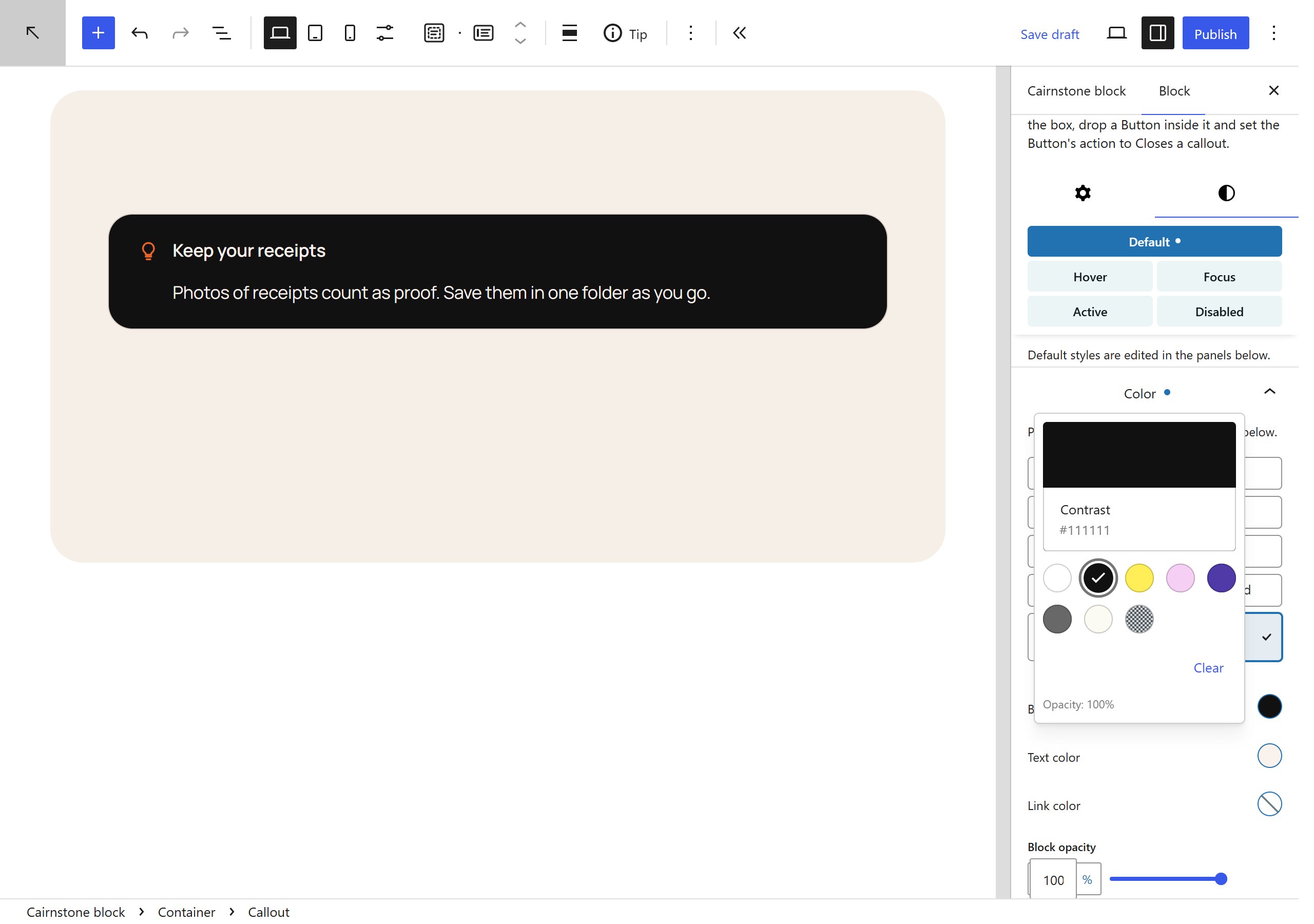
When you pick a colour in Cairnstone’s Styles tab, it is one of two kinds. The kind decides what happens when your theme changes later.
- From the theme, the block follows. Pick one of your theme’s colours, such as Accent 1, and the block keeps a link to it. Change that colour in the theme, and the block changes with it.
- Your own, the block stays. Pick a colour in the Custom color picker, and the block keeps exactly that, whatever the theme does. The same goes for a theme colour whose opacity you changed.
With nothing chosen
Most blocks you leave alone already follow your theme. Their text takes the theme’s text colour, and their background stays see-through.
Set it up once
Let your brand colour follow the theme
In Cairnstone → Blocks, select the Container that holds your block and open the Styles tab.
Under Color, open Background color and pick one of your theme’s colours, not the Custom color picker.
Save the block and place it in your posts and pages.
When the brand colour changes, go to Appearance → Editor → Styles → Colors and change that one colour in Edit palette. Every post that holds the block shows the new colour, and you do not open or save a single one.
An editor tab that was already open keeps the old colour until you reload it.
What stays as it is
The ready-made colour sets, such as Blue and Amber, belong to Cairnstone and keep their colours when the theme changes. So does a colour from the colour picker. A post where you picked the block’s colour in the post editor keeps that colour too.
After a change, check that text is still easy to read on its background. The Color panel warns you when it may not be.
Every colour control is in Learn every setting in Cairnstone’s block sidebar.
Leave a Reply