Gillish Core counts plays in Gillish Cairnstone’s Audio and Video blocks A piece of a page, such as a paragraph, a picture or a button. In WordPress you build a page by putting blocks one after another., and the starts and finishes of its quizzes. You read the counts under Gillish → Statistics.
What is counted
For each recording and video in Cairnstone’s Audio and Video blocks:
- Plays: a visitor started it, and on which page.
- How far they got: a quarter, half, three quarters, or the end.
- Downloads: a visitor pressed the player’s download button.
- Forms sent beside it: a form sent on the same page after a play of it.
For each quiz made with Cairnstone’s Quiz block, and the questions a Video block asks while it plays:
- Started: a visitor picked the first answer in a Quiz block, or a video with a named step reached its first question.
- Finished: a visitor saw their result.
- Results: which result they got.
Taking a quiz again counts again. Counts are anonymous and kept per day. A visitor whose browser sends Do Not Track is not counted at all.
If your site has a consent banner that works with the WP Consent API, Core counts a visitor only after they allow anonymous statistics in the banner. Until then, nothing about their visit is counted.
Read the Statistics screen
Open Gillish → Statistics.
Pick a period: Last 7 days, Last 30 days or Last 90 days. The screen opens on the last 30 days.
Under Recordings and videos, three key figures sit above the table, for all recordings and videos together in the period: Plays, Played to the end and Downloads. Below them, each recording or video has a row:
- Recording or video: its title, with the kind and the file name below.
- Played on: the pages it was played on, most plays first, each linked and with its plays. Five pages are named; then the row says how many more there are. A play on a page that lists several posts, such as the blog page, shows as A list of posts.
- Plays: how many times it was started.
- A quarter, Half, Three quarters and The end: how many plays got that far, and their share of all plays.
- Where people stop: a small line that shows the same shares. The higher it stays, the more of it people heard or watched. A screen reader A program that reads the screen aloud, for people who cannot see it well. They move around the page with the keyboard and hear what is there. reads the shares out.
- Downloads: how many times it was downloaded from the player.
- Forms sent beside it: how many forms were sent after a play of it, and in which minute of it, for example “mostly at 0:00 (1)”: one form, sent in the first minute.
Under Quizzes, each quiz has a row:
- Quiz: the page the quiz is on, with the quiz’s name below.
- Started: how many runs began.
- Finished: how many runs reached a result, and their share of the starts.
- Results: each result by name, how many got it, and its share of the finished runs, for example “Try again: 1 (100%)”. A video’s questions have a pass mark instead of named results, so their row says No named results.
Turn counting off and on
Open Gillish → Core Settings, tab Statistics.
Untick Count plays, downloads and quizzes to stop counting, or tick it to count again.
Press Save changes.
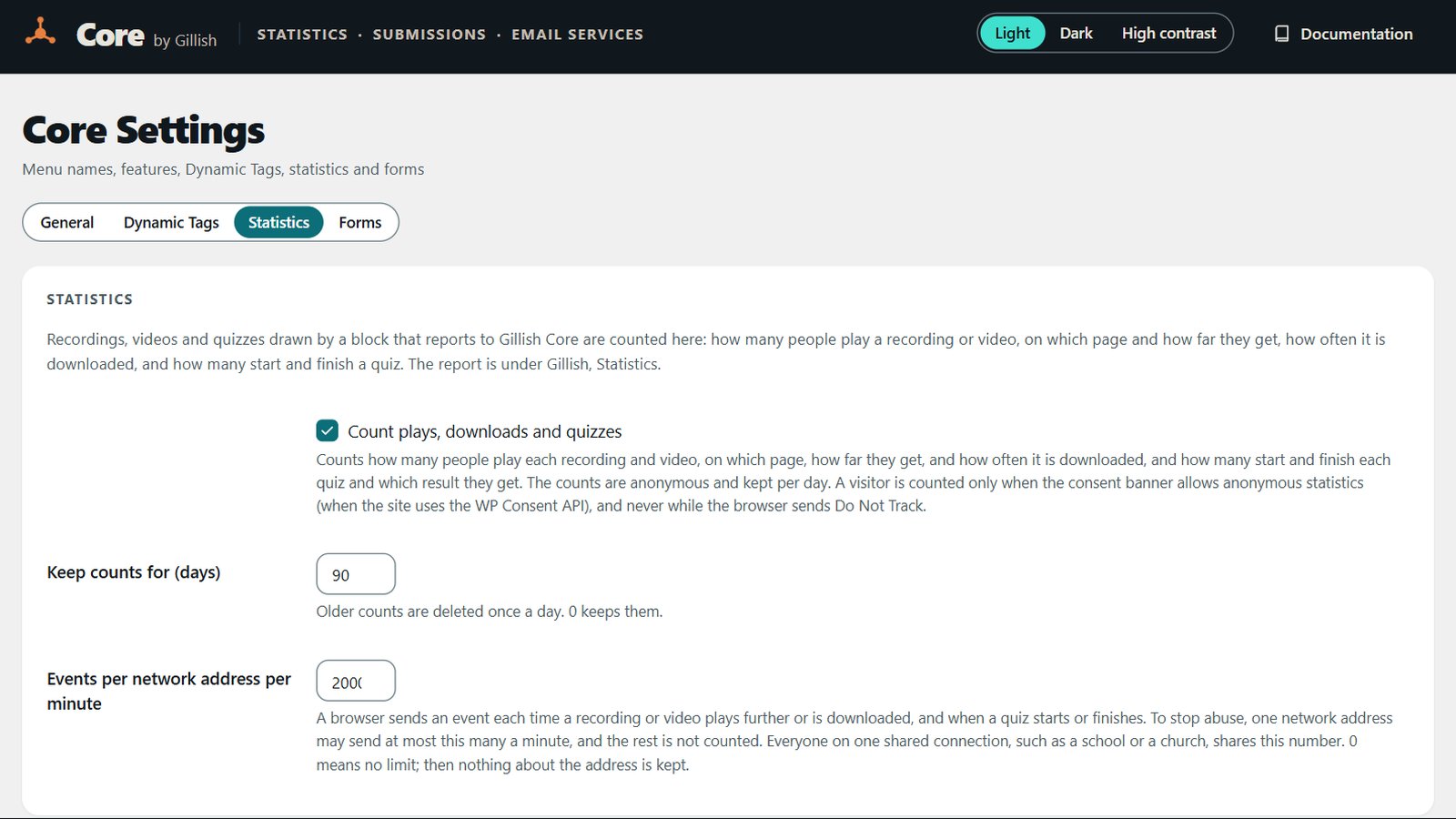
While counting is off, the Statistics screen says “Counting is switched off, so nothing new is counted.” Its Open the setting link takes you back to this tab. Counting is on when you install Core.
Choose how long counts are kept
Open Gillish → Core Settings, tab Statistics.
Set Keep counts for (days). It is 90 when you install Core.
Press Save changes.
Once a day, Core deletes counts older than that. Set 0 to keep every count. The bottom of the Statistics screen says how long counts are kept, with a Change how long link to this setting.
Limit events per address
To stop abuse, Core limits how many counts one network address can send in a minute. Everyone on one shared connection, such as a school, shares the number. A playing recording sends a count each time it gets further, and a quiz’s start and its finish both count toward it.
Open Gillish → Core Settings, tab Statistics.
Set Events per network address per minute. It is 2000 when you install Core.
Press Save changes.
What comes in over the limit is not counted. To change it back, set 2000 and save. Set 0 to have no limit. Then every count is taken, and Core keeps nothing about the address.