You build a form with Gillish Cairnstone’s Sign-up form block A piece of a page, such as a paragraph, a picture or a button. In WordPress you build a page by putting blocks one after another.. When a visitor sends it, the form is replaced by the confirmation you set in the block, and Gillish Core keeps what they sent under Submissions.
The Submissions screen
Open Gillish → Submissions. The newest submission is at the top. Each row shows:
- Received: the date and time, with the form’s name below.
- Email: the address the visitor typed.
- Other answers: every other field, by its name.
- Page: the page the form is on.
- Moment: when the visitor played a recording or video on that page before sending, the one played last, the second it was at, and the furthest second they reached, for example “Morning walk at 0:33, had reached 0:33”. Otherwise a dash.
- Sent to: each email service the form passed the address on to, and how it went: sent, or failed with the service’s answer (see Send sign-ups to your email service).
The screen shows 50 submissions at a time. With more than 50, numbered page buttons appear below the table. Press a number to see that page. The button for the page you are on is filled in.
Each row also has a box to tick on the left. Above the table are the buttons Download ticked, Download all, Delete ticked and Delete all (see Delete submissions, Delete all submissions and Download submissions below).
Delete submissions
This works the same for one submission or many.
Open Gillish → Submissions.
Tick the box on each row you want to delete. To tick every row on the page, tick the box at the top of the table.
Press Delete ticked above the table.
Core asks first, for example “Delete 2 submissions? This cannot be undone.” The rows you picked are still ticked, so you can check them. If any of them were passed on to an email service, the question names the service and says the copies stay there. Remove them there as well if the person asked you to.
Press Yes, delete them. To keep the rows, press Cancel.
You see, for example, “2 submissions deleted.” The rows are gone for good. If you press Delete ticked with no box ticked, you see “Tick at least one submission first.”
Delete all submissions
Open Gillish → Submissions.
Press Delete all above the table. You do not need to tick anything.
Core asks first and counts them, for example “Delete all 12 submissions? This cannot be undone.” If addresses were passed on to an email service, the question names the service, as with Delete ticked.
Press Yes, delete all. To keep them, press Cancel.
You see, for example, “12 submissions deleted.” Every submission on every page is gone for good. If someone sends a form while the question is on your screen, that new submission is kept, because it was not counted in the question.
Download submissions
You can save submissions as a file, for example to keep a copy or to work with them in a spreadsheet.
Open Gillish → Submissions.
Tick the rows you want and press Download ticked. Or press Download all to get every submission, on every page.
Your browser saves a file named submissions- and the day’s date, ending in .csv. It is a standard CSV file: commas between the columns and UTF-8 text, so other tools can read it too, for example to import people into an email service. The file has one row for each submission. Its columns are Received (UTC), Form, Email, one column for each other field in your forms, Page, Recording, Seconds into the recording when sent and Passed on to. The time is in UTC, the world time, so it can differ from the time on the screen.
Many computers, as in most of Europe, expect a semicolon between the columns, not a comma. On such a computer, a double-click opens the file in Excel with each whole row in the first column. Then import the file instead of opening it, and choose comma and UTF-8. In Excel on Windows:
Open a new, empty workbook.
Choose Data → From Text/CSV and pick the file.
Set File Origin to 65001: Unicode (UTF-8) and Delimiter to Comma.
Press Load.
Each answer then gets its own column, and letters such as æ, ø and å, and line breaks inside an answer, stay right. If the Received (UTC) column shows ########, make the column wider. Excel reads it as a date and time and needs more room to show it.
An answer that starts with =, +, - or @ could be read as a formula, such as =1+1, +47 400 00 000 or @Ola. Core puts an apostrophe in front of it, and in Excel you see the apostrophe in the cell, for example '+47 400 00 000. Excel then shows it as text and does not run it. Only an administrator can download submissions. The file holds what people sent you, so keep it safe and delete it when you no longer need it.
Erase a person’s data
When someone asks you to remove what they sent, WordPress’s own privacy tool also removes their submissions in Core.
Open Tools → Erase Personal Data.
Type the person’s email address.
Decide on Send personal data erasure confirmation email. Left ticked, WordPress first emails the person a link to confirm. Unticked, the request is confirmed at once.
Press Send Request.
When the request says Confirmed, press Erase personal data on its row.
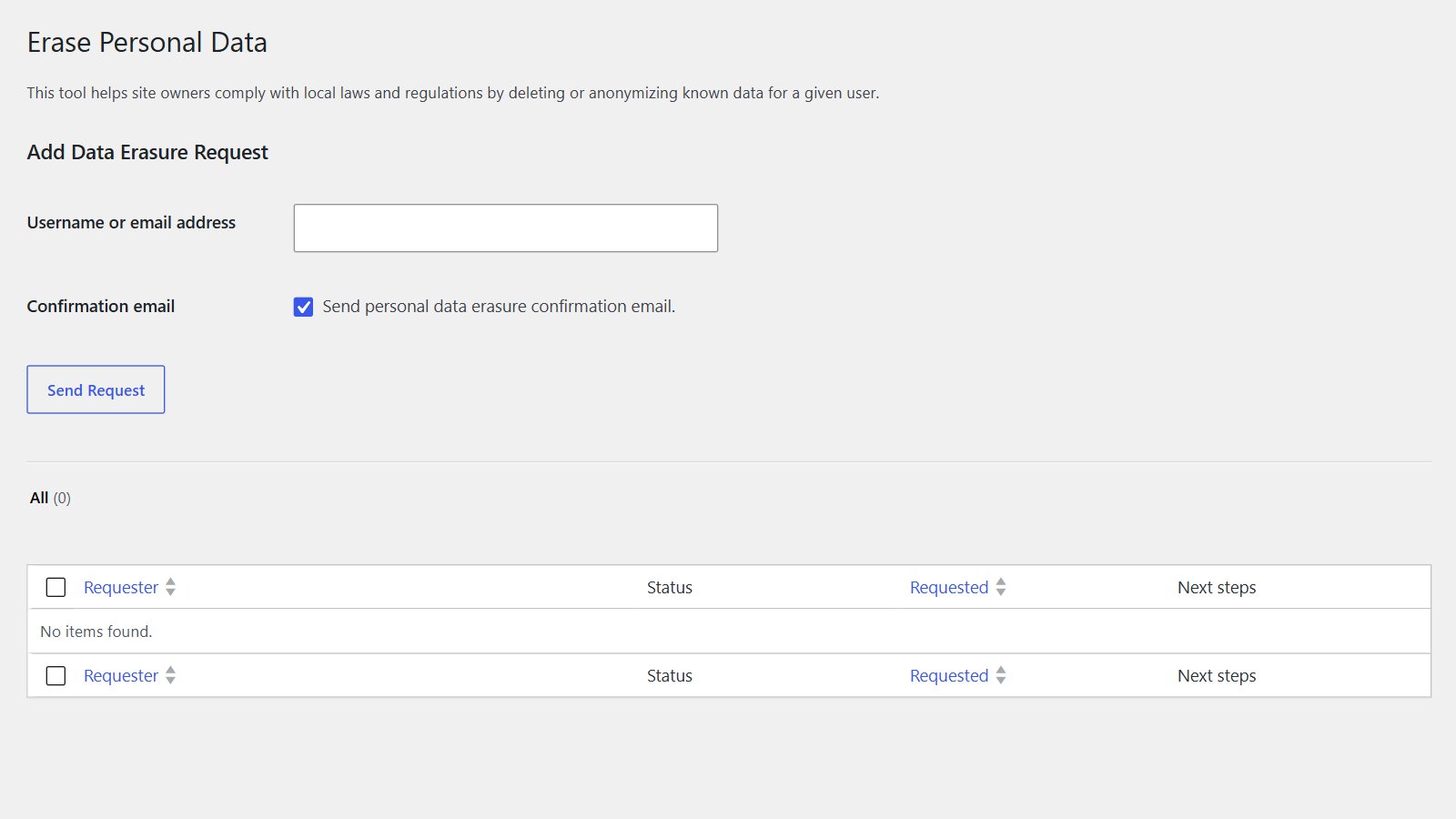
WordPress says “Erasure completed.” Below the row, Core names each email service it passed the address on to. Remove the person in those services too. Their submissions no longer show under Submissions.
Delete old submissions by themselves
The privacy law in the EU and the EEA (the GDPR) says you should keep personal data only as long as you need it. Core can delete old submissions for you.
Open Gillish → Core Settings, tab Forms.
Set Keep submissions for (days), for example 365 for one year.
Press Save changes.
Once a day, Core deletes every submission that is older than that number of days. They are gone for good. Copies at your email services stay there. The text Core suggests for your privacy policy, under Settings → Privacy, then says “We delete it after 365 days.”
It is 0 when you install Core. 0 means Core keeps every submission until you delete it, and the privacy text says “We keep it until it is deleted.” To stop the deleting, set 0 and save.
Limit forms per address
To stop abuse, Core limits how many forms one network address can send in an hour. Everyone on one shared connection, such as an office or a school, shares the number.
Open Gillish → Core Settings, tab Forms.
Set Form submissions per network address per hour. It is 10 when you install Core.
Press Save changes.
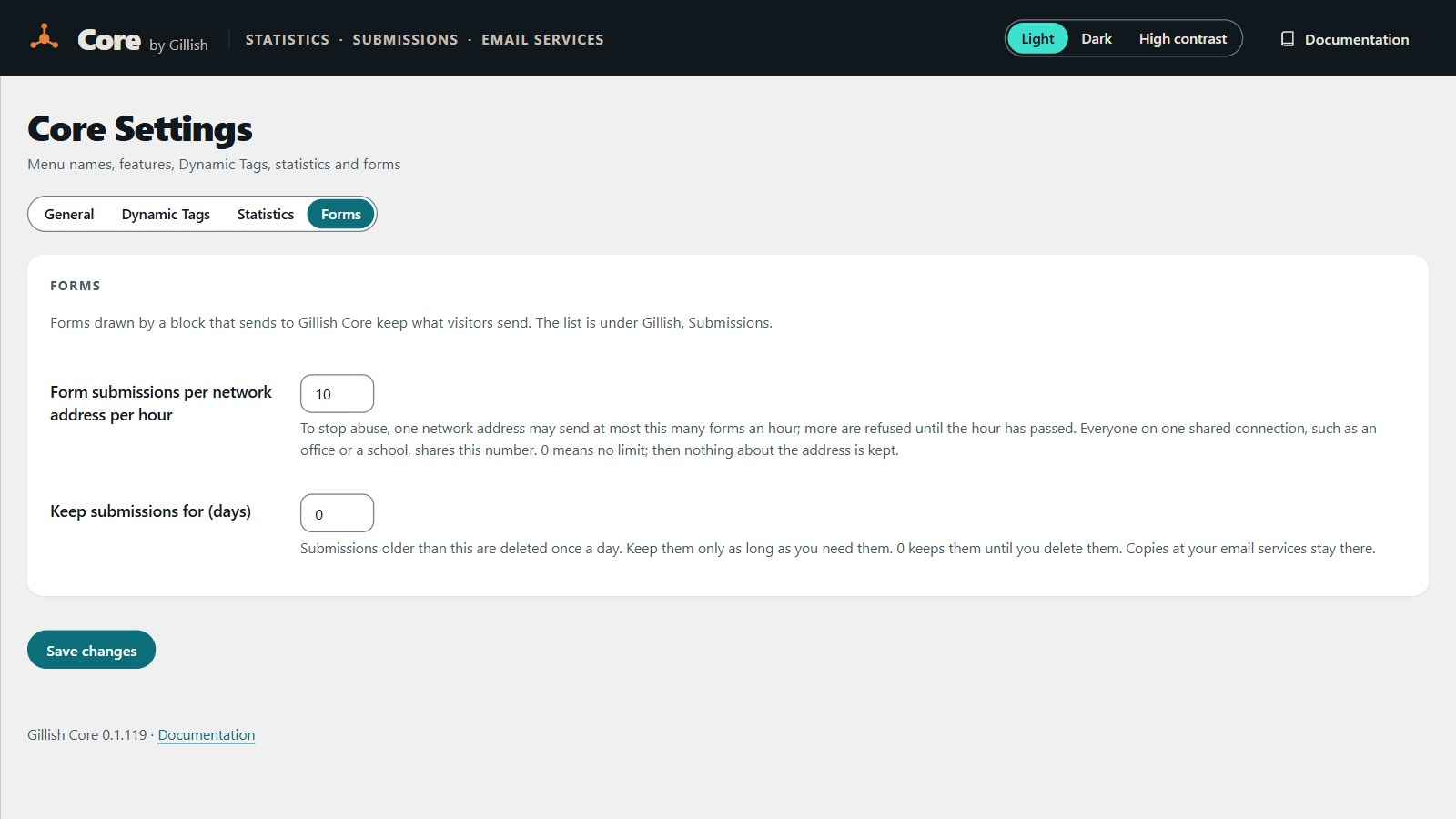
A visitor over the limit sees “Too many tries in a short time. Please wait a while and try again.” under the form, and nothing is kept. To change it back, set 10 and save. Set 0 to have no limit. Then any number of forms is taken from one address, and Core keeps nothing about the address.
Next, read Send sign-ups to your email service.