Gillish Core is free. It gives every Gillish plugin An add-on you install in WordPress to give your site new features. Gillish Cairnstone and Gillish Core are plugins. on your site one dashboard, keeps what visitors send through your forms, passes sign-ups on to your email services, and counts plays and quizzes.
Install Gillish Core
Core needs WordPress 7.0 or newer and PHP 8.3 or newer. It is free and needs no licence key.
Install Core
Download the Gillish Core zip file.
In the WordPress admin, open Plugins → Add Plugin and press Upload Plugin.
Choose the zip file and press Install Now.
Press Activate Plugin.
You now see Gillish in the menu on the left.
Update Core
Upload the new zip file the same way. WordPress sees that Core is already there and offers Replace current with uploaded. Pick it. Your settings and data stay.
Switch Core off for a while
Open Plugins and press Deactivate under Gillish Core. Everything Core keeps stays: submissions, counts, email service connections and settings. Press Activate to go on where you left off.
Remove Core for good
Deactivate it, then press Delete. Core keeps its data unless you chose otherwise under When you delete Core. If you ticked it there, this deletes submissions, counts, email service connections with their keys, and Core’s settings, and it cannot be undone. Your pages and posts stay either way, and so do the view counts stored with them (see Count post views). The light, dark or high contrast choice for the Gillish screens stays while another Gillish plugin is installed, since they share it.
Where the screens are
In the WordPress admin, open Gillish in the menu on the left. Core’s screens are there:
- Dashboard: an overview of the Gillish tools on the site, with Core’s form submissions and plays of the last 7 days.
- Statistics: how many people played each recording and video, and how many started and finished each quiz.
- Submissions: what visitors sent through a form.
- Email services: the services that new sign-ups are passed on to.
- Word list: words and their explanations for the whole site. It shows when Gillish Cairnstone is active.
- Core Settings: the settings for all of the above.
The bar at the top of every Core screen also links to Statistics, Submissions, Email services and Word list, and to Core’s Documentation.
What you need first
Get ready to collect and count
Install and activate Gillish Cairnstone next to Core.
Add Cairnstone’s Sign-up form block to a page to collect submissions, its Audio and Video blocks to count plays, and its Quiz block to count quizzes.
Core then keeps what visitors send, passes sign-ups on to your email services, and counts each recording, video and quiz.
Save a setting
Core Settings has four tabs: General, Dynamic Tags, Statistics and Forms.
Open Gillish → Core Settings and pick a tab.
Change the value.
Press Save changes at the bottom.
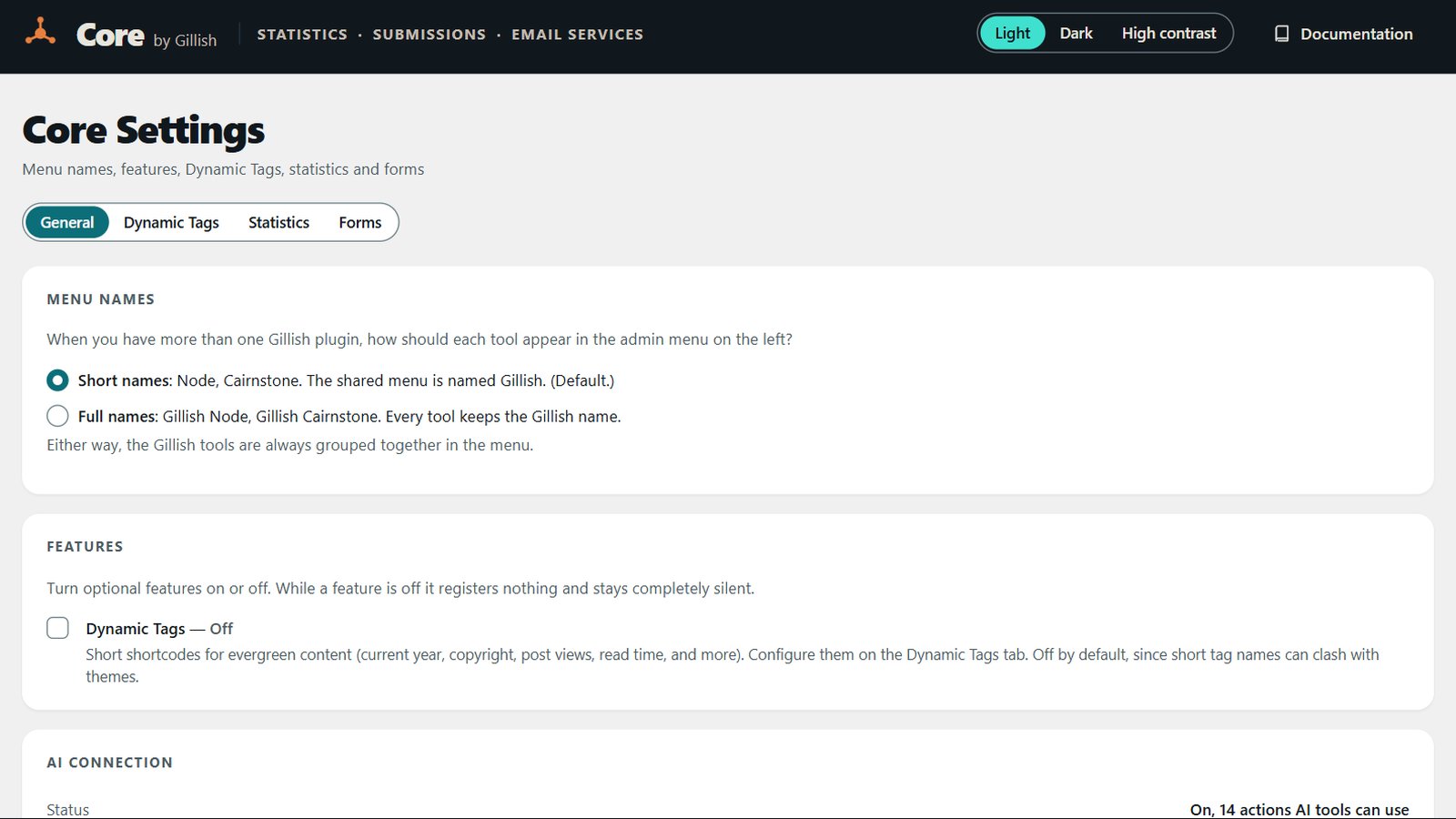
You see “Settings saved.” at the top, and you stay on the same tab. To change it back, set the old value and save again.
Next, read Collect form submissions with Gillish Core.